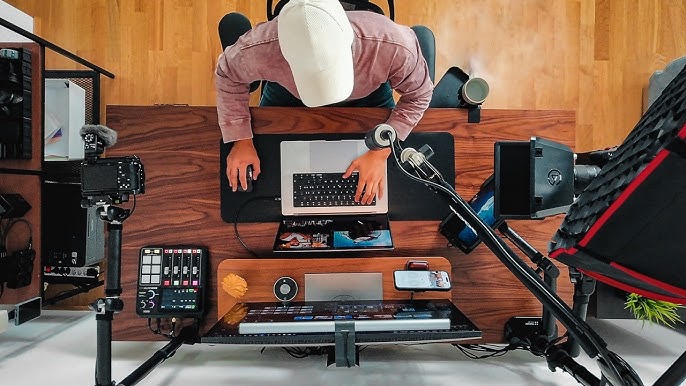
Are you tired of the tangled mess of cords, overheating gadgets, and limited space on your home desk? Setting up your electronics properly can transform your workspace from a chaotic jumble into an efficient and inviting hub.
Imagine a desk where every device has its place, cords are neatly organized, and you can focus without distractions. In this guide, you’ll discover practical tips and tricks to handle your electronics with ease. From organizing cables to choosing the right equipment, we’ll show you how to create a streamlined and productive environment.
Keep reading to turn your desk into a tech-friendly oasis that boosts your productivity and creativity.
Choosing The Right Electronics
Choosing the right electronics for your home desk setup improves comfort and productivity. Electronics should fit your space and needs. Selecting items that match your work style is key. Quality devices reduce strain and increase efficiency.
Selecting Monitors And Screens
Pick monitors with clear resolution and proper size for your desk. A larger screen helps with multitasking. Look for adjustable stands to reduce neck strain. Matte screens reduce glare and eye fatigue. Consider screen refresh rates if you do graphic work or video editing.
Picking Keyboards And Mice
Choose keyboards that feel comfortable and match your typing style. Mechanical keyboards offer tactile feedback, while membrane ones are quieter. Wireless devices free up desk space. Ergonomic designs help prevent wrist pain. Ensure your mouse fits your hand size and supports smooth movement.
Choosing Audio Devices
Good audio devices improve focus and communication. Headphones with noise cancellation block distractions. Speakers should deliver clear sound without distortion. A quality microphone is important for calls and recordings. Select devices that suit your room size and noise level.
Credit: www.youtube.com
Organizing Cables Effectively
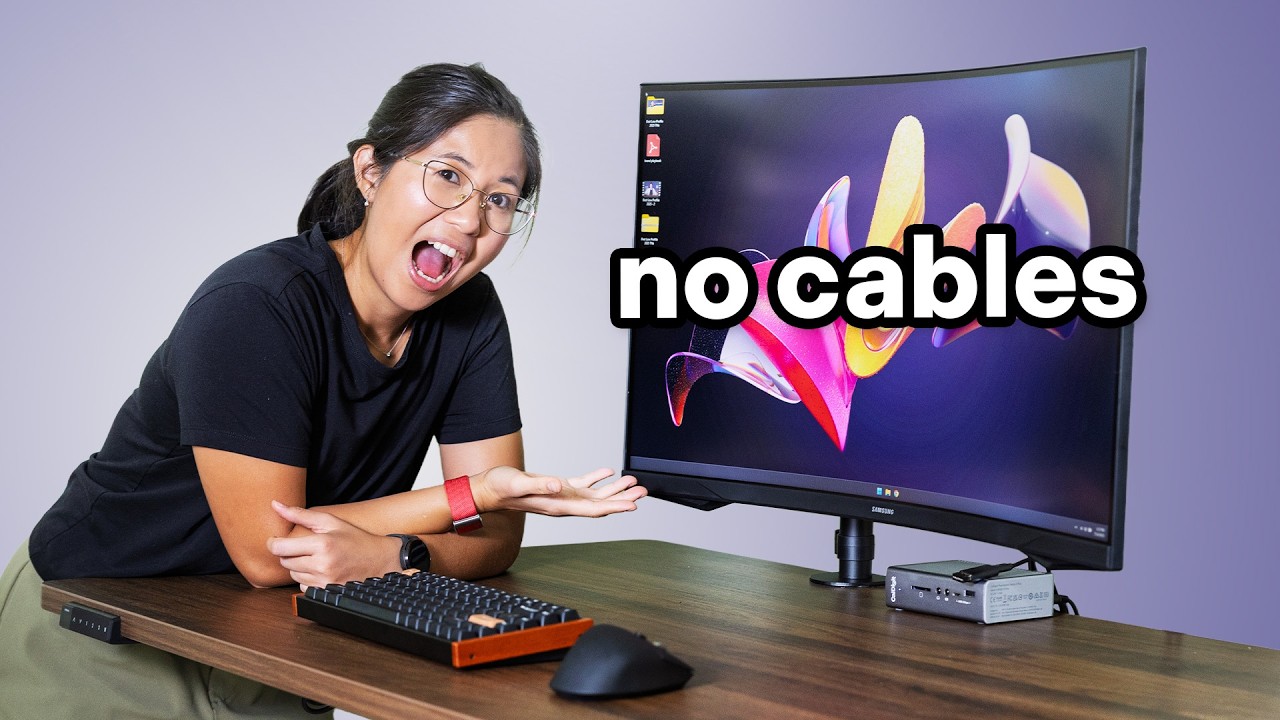
Organizing cables effectively is key to maintaining a neat and efficient home desk setup. Tangled wires not only look messy but can also create frustration and even damage your electronics. Taking control of your cables can improve your workspace’s functionality and reduce distractions.
Using Cable Management Tools
Start by gathering basic cable management tools like cable clips, sleeves, and ties. These simple accessories keep cables bundled and prevent them from sprawling across your desk.
Cable trays mounted under the desk are great for hiding power strips and excess cords. Velcro ties offer flexibility if you frequently rearrange your setup.
Think about your daily use: which cables need to be accessed often? Use clips to secure those within easy reach while hiding the rest out of sight.
Labeling And Routing Cables
Label each cable near the plug with clear, readable tags. This saves time when unplugging or troubleshooting and prevents unplugging the wrong device.
Route cables along the edges of your desk or behind furniture to keep them out of your way. Adhesive cable clips can guide wires neatly and stop them from slipping.
Ask yourself: could your cable paths be shortened to avoid tangles? Keeping cables as straight and direct as possible reduces wear and confusion.
Preventing Cable Damage
Protect your cables by avoiding sharp bends or tight loops, which can break the internal wires. Use cable protectors on edges where wires might rub against desk corners.
Unplug electronics by holding the plug, not the cable, to prevent strain. If a cable feels hot or frayed, replace it promptly to avoid hazards.
Have you ever lost hours troubleshooting a broken cable? Taking small steps to protect your wires keeps your setup safe and your devices running smoothly.
Optimizing Power Supply
Optimizing the power supply is key for a smooth home desk setup. It ensures all devices get the right amount of electricity safely. Proper power management prevents damage and keeps your workspace tidy. Focus on choosing the right equipment and arranging power sources wisely.
Choosing Surge Protectors
Surge protectors guard devices against sudden voltage spikes. Pick one with a high joule rating for better protection. Look for models with multiple outlets to plug in several gadgets. A surge protector with an indicator light shows if it works properly. Avoid cheap options; quality protectors last longer and are safer.
Arranging Power Strips
Place power strips where cables stay organized and out of sight. Avoid stacking multiple strips to reduce fire risk. Keep cords untangled to prevent trips and damage. Use adhesive clips or cable ties to bundle wires neatly. Position strips near your desk to avoid pulling plugs often.
Ensuring Safe Power Use
Do not overload outlets with too many devices. Check the total wattage of connected electronics to stay within limits. Turn off devices when not in use to save energy and reduce risk. Use certified power equipment to meet safety standards. Regularly inspect cords and plugs for wear and tear.
Maintaining Electronics
Maintaining your electronics is key to keeping your home desk setup running smoothly. Simple care routines can extend the life of your devices and prevent frustrating breakdowns. Paying attention to both hardware and software helps you avoid costly repairs and downtime.
Cleaning Tips For Devices
Dust and grime can build up quickly on screens, keyboards, and ports. Use a microfiber cloth to gently wipe surfaces without scratching them. Avoid spraying liquids directly on devices; instead, dampen the cloth slightly with water or a screen-safe cleaner.
For keyboards and mice, compressed air is great for removing debris from tight spaces. Regular cleaning not only keeps your setup looking sharp but also prevents overheating caused by blocked vents. Have you noticed how a clean keyboard feels more responsive and inviting?
Regular Software Updates
Keeping your device software up to date protects you from security risks and improves performance. Many updates include bug fixes that prevent crashes or slowdowns. Set your system to install updates automatically or remind yourself to check regularly.
Don’t overlook firmware updates for peripherals like printers or monitors—they can add new features or fix glitches. Missing updates can leave you vulnerable or stuck with outdated functionality. How often do you check for these less obvious updates?
Troubleshooting Common Issues
When devices act up, start with simple fixes: restart the device, check cables, or reconnect to the network. These quick steps resolve many problems without frustration. If a device freezes or crashes, closing unnecessary programs can free up resources.
For persistent issues, consult the device’s manual or official support website. Forums and user communities often offer solutions that work. Have you ever solved a tech problem simply by searching online for others with the same issue?
Enhancing Ergonomics
Enhancing ergonomics in your home desk setup improves comfort and reduces strain. Proper handling of electronics plays a key role in this process. Small changes in device placement can lead to big health benefits. Focus on screen position, keyboard and mouse layout, and useful accessories.
Positioning Screens Correctly
Place screens at eye level to avoid neck strain. The top of the screen should align with your eyes. Keep screens about an arm’s length away. Angle screens slightly to reduce glare. Use stands or risers to adjust height. Multiple screens should be at the same level and close together.
Adjusting Keyboard And Mouse Placement
Keep the keyboard and mouse close to your body. Your elbows should rest at a 90-degree angle. Place devices on the same surface to avoid awkward movements. Use a keyboard tray if the desk is too high. Ensure wrists stay straight during typing and mouse use. Avoid reaching or stretching for devices.
Incorporating Accessories For Comfort
Use wrist rests to support your hands and wrists. Consider a vertical mouse to reduce wrist twisting. A footrest can improve posture by supporting your feet. Desk mats add cushioning and reduce pressure points. Adjustable chairs with armrests help maintain good posture. These small additions boost comfort and reduce fatigue.

Credit: www.allpcb.com
Upgrading And Expanding Setup
Upgrading and expanding your home desk setup is an exciting way to boost productivity and tailor your workspace to your evolving needs. It’s not just about adding new gadgets; it’s about choosing the right electronics that truly enhance your workflow. Thoughtful upgrades can prevent clutter and keep your setup future-proof.
Adding External Storage
Running out of space on your computer can slow you down. Adding external storage like SSDs or hard drives gives you room for important files without overcrowding your desk. Portable options also let you easily switch between devices.
Look for drives that match your speed needs—USB-C SSDs offer quick transfers, while traditional hard drives provide more storage at a lower cost. Have you checked if your current setup supports the latest connection standards? Upgrading cables and ports can make a big difference.
Integrating Smart Devices
Smart devices are more than just trendy—they can streamline daily tasks and keep you connected. Think smart speakers for voice commands, smart lights for adjustable ambiance, or smart plugs to control devices remotely.
Start with one or two devices that solve specific problems. I added a smart plug to my desk lamp and was surprised by how much easier it made managing lighting during late-night work sessions. What small convenience could a smart device add to your workspace?
Planning For Future Upgrades
Planning ahead helps you avoid costly replacements and frustration. Consider how your needs might change in the next year or two—will you need more screens, better audio, or additional charging ports?
Keep cables organized and leave room on your desk for new devices. Modular setups, like using a monitor arm or a docking station, make it easier to swap out components without a mess. What’s one feature you might want to add soon, and how can you prepare your setup for it today?

Credit: www.youtube.com
Frequently Asked Questions
How To Organize Cables For A Clean Desk Setup?
Use cable clips, ties, or sleeves to bundle and route cables neatly. Keep power strips off the floor and label cords for easy identification.
What Electronics Are Essential For A Home Desk Setup?
A computer, monitor, keyboard, mouse, and good lighting are essential. Add a printer or speakers based on your work needs.
How To Protect Electronics From Power Surges At Home?
Use a quality surge protector or UPS to safeguard devices. Avoid overloading outlets and unplug electronics during storms for extra safety.
Where Should I Place Electronics On My Desk?
Place frequently used devices within easy reach. Keep monitors at eye level and maintain enough space for ventilation around electronics.
Conclusion
Handling electronics for a home desk setup takes care and planning. Keep wires neat and devices charged to stay organized. Choose the right tools for your needs and space. Regularly clean your gadgets to keep them working well. Small steps make your workspace safe and efficient.
A tidy desk helps you focus and work better. Simple habits keep your electronics lasting longer. Take time to set up smartly, and enjoy your workspace every day.
Leave a Reply