
Imagine walking into your home after a long day and simply saying, “Hey Google, turn on the lights.” Instantly, your living room is bathed in a warm glow.
This isn’t a scene from a sci-fi movie; it’s the reality of using Google Home to manage your electronic devices. If you’ve ever wondered how this little device can control your home with just a few words, you’re in the right place.
You’ll discover the magic behind Google Home’s ability to turn on and off your electronics. You’ll learn how it can simplify your life, save you time, and even cut down on your energy bills. Keep reading to uncover the secrets that could transform your everyday living into an effortless smart home experience.
Google Home And Smart Devices
Google Home makes controlling your electronic devices simple and hands-free. By connecting with smart devices around your home, it lets you turn things on and off with just your voice. This connection not only adds convenience but also helps you manage energy use more efficiently.
How Google Home Works
Google Home listens for your voice commands through its built-in microphone. Once it hears a command, it sends the request to Google’s cloud servers for processing. The servers interpret your request and send a signal back to the smart device to perform the action.
This process happens in seconds, making it feel like you are directly controlling your devices. For example, saying “Hey Google, turn off the living room light” triggers a quick response that switches the light off immediately.
Types Of Compatible Devices
Google Home works with a wide range of smart devices designed to connect to your Wi-Fi network. These include:
- Smart Lights:Brands like Philips Hue and LIFX let you control brightness and color.
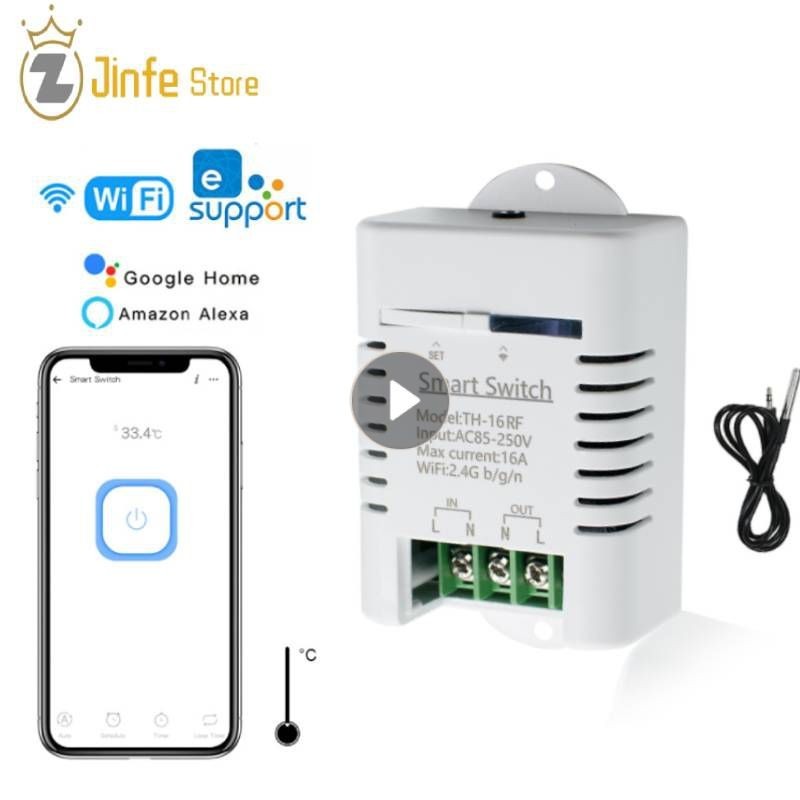
- Smart Plugs:These plugs allow you to control traditional devices by turning their power on or off.
- Smart Thermostats:Devices such as Nest help you adjust your home temperature by voice.
- Smart TVs and Speakers:Control volume, switch channels, or power on and off.
Have you ever thought about which devices in your home could become smarter with just a simple voice command? Even items you don’t expect can often be controlled through smart plugs connected to Google Home.
Credit: rok-trees.no
Setting Up Google Home For Device Control
Setting up Google Home for device control is simple and quick. It lets you manage electronic devices by voice commands. You can switch lights, fans, and other gadgets on or off without moving. The key is to connect smart devices properly to your Google Home system. Once set up, controlling your home becomes effortless and hands-free.
Connecting Smart Plugs And Switches
Smart plugs and switches are the bridge between Google Home and your devices. Plug the smart plug into a power outlet. Then, connect your electronic device to this plug. For smart switches, replace your existing wall switch with the smart one. Ensure the smart device supports Google Assistant. This step allows Google Home to send commands to the device.
Power on the smart plug or switch. It will usually enter setup mode automatically. If not, follow the manufacturer’s instructions to enable it. This prepares the device for connection with your Google Home.
Using The Google Home App
Open the Google Home app on your phone or tablet. Make sure your phone is on the same Wi-Fi as your Google Home. Tap the “+” icon to add a new device. Choose “Set up device” and then “Works with Google.”
Find the brand of your smart plug or switch in the list. Sign in to your device account to link it with Google Home. Once linked, your smart device appears in the app. You can assign it to a room and give it a name.
Test the setup by saying, “Hey Google, turn on [device name].” Your device should respond immediately. This confirms the setup is complete and working properly.
Voice Commands To Control Electronics
Google Home lets you control electronic devices using simple voice commands. This hands-free approach adds comfort and ease to daily tasks. It works by connecting to smart plugs, bulbs, or other compatible gadgets.
You speak directly to Google Home, and it sends signals to the devices. The process is quick and efficient. No need to find switches or remote controls.
Turning Devices On
To turn a device on, speak clearly to Google Home. Use commands like:
- “Hey Google, turn on the living room light.”
- “Hey Google, switch on the fan.”
- “Hey Google, power on the TV.”
Google Home recognizes the device name and acts instantly. It works with many smart devices connected to your home network.
Turning Devices Off
Turning off electronics is just as easy. Use commands such as:
- “Hey Google, turn off the kitchen light.”
- “Hey Google, switch off the air conditioner.”
- “Hey Google, power down the heater.”
These commands help save energy and add convenience. You never have to leave your seat to control devices.
Customizing Commands
Personalize voice commands to suit your style. Google Home allows custom names for devices. For example:
- Rename “bedroom lamp” to “reading light.”
- Use phrases like “activate” or “deactivate.”
- Create routines combining multiple actions.
Custom commands make voice control more natural and fun. Tailor it to match your daily habits.
Automating Device Control
Automating device control with Google Home transforms your daily routine into a seamless experience. Instead of manually switching your devices on or off, you can set up automatic triggers that fit your lifestyle. This hands-free convenience saves time and adds a layer of smart efficiency to your home.
Creating Routines
Routines let you group multiple actions into a single voice command or scheduled event. You can create a routine to turn off all your lights and electronic devices when you say, “Good night.”
- Open the Google Home app and tap on Routines.
- Choose to add a new routine and set a trigger phrase or time.
- Add actions like turning off smart plugs, lights, or other connected devices.
Imagine walking out of the house and saying, “I’m leaving,” and Google Home powers down your coffee maker, TV, and lamps all at once. This personalized control makes your smart home truly responsive to your habits.
Scheduling Device Actions
Google Home also allows you to schedule specific times to turn devices on or off automatically. This is perfect for managing devices like heaters, fans, or garden lights without lifting a finger.
- Use the Google Home app to select a device and set a schedule.
- Choose the days and exact times for the device to activate or deactivate.
- Adjust schedules easily to suit changes in your routine.
Have you ever forgotten to turn off the porch light? Scheduling takes that worry away by handling it for you. This ensures your devices run only when needed, helping reduce energy waste and lower bills.
Troubleshooting Device Control Issues
Troubleshooting device control issues with Google Home can be frustrating, especially when your smart home setup doesn’t respond as expected. Understanding common problems and ensuring your devices are compatible can save you time and stress. Let’s dive into practical ways to get your devices working smoothly with Google Home voice commands.
Common Problems And Fixes
Sometimes, Google Home doesn’t turn your devices on or off as you ask. This often happens due to connectivity problems or incorrect settings.
- Wi-Fi Connection Issues:Your Google Home and smart devices must be on the same Wi-Fi network. Double-check your network settings if commands fail.
- Device Not Linked:Ensure your smart device’s account is linked to Google Home through the Google Home app.
- Incorrect Device Names:Google Home might not recognize commands if device names are confusing or too similar. Use simple, distinct names like “Living Room Lamp” or “Kitchen Fan.”
- Outdated Software:Both your Google Home and smart devices need up-to-date firmware. Update them regularly to avoid compatibility issues.
Once, my smart plug wouldn’t respond, and it turned out my router had reset to a guest network. Fixing the Wi-Fi connection immediately restored control. What small detail might you be overlooking right now?
Ensuring Device Compatibility
Not all electronic devices work seamlessly with Google Home. Before buying new smart devices, check compatibility carefully.
- Look for “Works with Google Assistant” on packaging or product descriptions.
- Confirm if the device supports the specific commands you want, like turning off or on remotely.
- Check if the device requires a hub or bridge; some smart devices need extra hardware to connect with Google Home.
Sometimes, a device might work with Alexa but not Google Home. Have you checked the manufacturer’s website or user forums for compatibility info? This step can prevent future headaches.

Credit: gilafol.sk
Enhancing Smart Home Experience
Enhancing your smart home experience means making everyday tasks simpler and more efficient. Google Home acts as the central hub for controlling your electronic devices with just your voice. This hands-free control saves time and adds convenience, letting you focus on what really matters.
Integrating Multiple Devices
Google Home lets you connect various smart devices, such as lights, thermostats, and plugs, into one system. Once linked, you can turn devices on or off with simple commands like “Hey Google, turn off the living room lights.”
This integration means you don’t have to juggle multiple apps or remotes. You can even create routines that control several devices at once, like powering down your entire home when you say “Good night.”
- Control lighting, fans, and appliances together
- Set schedules to automate your devices
- Receive alerts if something is left on
Using Google Home With Other Smart Systems
Google Home works smoothly with popular smart systems like Philips Hue, Nest, and TP-Link. This compatibility extends your control options and lets your devices communicate with each other.
For example, you can link your Google Home with a Nest thermostat to adjust your home’s temperature as you enter or leave. This interaction not only saves energy but also keeps your environment comfortable without manual adjustments.
Have you tried syncing your Google Home with different brands? You might find new ways to customize your smart home setup that fit your lifestyle perfectly.
Credit: www.youtube.com
Frequently Asked Questions
How Does Google Home Control Electronic Devices?
Google Home controls devices via smart plugs, hubs, or compatible smart appliances. It uses Wi-Fi to send commands. You can turn devices on or off using voice commands or the Google Home app.
What Devices Can Google Home Turn On And Off?
Google Home can control smart bulbs, plugs, switches, and smart home hubs. These devices must be compatible with Google Assistant for seamless operation.
Do I Need Extra Hardware For Google Home Control?
Yes, most electronic devices require smart plugs or hubs to connect with Google Home. These accessories act as intermediaries for non-smart devices.
How To Set Up Google Home For Device Control?
Connect your smart device to Wi-Fi, then link it with Google Home app. Follow setup instructions to enable voice commands and device control.
Conclusion
Google Home makes controlling devices simple and fast. Just a voice command turns devices on or off. It works with smart plugs and compatible gadgets. No need to get up or find switches. This helps save time and energy every day.
Setting it up is easy and anyone can do it. Smart living feels more comfortable and connected. Try it to see how your home changes. Convenience is just a few words away.
Leave a Reply