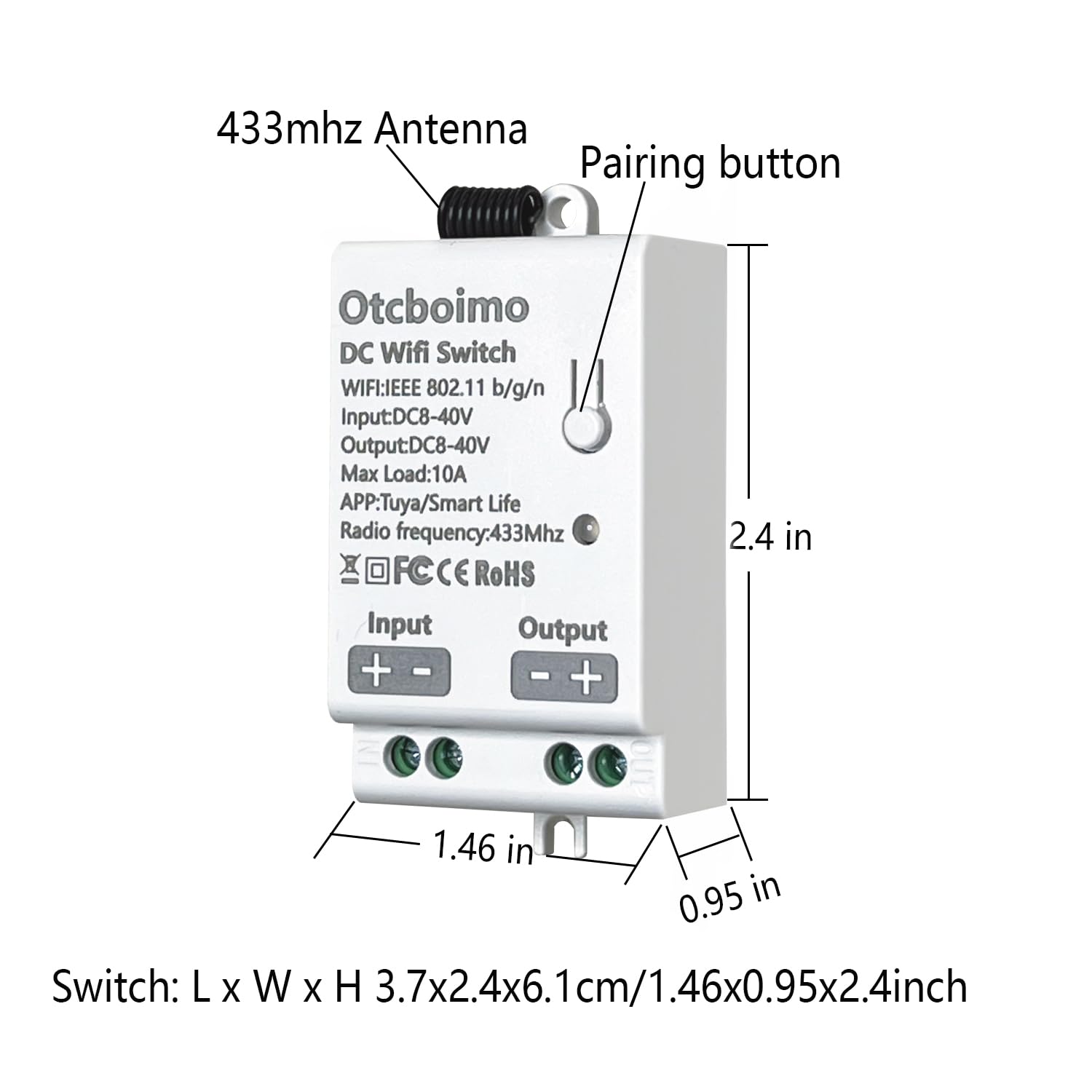
Imagine the convenience of controlling your electronics with just your voice. With Google Home, that dream is now a reality.
Picture this: you’re comfortably seated on your couch, and instead of getting up to turn on the lights or the TV, you simply say a command, and voilà, it’s done. Sounds enticing, right? In this guide, you’ll discover how to easily set up and use Google Home to manage your electronics effortlessly.
Stick with us, and soon you’ll be the master of your smart home, unlocking a world of convenience and efficiency. Ready to transform your living space? Let’s dive in!
Set Up Google Home
Setting up Google Home is the first step to easily control your electronics with voice commands. It’s a simple process that connects your device to your network and links it to your Google account. Once set up, you can ask Google Home to turn on lights, start your coffee maker, or even power up your TV.
Connect To Wi-fi
Your Google Home device needs a stable Wi-Fi connection to work properly. Make sure your phone or tablet is connected to the Wi-Fi network you want Google Home to use.
During setup, the app will prompt you to select your Wi-Fi network and enter the password. Without this connection, Google Home won’t be able to communicate with your smart devices or the internet.
Download Google Home App
You must have the Google Home app installed on your smartphone or tablet. It’s available for free on both the Google Play Store and Apple App Store.
The app guides you through the entire setup process and manages your devices. Having the app ready before you start makes the setup faster and smoother.
Link Google Account
To personalize your experience, link your Google account to the Google Home app. This allows Google Home to recognize your voice and access your calendars, reminders, and preferences.
Once linked, you can control devices with personalized commands and get tailored responses. Think about how much easier it is to ask, “Hey Google, turn on my living room lights,” and have it happen instantly.

Credit: www.youtube.com
Choose Compatible Devices
Choosing compatible devices is the first step to successfully turning on electronics with Google Home. Not every device works seamlessly with Google’s smart assistant, so picking the right ones saves you time and frustration. Think about the devices you already have and which ones you want to control hands-free.
Smart Plugs
Smart plugs are a simple way to make almost any electronic device Google Home-compatible. You just plug your device into the smart plug, then connect the plug to your Wi-Fi and Google Home app. I once set up a smart plug for my coffee maker; now, I say “Hey Google, turn on the coffee” and it starts brewing before I even get out of bed.
Look for smart plugs that support Google Assistant explicitly. Popular brands like TP-Link Kasa, Wemo, and Amazon Smart Plug are reliable choices. They usually come with easy-to-follow instructions and apps that sync effortlessly with Google Home.
Smart Lights
Smart lights are another popular choice for voice control through Google Home. You can adjust brightness, change colors, or turn lights on and off without lifting a finger. Philips Hue and LIFX are great examples; they offer a wide range of bulbs that connect directly to Google Home.
Before buying, check if the bulbs require a separate hub or if they connect directly to Wi-Fi. A hub adds complexity but can support more devices in the long run. Have you tried changing your room’s mood with just your voice? It’s surprisingly satisfying.
Smart Switches
If you want to control built-in fixtures like ceiling lights or fans, smart switches are the way to go. Unlike smart plugs, they replace your existing wall switches and connect to your home Wi-Fi. This means you can control the entire circuit with Google Home.
Brands like Lutron Caséta and Leviton offer smart switches that work well with Google Assistant. Installation might require a bit of wiring, so you may want to call an electrician if you’re not comfortable working with electrical systems. Imagine turning off all your lights with a single voice command as you head out the door—it’s a game changer.
Connect Devices To Google Home
Connecting your devices to Google Home is the first essential step to control electronics effortlessly with your voice. This process lets you manage lights, plugs, TVs, and more through simple commands. Once set up, you’ll wonder how you ever lived without it.
Add Devices In App
Start by opening the Google Home app on your phone. Tap the “+” icon to add a new device, then select “Set up device.” You’ll see options to add devices already on your network or link smart home services.
Make sure your device is powered on and connected to the same Wi-Fi network as your phone. The app will guide you through recognizing and adding the device, usually within a few taps. It’s surprisingly quick—my smart plug was ready to use in under five minutes.
Authorize Device Access
Once you add a device, you often need to authorize Google Home to control it. This means logging into the device’s service account through the app. For example, smart lights like Philips Hue require you to sign in and grant permissions.
This step ensures your privacy and security while allowing Google Home to send commands on your behalf. If you skip it, your device won’t respond to voice commands, which can be frustrating when you expect instant control.
Assign Devices To Rooms
After connecting and authorizing devices, organizing them by rooms enhances your voice control experience. You can assign each device to a specific room within the Google Home app.
This makes commands more natural. Instead of saying, “Turn off the living room lamp,” you can simply say, “Turn off the lamp,” and Google Home will know which lamp you mean. I found this especially useful when I added multiple smart bulbs across different rooms.

Credit: www.reddit.com
Use Voice Commands
Using voice commands with Google Home makes controlling electronics simple and fast. Speak to your device to switch appliances on or off without moving. This hands-free method saves time and adds convenience to daily routines.
Turn Devices On And Off
Say commands like “Hey Google, turn on the lamp” or “Hey Google, turn off the fan.” Google Home will respond instantly. It works with smart plugs, lights, and other connected devices. No need to find switches or remotes.
Control Multiple Devices
Manage several devices together using one command. For example, say “Hey Google, turn off all the lights.” Google Home will switch off every connected light in your home. This feature helps save energy and simplifies control.
Set Routines For Automation
Create routines to automate device control. You can set a routine like “Good morning” to turn on lights and play music. Routines work with multiple devices and actions at once. This makes daily tasks easier and more enjoyable.
Troubleshoot Common Issues
Troubleshooting common issues helps keep your Google Home devices working smoothly. Problems can stop your electronics from turning on as expected. Knowing how to fix these issues saves time and frustration.
Device Not Responding
Check if the device is powered on and plugged in correctly. Restart the device to refresh its connection. Confirm the device supports Google Home commands. Update the device firmware if updates are available. Remove and re-add the device in the Google Home app to reset settings.
Connectivity Problems
Ensure your Google Home and electronic device connect to the same Wi-Fi network. Restart your router to fix network glitches. Move devices closer to the router to improve signal strength. Disable any VPNs or firewalls that might block connections. Use the Google Home app to check device status and network health.
Voice Command Errors
Speak clearly and use simple commands recognized by Google Home. Check microphone settings on your Google Home device. Train Google Assistant to better understand your voice through the app. Avoid background noise that can interfere with voice recognition. Review command phrases in the Google Home app for accuracy and compatibility.
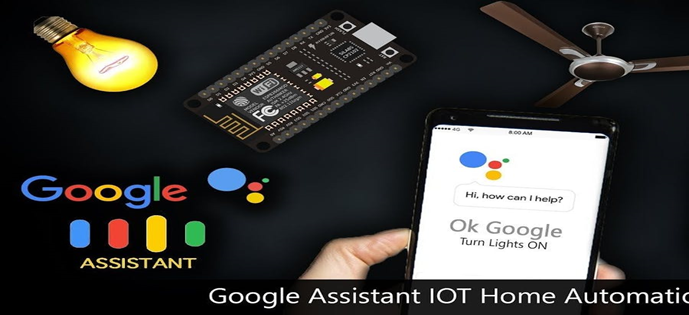
Credit: shradhaparkhi.medium.com
Enhance Smart Home Experience
Enhancing your smart home experience with Google Home goes beyond just turning on electronics. It’s about creating a seamless, personalized environment that reacts exactly how you want it to. When your devices work together smoothly, your daily routines become easier and more enjoyable.
Integrate With Other Services
Google Home connects with a wide range of services like Spotify, Philips Hue, and Nest. This means you can control your lights, music, thermostat, and even security cameras with a single voice command. Imagine saying, “Hey Google, movie time,” and having your lights dim, TV turn on, and sound system start playing instantly.
Have you tried linking your Google Home with IFTTT? It lets you create custom triggers that make your smart home even smarter. For example, you can set your coffee maker to start brewing as soon as your morning alarm goes off. What smart combination could simplify your routine?
Customize Voice Responses
Google Home’s voice responses can be tailored to suit your style and preferences. You can set up personalized routines where Google gives you weather updates, traffic reports, or even your daily agenda as part of a morning briefing. This makes interactions feel more natural and helpful.
Try changing the assistant’s voice to one you find pleasant or even funny. It might sound like a small tweak, but it adds a layer of comfort when you interact with your devices. How would a friendly or humorous response change your daily experience?
Explore Advanced Automation
Using Google Home with smart plugs, sensors, and apps, you can create advanced automation that reacts to your lifestyle. For instance, lights can turn off automatically when you leave the house, or your thermostat can adjust based on the time of day. These smart triggers save energy and add convenience.
Consider setting up location-based commands. When you arrive home, your smart system could unlock doors, turn on the lights, and start playing your favorite playlist. What automation could make your life feel less like a chore and more like a luxury?
Frequently Asked Questions
How Do I Connect Devices To Google Home?
To connect devices, open the Google Home app. Tap “Add,” then “Set up device. ” Follow prompts to link smart electronics. Ensure devices support Google Assistant for smooth integration.
Can Google Home Turn On Non-smart Electronics?
Google Home cannot directly power non-smart electronics. Use smart plugs or smart power strips to control regular devices via Google Home voice commands.
What Voice Commands Activate Electronics On Google Home?
Say commands like “Hey Google, turn on the TV” or “Hey Google, switch on the lamp. ” Use simple, clear phrases linked to your smart devices.
Is A Wi-fi Connection Necessary For Google Home Control?
Yes, a stable Wi-Fi connection is essential. It allows Google Home to communicate with your smart devices and execute commands reliably.
Conclusion
Controlling your electronics with Google Home is simple and handy. Just connect your devices and give voice commands. This saves time and makes daily tasks easier. No need to find switches or remote controls anymore. Start with a few devices and add more as you go.
Enjoy a smarter, more convenient home today. Small steps lead to big changes in how you live. Try it out and feel the difference yourself.
Leave a Reply