
Imagine walking into your home and having everything respond to your voice commands. Sounds like a dream, right?
With the Amazon Echo Dot, this dream can be your reality. Setting up your Echo Dot to control your smart home devices is easier than you think. You don’t need to be a tech wizard to get started. In just a few simple steps, you can have your lights, thermostat, and even your coffee maker obeying your every command.
Are you ready to transform your living space into a futuristic haven of convenience? Keep reading to discover how you can set up your Echo Dot and make your home smarter, effortlessly.
Choosing The Right Echo Dot Model
Choosing the right Echo Dot model is key to building a smart home that fits your needs. Amazon offers various versions, each with unique features and capabilities. Understanding the differences helps you pick the best device for your space and lifestyle.
Focus on what features matter most, such as sound quality, display options, or smart home control. Also, check if the device works well with your existing gadgets. This ensures smooth operation and a better user experience.
Comparing Echo Dot Versions
Amazon has released several Echo Dot models over the years. The main versions include the 3rd, 4th, and 5th generation. The 3rd generation has a fabric design and decent speaker quality.
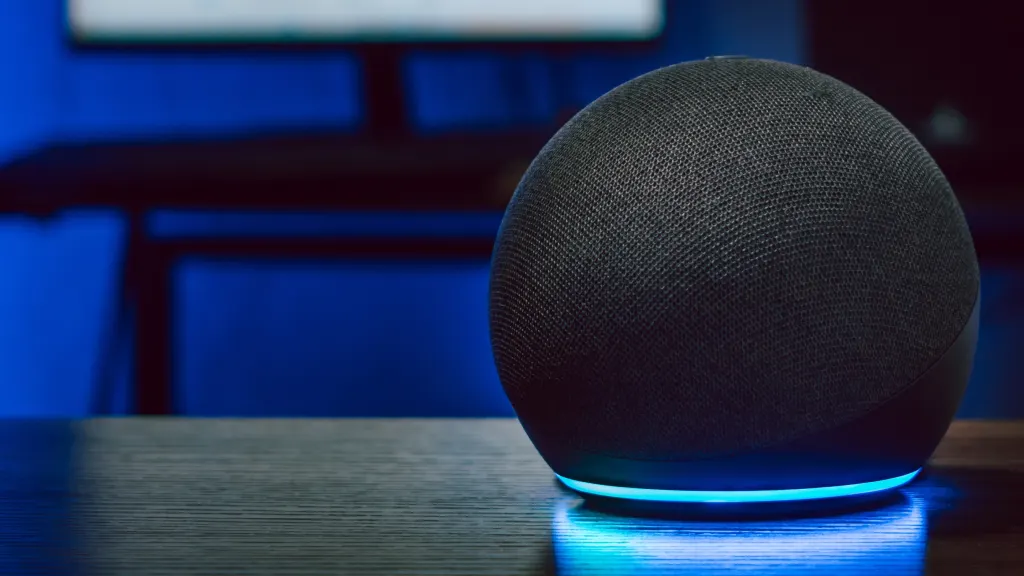
The 4th generation features a spherical shape and improved sound. The 5th generation offers even better audio and a more responsive microphone.
Some models come with a clock display, which shows time and timers clearly. Others focus purely on audio performance or compact design.
Selecting Based On Features
- Sound quality: Choose higher generations for clearer and louder audio.
- Display: Pick models with LED clock if you want visual information.
- Smart home control: All Echo Dots support Alexa, but some include better microphones for voice recognition.
- Portability: Some Echo Dots have batteries for wireless use, while others need to be plugged in.
Considering Compatibility
Check if the Echo Dot works with your smart home devices. Most Echo Dots connect with popular brands like Philips Hue, TP-Link, and Ring.
Make sure your Wi-Fi network supports the device. A stable connection is important for smooth voice commands.
Also, review the Alexa app compatibility with your smartphone. The app controls settings and device setup easily.
Preparing For Setup
Preparing your Amazon Echo Dot for setup is essential for a smooth start. This stage ensures your device connects properly and works as expected. Taking time to prepare saves frustration during installation.
Check key items before beginning. Confirm your Wi-Fi details, have your smartphone ready, and set up your Amazon account. These steps make the setup process faster and easier.
Checking Wi-fi Requirements
The Echo Dot needs a stable Wi-Fi connection to work. Verify your network uses 2.4 GHz or 5 GHz frequency. The router should be close enough for a strong signal.
Gather your Wi-Fi name (SSID) and password. Keep these details handy during setup. Avoid public or guest networks that might block device connections.
Downloading The Alexa App
The Alexa app controls your Echo Dot. Download it from the Apple App Store or Google Play Store. The app guides you through device setup and management.
Make sure your phone has enough storage and a good internet connection to download the app. Open the app after installation to get started.
Creating Or Logging Into Amazon Account
Your Amazon account links your Echo Dot to your services and settings. Create a new account if you don’t have one. Use a valid email address and strong password.
If you already have an account, log in using your credentials. This step is necessary to access Alexa features and personalize your device.
Step-by-step Echo Dot Setup
Setting up your Amazon Echo Dot is simple and quick. Follow these clear steps to get your smart device ready for use. Each step ensures the Echo Dot connects properly and works smoothly with your home network.
Plugging In Your Echo Dot
Start by placing your Echo Dot on a flat surface near a power outlet. Use the included power adapter to plug the device into the outlet. The light ring on the Echo Dot will turn blue, then orange, signaling it is ready for setup.
Connecting To Wi-fi
Open the Alexa app on your smartphone or tablet. Make sure your phone is connected to your home Wi-Fi network. In the app, select your Echo Dot from the device list. Follow the prompts to connect the Echo Dot to your Wi-Fi. Enter your Wi-Fi password carefully to avoid errors. The Echo Dot will confirm when it connects successfully.
Customizing Device Settings
Personalize your Echo Dot through the Alexa app settings. Choose your preferred language and location. Set up your voice profile for better responses. Adjust volume and sound preferences to your liking. Enable skills and connect smart home devices for added convenience. These settings help make your Echo Dot more useful every day.

Credit: www.youtube.com
Linking Smart Home Devices
Linking your smart home devices to the Amazon Echo Dot creates a seamless experience, allowing you to control multiple gadgets effortlessly. It’s more than just connecting devices; it’s about setting up a system that listens and responds exactly how you want. Have you ever wished you could manage your lights, thermostat, and security cameras all from one place? That’s exactly what linking smart devices can do for you.
Adding Compatible Devices
Start by opening the Alexa app on your phone. Head to the “Devices” section and tap “Add Device.”
Choose the type of device you want to connect, such as lights, plugs, or cameras. Alexa supports many popular brands like Philips Hue, TP-Link, and Ring.
Follow the on-screen instructions to put your device into pairing mode. Once connected, your device will appear in the app, ready for control through your Echo Dot.
Grouping Devices For Control
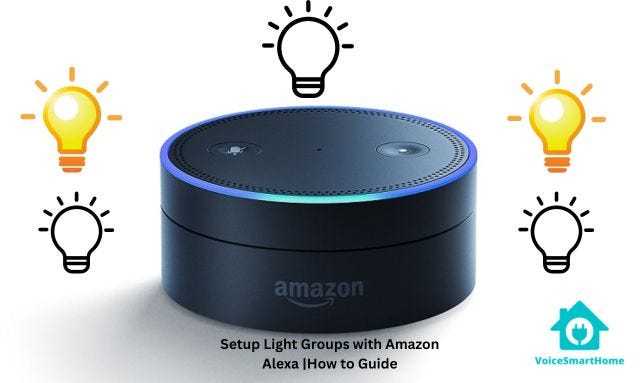
Grouping devices lets you control multiple gadgets with a single command. For example, create a group called “Living Room” that includes your smart bulbs, speakers, and thermostat.
In the Alexa app, tap “Groups” under the Devices tab, then “Create Group.” Select the devices you want to include.
Grouping saves time and reduces the number of voice commands you need to remember. Wouldn’t it be easier to say “Alexa, turn off the living room” instead of naming each device?
Setting Up Voice Commands
Voice commands are where your Echo Dot truly shines. Customize commands by creating routines in the Alexa app.
Go to “Routines,” tap the plus icon, and set a trigger phrase like “Good morning.” Then add actions such as turning on lights or reading the news.
Try making commands natural and easy to say. The more you personalize your voice commands, the more intuitive your smart home feels.
Troubleshooting Common Issues
Setting up your Amazon Echo Dot should be simple. Still, some common problems may slow you down. Troubleshooting these issues helps your device work smoothly. This guide covers key problems and easy fixes.
Wi-fi Connection Problems
Wi-Fi issues often cause Echo Dot setup failures. Check your router’s signal strength near the device. Move the Echo Dot closer to the router to improve connection. Restart your router to refresh the network. Ensure your Wi-Fi password is correct in the Alexa app. Disable any VPN or firewall that might block the connection.
Alexa App Glitches
The Alexa app controls your Echo Dot. Sometimes, the app may freeze or crash. Close the app completely and reopen it. Clear the app cache in your phone’s settings. Update the app to the latest version available. Reinstall the app if problems continue. Confirm your phone’s operating system supports the app.
Device Not Responding
Your Echo Dot might not react to voice commands. Check if the microphone button is off. Press the button to enable voice listening. Restart the Echo Dot by unplugging and plugging it back. Make sure the device’s volume is turned up. Reset the Echo Dot to factory settings if needed. This step solves many unresponsive issues.
Credit: medium.com
Tips For Enhancing Your Smart Home
Enhancing your Amazon Echo Dot smart home setup boosts convenience and efficiency. Small changes can make your device smarter and your life easier. Explore simple tips to get more from your Echo Dot every day.
Using Routines For Automation
Routines let your Echo Dot perform multiple actions with one command. Create custom routines to automate daily tasks. For example, say “Good morning” to turn on lights and start the news.
Use the Alexa app to build routines:
- Choose a trigger like a voice command or time of day.
- Select actions such as playing music or adjusting smart devices.
- Save and test the routine for smooth operation.
Automation saves time and makes your home respond to your needs.
Integrating With Other Services
Connect your Echo Dot with other smart home platforms for better control. Link services like Philips Hue, SmartThings, or Nest to centralize device management.
Alexa skills enable extra features and integrations. Enable skills in the Alexa app to expand your Echo Dot’s functions.
Use voice commands to control multiple devices at once. Integration helps your smart home work as a team.
Maintaining Privacy And Security
Protect your smart home by managing privacy settings regularly. Review voice recordings and delete unwanted clips in the Alexa app.
Use the mute button on your Echo Dot to disable the microphone easily. This stops Alexa from listening until you turn it back on.
Set strong passwords for your Amazon account and Wi-Fi network. Regular updates keep your device secure from threats.
Safe practices ensure your smart home stays private and trustworthy.
Credit: www.asurion.com
Frequently Asked Questions
How Do I Connect My Echo Dot To Wi-fi?
To connect your Echo Dot, open the Alexa app and go to Devices. Select your Echo Dot and choose Wi-Fi Network. Enter your Wi-Fi password, then wait for the device to connect. Ensure your phone is on the same network during setup.
How Do I Link Smart Home Devices To Echo Dot?
In the Alexa app, go to Devices, then tap Add Device. Choose the device type and brand. Follow on-screen instructions to link the device. Ensure your smart device is powered on and connected to the same Wi-Fi as Echo Dot for smooth integration.
Can I Use Multiple Echo Dots In One Home?
Yes, you can use multiple Echo Dots. Use the Alexa app to group devices by room. This allows multi-room music playback and seamless control of your smart home devices from any Echo Dot.
How Do I Reset My Echo Dot For Setup?
Press and hold the action button on your Echo Dot for 25 seconds. Wait for the light ring to turn orange, indicating reset mode. Then, reopen the Alexa app to start the setup process from scratch.
Conclusion
Setting up your Amazon Echo Dot is simple and quick. Follow the steps carefully for the best results. Connect it to Wi-Fi and link your Amazon account. Explore voice commands to control your smart home devices easily. Enjoy hands-free help with music, news, and reminders.
Keep the device updated for smooth performance. With practice, using your Echo Dot becomes natural and fun. Start your smart home journey today with confidence.
Leave a Reply