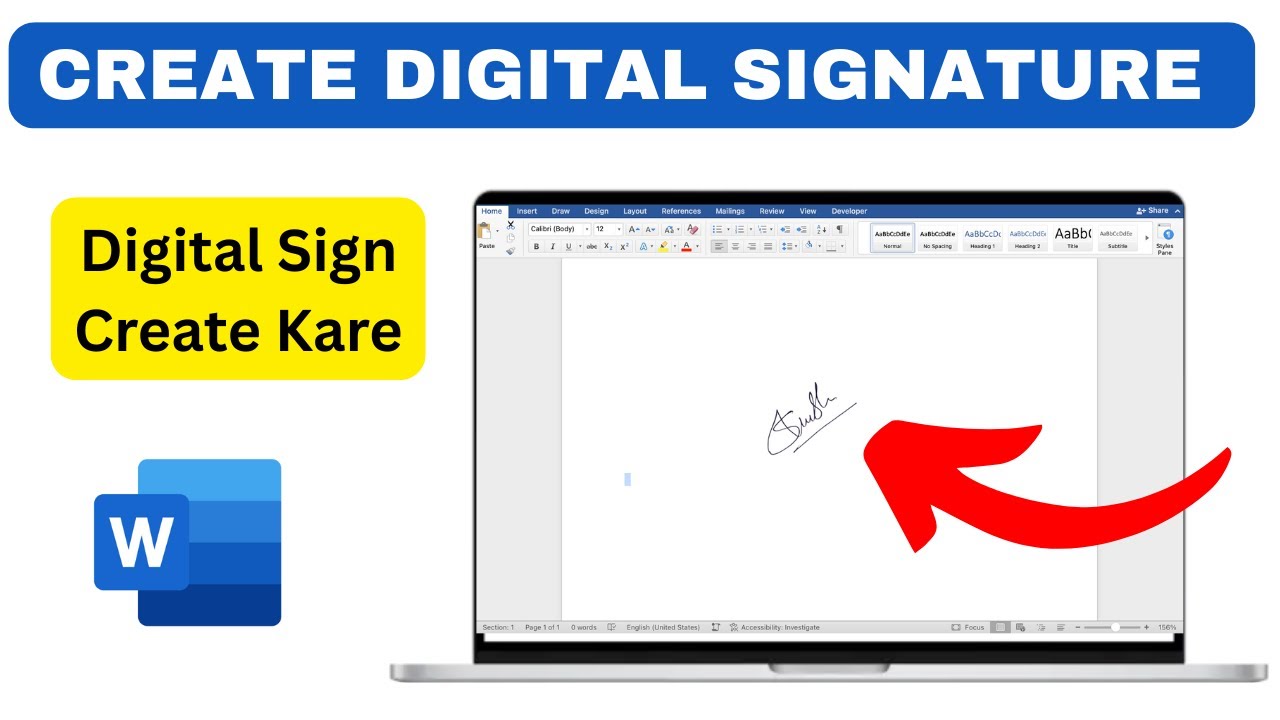
Imagine a world where you never have to print, sign, scan, and email documents again. Setting up an electronic signature for home use can make this dream a reality.
With just a few clicks, you can sign contracts, approve documents, and handle paperwork right from your computer or smartphone. This isn’t just a convenience—it’s a game-changer that saves time and reduces stress. You might be wondering if it’s complicated or if you need special equipment.
The truth is, it’s easier than you think. By the end of this guide, you’ll have everything you need to create and use your own electronic signature effortlessly. Ready to discover how this simple tool can transform the way you handle your daily tasks? Let’s get started!
Choosing The Right E-signature Tool
Choosing the right e-signature tool is crucial for a smooth and secure signing experience at home. The market offers many options, but not all fit every need or budget. Understanding what each tool provides helps you pick one that balances ease of use, security, and cost.
Popular E-signature Platforms
Several e-signature platforms stand out for their reliability and features. DocuSignis widely trusted for both personal and professional use. Adobe Signintegrates well with other Adobe products, making it ideal if you already use Adobe tools.
Smaller but effective platforms like SignNowand PandaDocoffer user-friendly interfaces and good customer support. You might also explore HelloSignif you want a straightforward, no-frills option.
Key Features To Look For
Focus on features that make signing easy and secure. Look for:
- User-friendly interface:You want to sign documents quickly without confusion.
- Security:Check for encryption and compliance with legal standards like eIDAS or ESIGN Act.
- Compatibility:The tool should work smoothly on your devices, whether it’s a phone, tablet, or computer.
- Integration:If you use cloud storage or email services, see if the e-signature tool connects with them.
- Audit trails:This keeps a record of who signed and when, which is essential for legal proof.
Free Vs Paid Options
Many e-signature tools offer free plans that cover basic needs. These usually allow a limited number of signatures per month and fewer features. If you only sign a few documents occasionally, a free plan might be enough.
Paid plans unlock advanced features like bulk sending, custom branding, and more storage. Consider how often you sign documents and the importance of added security before upgrading. Is the convenience worth the cost to you?

Credit: www.docusign.com
Creating Your Electronic Signature
Creating your electronic signature is the first step to making your documents legally binding and convenient to handle from home. It’s more than just a digital scribble; it’s a reflection of your identity and professionalism. How you create it can affect not only the look but also how easily you can use it across different platforms.
Drawing Vs Typing Your Signature
Would you rather draw your signature as if you were signing on paper, or type it out and choose a font that resembles your handwriting? Drawing lets you keep your personal touch. Typing, on the other hand, offers consistency and speed.
Drawing your signature might feel more authentic, but it can be tricky to get it smooth if you’re using a mouse. Typing is perfect if you want a quick, neat signature that looks clean every time. Think about how often you’ll use your signature and what looks best to you.
Using A Stylus Or Finger
If you decide to draw your signature, the tool you use matters. Using a stylus on a tablet or touchscreen gives you better control and a more natural feel. It mimics writing with a pen and helps avoid shaky lines.
Signing with your finger is possible but can be less precise. If you don’t have a stylus, try signing multiple times to find the smoothest version. Some apps even allow you to smooth out your signature automatically, which can save time and improve the look.
Tips For A Professional Look
- Keep it simple:Avoid overly complicated flourishes that don’t translate well digitally.
- Use consistent size:Your signature should be neither too large nor too small—aim for a size that fits comfortably on your documents.
- Choose the right color:Black or dark blue ink colors work best for visibility and professionalism.
- Test on different backgrounds:Make sure your signature stands out clearly on various document types and colors.
- Save multiple versions:Keep a few variations handy for different uses, like formal contracts or casual forms.
How does your digital signature reflect your personal or professional brand? Experiment with these options and find a style that feels right for you. The goal is a signature that’s easy to use and looks authentic every time you sign.
Setting Up On Your Devices
Setting up an electronic signature on your devices is a straightforward process that ensures you can sign documents quickly and securely from home. Whether you’re using a desktop, laptop, tablet, or smartphone, having your signature ready to go saves time and reduces paper clutter. Let’s walk through how to get your devices ready for seamless electronic signing.
Installing Software Or Apps
Start by choosing an electronic signature tool that fits your needs. Popular options include Adobe Acrobat Reader, DocuSign, and HelloSign, all of which offer apps for different devices.
Download and install the app or software on your devices. Desktop users typically get software from the official website, while mobile users can find apps in the Apple App Store or Google Play Store.
Make sure you download from trusted sources to avoid security risks. Have you checked if your device’s operating system supports the app version you want?
Configuring Settings For Home Use
Once installed, open the app to customize settings for your home workflow. Set up your signature by either drawing it on the screen, typing your name, or uploading an image of your handwritten signature.
Adjust preferences like default signature style, font, and size to match how you want your signature to appear. Enable security features such as two-factor authentication to protect your identity.
Consider setting up templates for frequently signed documents to speed up the process. How much time could you save by automating repetitive signing tasks?
Syncing Across Devices
To keep your electronic signature handy, enable syncing across all your devices. Most apps offer cloud storage or account-based synchronization so your signature and signed documents are accessible anywhere.
Log into the same account on each device and verify that syncing is active. This way, you can start signing on your tablet and finish on your computer without hassle.
Check that your internet connection supports smooth syncing. Have you tested accessing a signed document from a different device yet?
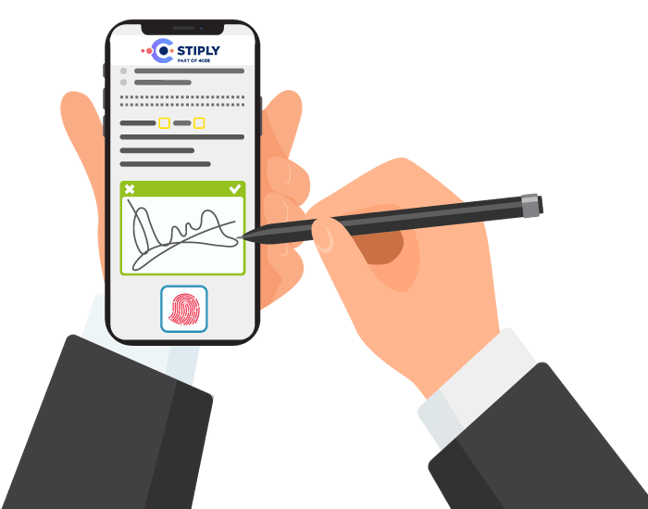
Credit: www.stiply.com
Signing Documents Electronically
Signing documents electronically has become a practical skill for managing paperwork from the comfort of your home. It saves time, reduces errors, and keeps your workflow smooth. Understanding the key steps will help you feel confident and efficient every time you sign.
Uploading And Preparing Documents
Start by uploading the document you need to sign to your electronic signature platform. Most services accept common file types like PDF, Word, or image files, making it easy to work with your existing documents.
Once uploaded, review the document carefully. Look for areas that require your signature, initials, or dates. Some platforms let you highlight these spots or add form fields to guide where information should go.
Placing Your Signature Correctly
Creating a digital signature can be as simple as drawing your signature with a mouse, uploading a scanned image, or typing your name in a chosen font. Choose the method that feels most natural and professional to you.
Position your signature precisely where it needs to be. If you’ve ever signed a paper document, you know the importance of alignment and spacing—it’s no different here. Misplaced signatures can cause delays or confusion.
Saving And Sharing Signed Files
After signing, save the document in a secure format, usually PDF, to maintain the integrity of the signature. Make sure the file name is clear and includes relevant details like date or document type.
Sharing your signed documents is straightforward. You can email them directly from the platform or download and upload them to your preferred service. Have you noticed how much faster this is compared to printing, signing, scanning, and sending by mail?
Ensuring Security And Legality
Setting up an electronic signature for home use needs careful attention to security and legality. Protecting your signature from misuse is crucial. At the same time, your e-signature must meet legal standards to be valid. Keeping a backup and clear records helps ensure trust and proof of your signed documents.
Protecting Your Signature
Keep your electronic signature secure from theft or misuse. Use strong passwords for signature software or apps. Enable two-factor authentication to add an extra security layer. Avoid sharing your signature file or password with others. Store your signature on trusted devices only. Always log out after using signature platforms.
Legal Validity Of E-signatures At Home
E-signatures are legally accepted in many countries. They must show clear intent to sign a document. The signature should link to the signer uniquely. Use reputable e-signature tools that follow laws like ESIGN Act or eIDAS. Make sure the document cannot be changed after signing. Confirm the recipient also agrees to use e-signatures.
Backup And Record Keeping
Keep copies of all signed documents safely. Use cloud storage with encryption for backups. Save documents in formats that cannot be edited easily, like PDF. Keep a log of when and where you signed each document. Store related emails or messages as proof of agreement. Regularly check backups to ensure files are accessible.
Troubleshooting Common Issues
Setting up an electronic signature at home can sometimes lead to issues. These problems may slow down your process or cause frustration. Understanding common troubles helps you fix them quickly. This section covers frequent issues and ways to solve them.
Signature Not Appearing Correctly
Sometimes, your signature may look blurry or distorted. This happens if the image size is too small or the format is wrong. Ensure your signature is saved in a high-quality format like PNG. Avoid using low-resolution pictures or screenshots.
Check the signature size in your document settings. Resize it to fit neatly without stretching. A signature that is too large or small can appear odd or unreadable.
Compatibility Problems
Different devices and software may not support all signature formats. Your signature might not show on some PDF readers or apps. Use common formats such as PDF or PNG for better compatibility.
Update your software regularly. Older versions may lack support for electronic signatures. Try opening your document on another device or app to test if the issue persists.
Tips To Avoid Errors
- Use clear and simple signature images.
- Save your signature in widely accepted formats.
- Check document settings before applying your signature.
- Keep software and apps updated.
- Test your signature on different devices.
- Use trusted electronic signature platforms.
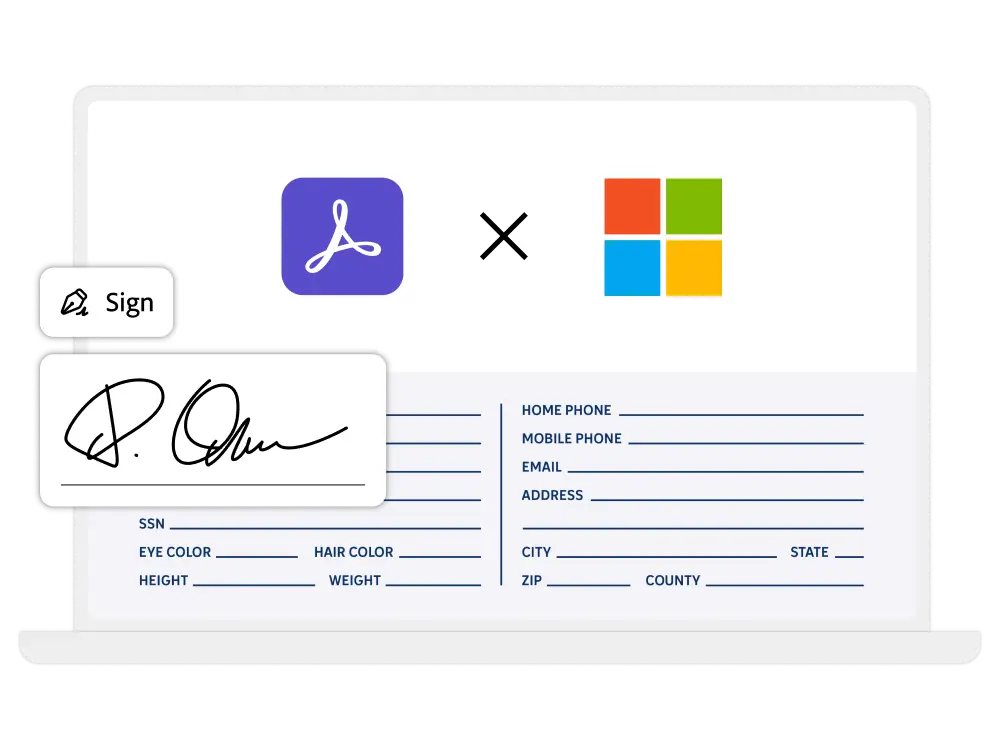
Credit: www.skillzme.com
Frequently Asked Questions
What Is An Electronic Signature For Home Use?
An electronic signature is a digital mark showing consent on documents. It simplifies signing contracts or forms at home securely and legally.
How Do I Create An Electronic Signature At Home?
You can create an electronic signature using software or apps. Draw your signature with a mouse, stylus, or upload an image of your handwritten signature.
Are Electronic Signatures Legally Binding For Home Documents?
Yes, electronic signatures are legally valid for most home documents. Laws like ESIGN Act and eIDAS ensure their legality and enforceability.
Which Devices Support Setting Up Electronic Signatures?
Most computers, tablets, and smartphones support electronic signature software. You can sign documents easily using apps or built-in tools on these devices.
Conclusion
Setting up an electronic signature at home is simple and fast. Choose a trusted app or software that fits your needs. Follow the steps carefully to create your digital signature. Keep your device secure to protect your signature. Using electronic signatures saves time and paper.
It helps you sign documents without leaving your home. Practice a few times to get comfortable. Soon, sending signed papers becomes easy and stress-free. Give it a try and enjoy the convenience today.
Leave a Reply