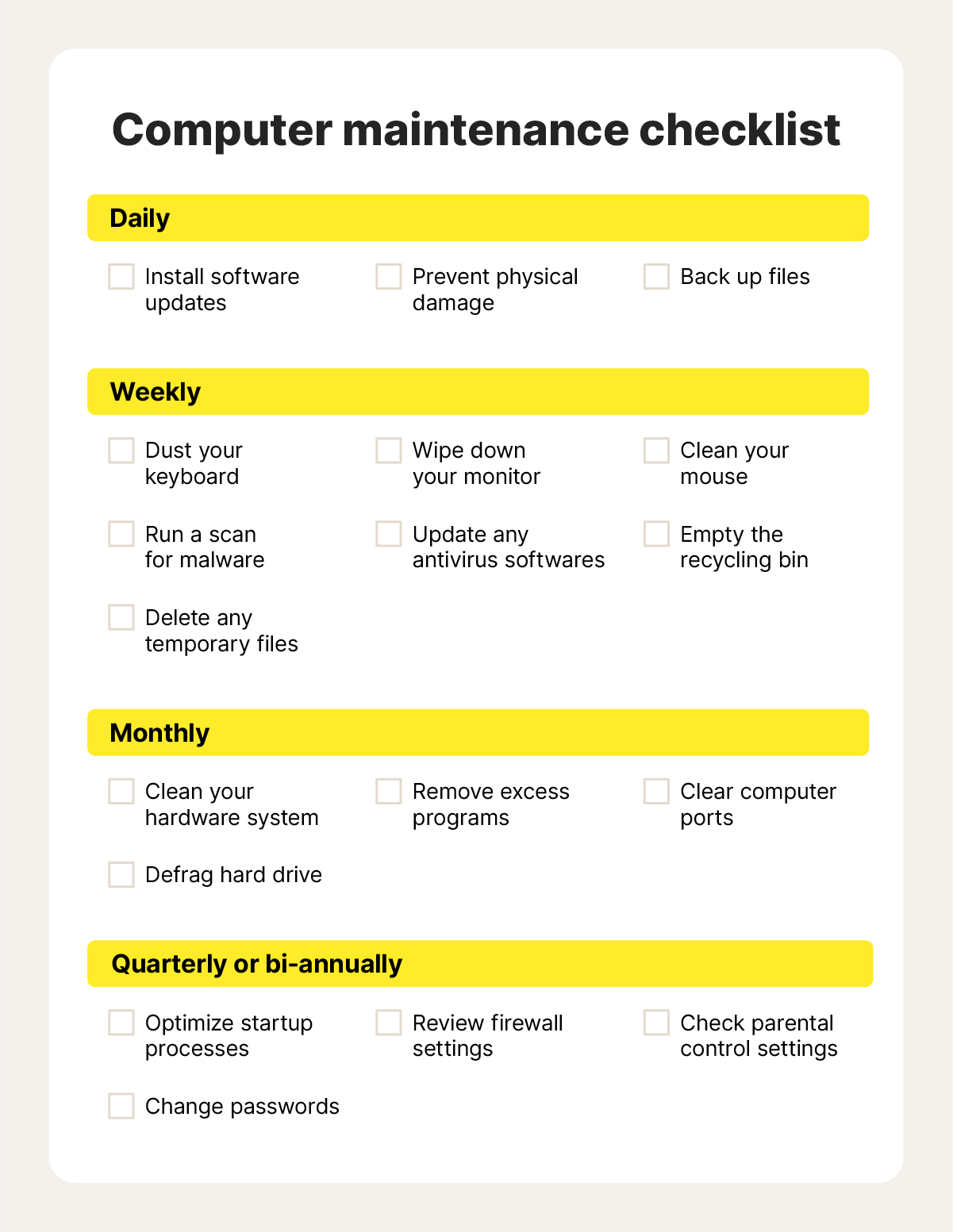
Have you ever wondered what happens behind the scenes when your Windows computer runs system maintenance? You might notice your PC working quietly on its own, but what exactly is it doing?
Understanding Windows system maintenance can help you keep your computer running smoothly and avoid frustrating slowdowns. You’ll discover how these automatic tasks protect your files, boost performance, and fix small issues before they become big problems. Keep reading, and you’ll learn simple tips to make the most of your Windows system maintenance—and keep your PC in top shape without lifting a finger.
Role Of System Maintenance
System maintenance plays a crucial role in keeping your Windows operating system running smoothly and efficiently. It involves a series of tasks that help prevent issues before they happen and fix problems that could slow down your computer. Understanding what system maintenance does can help you take control of your PC’s performance and security.
Keeping Your System Secure
One major role of system maintenance is to protect your computer from security threats. Regular updates patch vulnerabilities that hackers might exploit. Running antivirus scans and cleaning up temporary files also reduce the risk of malware infections.
Improving Performance
System maintenance helps your PC run faster and more smoothly. It removes unnecessary files and defragments your hard drive to optimize storage. You might notice quicker startup times and less lag during everyday use after routine maintenance.
Preventing System Errors
Maintenance tasks check for corrupted files and fix registry errors that can cause crashes or freezes. By addressing these small issues early, you can avoid bigger problems that might require costly repairs or data loss. Have you ever lost work because your computer suddenly crashed?
Extending Hardware Lifespan
Keeping your system clean and well-maintained reduces wear on hardware components. Overheating and constant hard drive strain can shorten your PC’s lifespan. Routine maintenance ensures your hardware stays in better condition for longer.
Saving You Time And Money
Regular system upkeep prevents many common problems that interrupt your workflow. It’s easier and cheaper to maintain than to fix or replace broken parts later. What would you do if your computer failed during an important project?

Credit: medium.com
Performance Optimization
Performance optimization is a key part of Windows system maintenance that directly impacts how smoothly your computer runs. It involves fine-tuning various system components to reduce lag, prevent crashes, and keep your PC responsive. By focusing on performance, you ensure that your machine handles daily tasks efficiently, whether you’re browsing the web or running demanding applications.
Speed Enhancement
Speed enhancement in Windows maintenance means making your system boot faster and applications launch quicker. This happens by clearing out unnecessary startup programs that slow down your PC right from the moment you power it on.
You might notice your computer dragging after months of use—this is often because background programs accumulate and hog resources. Removing these and defragmenting your hard drive helps your system access files more quickly, cutting down wait times.
Have you ever wondered why your PC feels sluggish even though it’s relatively new? Sometimes, it’s not hardware but cluttered software slowing things down. Speed enhancement tools target these software inefficiencies to restore your system’s agility.
Resource Management
Effective resource management means your system uses CPU, memory, and storage wisely to avoid bottlenecks. Windows maintenance tools monitor and adjust how programs share these resources, preventing any one app from starving others.
Imagine running multiple apps at once—without proper resource management, your computer might freeze or slow dramatically. Maintenance features help balance this load, so each program gets just what it needs to run smoothly.
You can also benefit from cleaning temporary files and managing disk space to free up valuable storage. This not only prevents crashes but also improves how your PC handles data, making everything feel snappier.
Security Assurance
Security assurance is a critical part of Windows system maintenance. It helps keep your data safe and your computer running smoothly by preventing threats and fixing vulnerabilities. Understanding how Windows handles security can empower you to protect your system better.
Malware Protection
Windows system maintenance actively scans your computer for malware, including viruses, spyware, and ransomware. It uses tools like Windows Defender to detect and remove harmful software before it damages your files or steals your information.
Have you ever experienced a sudden slowdown or strange pop-ups? These can be signs of malware infection. Regular maintenance helps catch these issues early, reducing the risk of data loss or identity theft.
System Updates
Windows regularly releases updates to fix security holes and improve system defenses. These updates patch vulnerabilities that hackers might exploit, keeping your system ahead of emerging threats.
Ignoring updates can leave your computer exposed. Think about the last time you postponed an update—did you notice any unusual activity afterward? Staying current with updates is one of the simplest ways to maintain strong security.
Data Integrity
Data integrity is the backbone of your computer’s reliability. It ensures that all the information stored on your device remains accurate, consistent, and accessible without corruption. Without proper maintenance, you risk losing important files or experiencing system errors that can disrupt your workflow.
File System Checks
Your Windows system regularly performs file system checks to maintain data integrity. These checks scan your hard drive for errors caused by improper shutdowns, software crashes, or bad sectors on the disk.
When a file system check detects issues, it attempts to repair them automatically. This process keeps your files intact and prevents data loss over time. Have you ever noticed your computer running a disk check after a sudden shutdown? That’s Windows protecting your data behind the scenes.
Backup Management
Backing up your data is one of the most effective ways to safeguard your information. Windows system maintenance includes managing backups to ensure you always have a recent copy of your important files.
These backups can be scheduled automatically, reducing the risk of forgetting to save your data. You can also configure backup locations, such as an external drive or cloud storage, giving you flexibility and peace of mind.
Think about the last time you lost a file—was a backup available? Regularly checking your backup settings can save you from the frustration of permanent data loss.
Hardware Diagnostics
Hardware diagnostics is a crucial part of Windows System Maintenance that helps you identify and fix issues with your computer’s physical components. It runs tests to ensure everything from your hard drive to your memory is working properly. This process can prevent small problems from turning into costly repairs.
Component Testing
Windows performs tests on individual hardware parts like the CPU, RAM, and hard disk. These tests check for errors or performance problems that might slow down your system or cause crashes.
For example, if your computer frequently freezes, component testing can reveal if a faulty RAM stick is the culprit. You don’t need to be a tech expert to run these tests—Windows provides built-in tools that guide you through the process step-by-step.
Have you ever wondered why your computer suddenly shuts down? Component testing can help pinpoint overheating or power supply issues before they cause permanent damage.
Driver Updates
Drivers act as messengers between your hardware and the operating system. Outdated or corrupted drivers can cause hardware to malfunction or perform poorly.
Windows System Maintenance automatically checks for the latest driver updates and installs them for you. This keeps your devices running smoothly and can improve compatibility with new software.
Imagine trying to use a new printer with an old driver—it might not work at all. Keeping drivers updated ensures that your hardware stays compatible and efficient without you needing to search for updates manually.
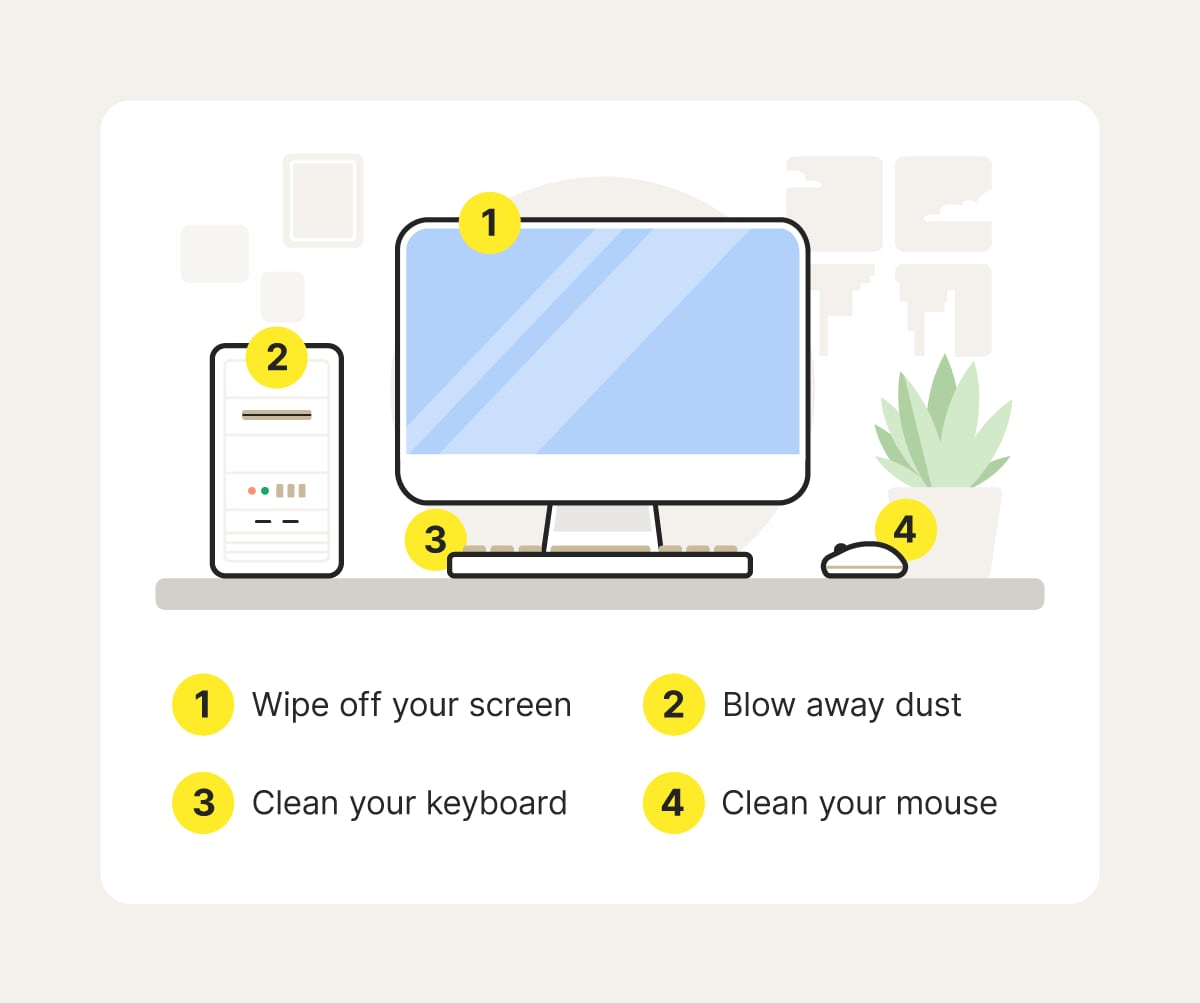
Credit: us.norton.com
Software Compatibility
Software compatibility is key for a smooth Windows experience. It ensures that all your programs work well with your system. Proper maintenance helps keep software running without errors or crashes. It reduces the chances of apps freezing or not opening at all. This section explains how Windows system maintenance supports software compatibility.
Application Updates
Windows system maintenance regularly checks for updates. These updates fix bugs and improve app performance. Updated software works better with the latest Windows features. They also patch security holes to keep your data safe. Updates prevent apps from becoming outdated or unstable.
Conflict Resolution
Sometimes, apps can clash with each other or the system. Maintenance tools detect these conflicts early. They adjust settings or remove problematic files. This stops errors caused by incompatible software. Resolving conflicts keeps all programs running smoothly together.
User Experience Enhancement
Windows system maintenance plays a key role in improving how you interact with your computer. It goes beyond just fixing errors or updating software—it enhances your overall experience by making the interface more adaptable and accessible. This means your daily tasks become smoother, and your system feels more personalized to your needs.
Interface Customization
Customizing your Windows interface helps you work faster and with less frustration. Regular system maintenance clears out clutter and resets settings that may have slowed down your system. You can adjust themes, font sizes, and taskbar preferences to suit your style and improve visibility.
Have you ever noticed how a clean, well-organized desktop can boost your productivity? Maintenance tools help you remove unnecessary icons and optimize startup programs, so your system loads quicker and looks cleaner. This small change can make a big difference in how you focus on your work.
Accessibility Features
Windows system maintenance ensures that accessibility features work correctly, making your computer usable for everyone. This includes tools like screen readers, magnifiers, and speech recognition that need regular updates to perform well. If you rely on these features, maintenance keeps them responsive and accurate.
Imagine trying to use your computer when an accessibility feature glitches—that can be very frustrating. Routine system checks prevent these issues by fixing corrupted files or conflicting settings. This way, your computer stays a reliable assistant, no matter your needs.
Credit: www.slideserve.com
Frequently Asked Questions
What Is Windows System Maintenance?
Windows System Maintenance is an automated process. It checks for system issues, cleans temporary files, and optimizes performance. It helps keep your PC running smoothly and reduces errors.
How Often Does Windows System Maintenance Run?
Windows System Maintenance typically runs weekly. It activates when your PC is idle and plugged in. You can also manually trigger it via Control Panel.
Can Windows System Maintenance Improve Pc Speed?
Yes, it deletes unnecessary files and fixes minor errors. This cleanup frees up disk space and improves system responsiveness.
Does Windows System Maintenance Affect Installed Programs?
No, it does not remove or change installed programs. It focuses on system files, temporary data, and error logs only.
Conclusion
Windows System Maintenance helps keep your computer running smoothly. It cleans up unnecessary files and fixes small problems. This process improves your PC’s speed and stability. Regular maintenance prevents bigger issues later on. It saves time and avoids frustration. Simple steps can protect your system’s health.
Trust the built-in tools to work quietly in the background. Your computer will feel faster and more reliable. A little care goes a long way. Keep your Windows system healthy with easy maintenance tasks.
Leave a Reply