Are you wondering how long Windows 8 system maintenance really takes? If your computer slows down or acts up, you might be tempted to start maintenance but hesitate because you don’t want to waste hours waiting.
Understanding the time involved can help you plan better and avoid unnecessary frustration. You’ll discover exactly what affects the duration of Windows 8 system maintenance and how to make the process faster and smoother. Keep reading to save your time and keep your PC running like new.
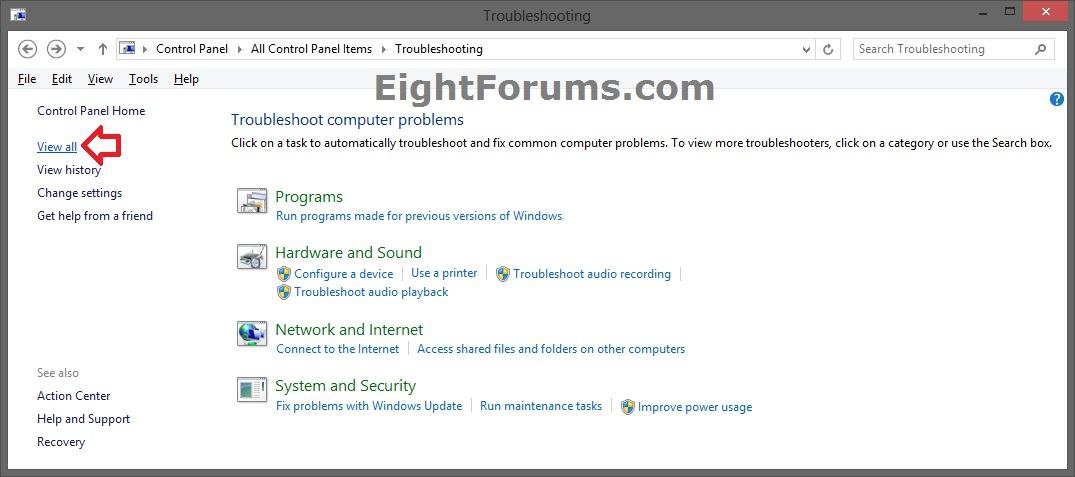
Credit: www.eightforums.com
Factors Affecting Maintenance Duration
System maintenance on Windows 8 varies in time depending on several factors. These factors influence how long the process takes to complete. Understanding them helps set realistic expectations.
Maintenance involves tasks like disk cleanup, updates, and error checks. Each task duration depends on system conditions and user habits. The following sections detail key factors affecting maintenance duration.
Hardware Specifications
Faster processors speed up maintenance tasks. More RAM helps run processes smoothly. Hard drive type matters too. Solid-state drives (SSD) complete tasks quicker than traditional hard drives (HDD). Older hardware can slow down system maintenance significantly.
Software Installed
More installed programs require extra checks during maintenance. Some software adds background services that slow down the process. Security tools and system optimizers can also affect duration. Outdated or corrupted programs may increase maintenance time.
Frequency Of Use
Regularly used systems often need longer maintenance. Frequent use creates more temporary files and system clutter. Rarely used computers might finish maintenance faster. Systems used heavily may face longer disk scans and cleanups.
System Updates
Windows updates are a major factor in maintenance time. Large or multiple updates extend the process. Delayed updates pile up, causing longer maintenance sessions. Keeping the system updated regularly reduces maintenance duration.
Credit: computertechnicians.au
Typical Timeframes For Common Tasks
System maintenance on Windows 8 includes various tasks that keep your computer running smoothly. Each task takes a different amount of time depending on your hardware and system condition. Understanding typical timeframes helps plan when to run these tasks without disrupting your work.
Some tasks finish quickly, while others require more patience. Here is a look at common maintenance tasks and how long they usually take.
Disk Cleanup
Disk Cleanup removes unnecessary files to free up space. It usually takes between 2 to 10 minutes. The exact time depends on how many files need deleting and the disk speed.
Defragmentation
Defragmentation rearranges fragmented data for faster access. This process can last from 15 minutes to over an hour. Larger or heavily used drives take longer to defragment.
System Scans
System scans check for malware and system errors. Quick scans may take 5 to 20 minutes. Full scans can take 30 minutes or more, depending on the number of files.
Software Updates
Software updates vary in size and complexity. Small updates often install within 5 to 15 minutes. Major updates or upgrades may take 30 minutes to an hour or more.
Speeding Up Maintenance Processes
Speeding up Windows 8 system maintenance saves time and keeps your PC running smoothly. System maintenance includes cleaning up files, checking for errors, and optimizing performance. These tasks can sometimes take a while but improving the process helps you get back to work faster.
Optimizing System Settings
Adjusting your system settings can reduce maintenance time. Disable unnecessary startup programs to free resources. Turn off automatic disk defragmentation if you use an SSD. Lower the frequency of system scans to avoid long waits. Set your PC to perform maintenance during idle hours. This avoids interruptions and speeds up the process.
Regular Maintenance Schedule
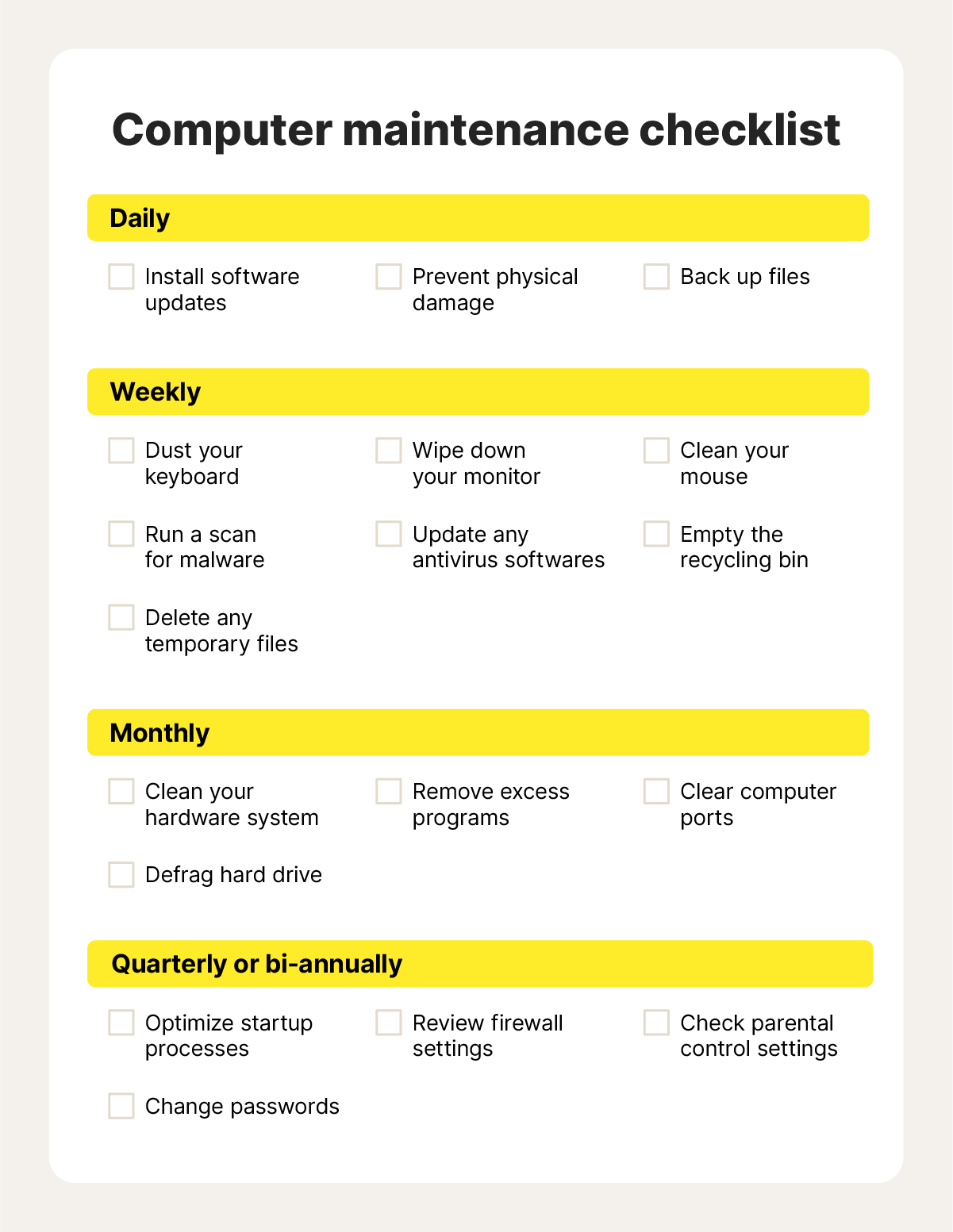
Perform maintenance regularly to prevent big slowdowns. Small, frequent cleanups take less time than one large task. Create a weekly or bi-weekly maintenance routine. Use built-in tools like Disk Cleanup and Check Disk often. Regular updates keep your system stable and fast. Consistency helps maintain peak performance.
Using Third-party Tools
Third-party tools offer faster and more efficient maintenance options. They can clean junk files, fix registry errors, and optimize settings. Choose reputable software with good reviews and simple interfaces. Many tools automate tasks, saving you time and effort. Be cautious to avoid tools that may harm your system.
Signs Of Maintenance Issues
System maintenance is vital for keeping Windows 8 running smoothly. Signs of maintenance issues often show up before serious problems arise. Spotting these signs early helps in fixing issues fast. Below are common signs that your system maintenance may be having trouble.
Slow Performance
Windows 8 may start running slower than usual. Programs take longer to open or respond. Simple tasks like browsing or switching apps become frustrating. Slow performance often means maintenance tasks are not completing properly. This can cause system files to clutter and reduce speed.
Frequent Crashes
Your computer may restart or shut down unexpectedly. Apps might freeze or close without warning. Crashes happen more often during normal use. This instability hints that maintenance processes failed to fix underlying issues. It can also mean corrupted files or hardware conflicts are present.
Error Messages
Error messages pop up more frequently during or after maintenance. These messages may mention disk errors, missing files, or system updates. Errors indicate that the maintenance did not finish or ran into problems. Ignoring these warnings can lead to bigger system failures.
When To Seek Professional Help
Knowing when to seek professional help during Windows 8 system maintenance can save you time and prevent further damage. Some issues are more complicated than routine fixes and require expert attention. Recognizing these signs early ensures your system gets the right care and keeps running smoothly.
Persistent Problems
If your system maintenance takes unusually long and the same issues keep appearing, it’s a clear sign to get help. Persistent problems like repeated freezes, crashes, or error messages often indicate deeper system troubles.
Have you ever tried fixing a glitch only to see it return within days? That’s when a professional can dig deeper and provide a lasting solution instead of temporary patches.
Hardware Failures
Windows 8 maintenance usually focuses on software, but if your system slows down or hangs during maintenance, hardware might be the culprit. Signs like strange noises from your PC, overheating, or failure to boot properly suggest hardware issues.
When hardware is involved, software fixes won’t help. Professionals can diagnose failing components like hard drives or RAM and recommend replacements that keep your system stable.
Complex Software Issues
Sometimes, Windows 8 faces complex software problems that simple updates or scans can’t fix. Issues like corrupted system files, malware infections, or conflicting software require specialized tools and knowledge.
Have you noticed unusual pop-ups or unexplained system behavior after maintenance? That’s a good moment to contact experts who can safely clean and repair your system without risking data loss.
Credit: us.norton.com
Frequently Asked Questions
How Long Does Windows 8 System Maintenance Usually Take?
Windows 8 system maintenance typically takes between 10 to 30 minutes. Duration depends on system speed, updates, and disk health. Regular maintenance keeps your PC running smoothly and prevents slowdowns.
Why Is Windows 8 Maintenance Sometimes Very Slow?
Slow maintenance can result from outdated hardware, large disk errors, or numerous pending updates. Running too many background processes also affects speed. Regularly updating and cleaning your system helps improve maintenance time.
Can I Stop Windows 8 System Maintenance Safely?
It is not recommended to stop system maintenance while running. Interrupting maintenance can cause file corruption or incomplete updates. Allow the process to finish to keep your system stable and optimized.
How Often Should Windows 8 System Maintenance Run?
Windows 8 maintenance typically runs automatically once a week during idle time. You can also run it manually if you notice system slowdowns or errors. Regular maintenance ensures better system performance and security.
Conclusion
Windows 8 system maintenance usually takes between 20 to 40 minutes. The exact time depends on your computer’s speed and the tasks running. Regular maintenance keeps your system running smoothly and helps avoid bigger problems. Try to run maintenance when you don’t need your PC for a while.
That way, the process won’t interrupt your work. Remember, patience helps your computer stay healthy and fast over time. Small waits now can save time later.
Leave a Reply