Imagine turning your living room into a futuristic hub where everything responds to your voice commands. Sounds exciting, right?
With a Firestick TV, you can easily integrate and control your smart devices, making this dream a reality. Whether you’re new to smart technology or a seasoned enthusiast, setting up your smart devices on a Firestick TV can transform your entertainment experience and simplify your daily routine.
You might be wondering how to get started or if it’s even possible to manage all your gadgets seamlessly through one platform. Fear not! This guide will walk you through every step, ensuring your setup is smooth and hassle-free. Stick around, and soon, you’ll be effortlessly controlling your home with just a few clicks or a simple voice command. Prepare to be amazed at how this integration can elevate your lifestyle and make your home smarter.
Choosing Compatible Smart Devices
Choosing the right smart devices is key to a smooth Firestick TV setup. Devices must work well with Firestick to avoid connection issues. Compatibility ensures you enjoy all features without trouble. This section helps identify devices that match Firestick’s technology and user needs.
Popular Smart Devices For Firestick
Many smart devices pair easily with Firestick. Some of the favorites include:
- Amazon Echo speakers for voice control
- Smart bulbs that adjust lighting via Firestick
- Smart plugs to control appliances remotely
- Wireless headphones for private listening
- Smart thermostats to manage room temperature
These devices offer convenience and expand Firestick’s functionality. Most use Wi-Fi or Bluetooth to connect.
Checking Compatibility Requirements
Firestick supports devices with certain technical standards. Check these points before buying:
- Device should support Alexa or have Fire TV integration
- Wi-Fi 2.4GHz or 5GHz compatibility for smooth connection
- Bluetooth version supported by your Firestick model
- Apps or skills available to control the device via Firestick
Reading product descriptions helps confirm compatibility. Look for clear mentions of Fire TV or Alexa support. This avoids setup frustration and ensures smooth operation.

Credit: www.youtube.com
Preparing Your Firestick Tv
Preparing your Firestick TV is essential before connecting smart devices. This step ensures smooth setup and better device performance. Taking time now saves trouble later.
Start by checking the Firestick software and Wi-Fi connection. Both must be up-to-date and stable. These basics create a strong foundation for your smart home system.
Updating Firestick Software
Keep your Firestick software current for security and new features. Updates fix bugs and improve device function.
- Go to Firestick home screen.
- Select “Settings” from the menu.
- Choose “My Fire TV” or “Device.”
- Click “About” and then “Check for Updates.”
- Install any available updates.
Restart the Firestick after updating to apply changes fully.
Connecting To A Stable Wi-fi Network
A strong Wi-Fi connection is vital for smart devices. It allows quick responses and fewer interruptions.
- Open Firestick “Settings.”
- Navigate to “Network.”
- Select your Wi-Fi network from the list.
- Enter the password carefully.
- Confirm connection and check signal strength.
Place your router close to the Firestick for better signals. Avoid walls or large objects between them.
Installing Smart Device Apps
Installing smart device apps on your Firestick TV is a crucial step to control and manage your smart home gadgets seamlessly. These apps act as the bridge between your Firestick and the smart devices, letting you adjust settings, receive notifications, and automate routines right from your TV screen. Knowing how to find and install these apps quickly will save you time and frustration.
Navigating The Amazon Appstore
Your Firestick comes with the Amazon Appstore preloaded, where you can find apps for most smart devices like lights, cameras, and thermostats. Use your remote to open the Appstore and head to the search bar.
Type in the name of the smart device or brand you want to connect. If you’re unsure about the exact app name, try keywords like “smart light” or “home security.” The Appstore often suggests popular apps as you type.
Downloading And Installing Apps
Once you find the app, select it to open the detail page. Here, check the app’s ratings and reviews to ensure it works well with Firestick. This step can prevent you from downloading an app that doesn’t function properly on your device.
Click the “Get” or “Download” button to start the installation. The app will download and install automatically, and you’ll see its icon appear on your Firestick home screen. After installation, open the app and follow the on-screen instructions to link your smart device.
Have you ever struggled to find the right app and ended up wasting time? Learning how to navigate the Appstore efficiently can make controlling your smart home easier and more enjoyable.
Connecting Smart Devices To Firestick
Connecting smart devices to your Firestick TV enhances your viewing experience. It allows you to control your TV with various gadgets. Smart connections bring convenience and better control to your entertainment setup. Follow simple steps to pair and set up your devices quickly.
Pairing Bluetooth Devices
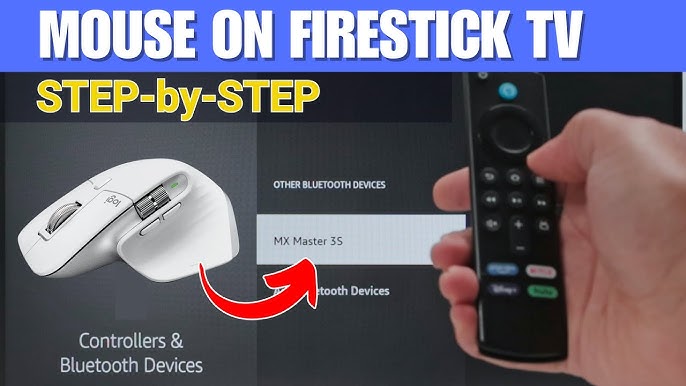
Start by turning on your Bluetooth device and making it discoverable. On your Firestick, go to Settings > Controllers & Bluetooth Devices. Select “Other Bluetooth Devices” to search for nearby gadgets. Choose your device from the list to pair it. Wait for confirmation that the device is connected. Use the paired device to control or interact with your Firestick.
Setting Up Wi-fi Enabled Gadgets
Ensure your Firestick and smart device connect to the same Wi-Fi network. Open the smart device’s app or settings menu. Follow prompts to add a new device. Enter your Wi-Fi password if needed. The device will sync with your Firestick over the network. Control smart lights, speakers, or cameras directly from your TV screen.
Configuring Device Settings
Configuring device settings on your Firestick TV is key to creating a smooth and personalized smart home experience. This step ensures your smart devices interact exactly how you want, without unnecessary interruptions or privacy concerns. Taking control over permissions and notifications lets you tailor your setup to fit your lifestyle.
Adjusting Permissions And Preferences
Start by reviewing the permissions each smart device requires. This might include access to your location, microphone, or other apps on your Firestick. Denying unnecessary permissions can protect your privacy and improve performance.
Think about which devices you want to control remotely and which should operate independently. For example, you might allow your smart lights to be controlled via voice commands but restrict camera access to manual operation only. You can adjust these settings in the Firestick’s device management menu.
- Navigate to Settings > Applications > Manage Installed Applications
- Select the smart device app
- Modify permissions like storage, microphone, or location
Have you noticed how some devices ask for more permissions than they need? Question whether granting these permissions aligns with your comfort level and how often you use each feature.
Customizing Notifications And Controls
Notifications can keep you informed but may also become distracting if not managed well. Decide which alerts are essential, such as security alerts from your smart camera, versus less important ones like routine status updates.
You can customize notifications in the Firestick settings by:
- Going to Settings > Applications > Manage Notifications
- Selecting the device or app
- Turning notifications on or off, or setting priority levels
Control customization is another powerful tool. Adjust how your remote or voice commands interact with devices. For instance, assigning specific buttons on your Firestick remote to control smart lights can save time and add convenience.
Have you tried assigning shortcuts to your most-used devices? It can make a big difference in everyday usability, turning a complex setup into a seamless part of your routine.

Credit: www.youtube.com
Troubleshooting Common Issues
Setting up smart devices on a Firestick TV can sometimes lead to small problems. These issues may stop your device from working smoothly. Knowing how to fix common problems saves time and frustration. The following tips help solve typical errors during setup and use.
Resolving Connectivity Problems
Connectivity issues often cause devices to disconnect or not respond. Check the Wi-Fi signal strength first. Move closer to the router for a better signal. Restart the Firestick and your Wi-Fi router to refresh connections.
Clear network settings on your Firestick to remove old data. This step forces the device to reconnect freshly. Verify the Wi-Fi password is correct and entered properly.
Disable VPNs or proxies that might block device communication. Ensure the router allows new devices to connect. Sometimes, changing the Wi-Fi frequency band from 5 GHz to 2.4 GHz helps improve stability.
Fixing App Installation Errors
App installation errors can stop you from adding new features. Check if your Firestick has enough storage space. Delete unused apps or files to free up memory.
Clear the cache of the Amazon Appstore to fix loading problems. Restart the Firestick before trying the installation again.
Verify your Firestick software is up to date. Older versions may cause compatibility issues. If an app still won’t install, try downloading it again later. Sometimes, server issues cause temporary failures.
Tips For Optimizing Smart Device Use
Optimizing your smart device use on Firestick TV can transform your streaming and home automation experience. Small adjustments can make a big difference in how smoothly your devices perform and how safe your setup remains. Let’s dive into practical tips that help you get the most out of your connected gadgets.
Enhancing Performance
Keeping your Firestick and connected smart devices running smoothly starts with regular updates. Software updates often include fixes and improvements that boost device speed and compatibility.
Clear cache and uninstall apps you don’t use. I once ignored this advice and noticed my Firestick lagging during streaming. After cleaning up, everything felt faster and more responsive.
- Restart your Firestick regularly to refresh memory and processes.
- Use a strong Wi-Fi connection to prevent buffering and lag.
- Limit the number of devices connected to your network when streaming.
Have you noticed your devices slowing down at specific times? It might be network congestion or background apps hogging resources. Monitoring these factors can help you pinpoint and fix performance bottlenecks.
Maintaining Device Security
Security is crucial when connecting smart devices to your Firestick TV. Unprotected devices can expose your personal data and network to risks.
Always change default passwords. I remember setting up a smart camera and leaving its default password unchanged—an easy target for hackers. Changing it immediately stopped my concerns.
- Enable two-factor authentication if available for your accounts.
- Keep your Firestick and smart devices updated with the latest security patches.
- Review app permissions and disable access that seems unnecessary.
Consider setting up a separate guest network for smart devices. This isolates them from your main devices like computers and phones, reducing the risk if one device is compromised.
Are you regularly checking your devices for unusual behavior or unknown connections? Staying vigilant helps keep your smart home safe and your mind at ease.

Credit: www.youtube.com
Frequently Asked Questions
How Do I Connect Smart Devices To Firestick Tv?
To connect smart devices, open the Firestick settings, select Controllers & Bluetooth Devices, then add your smart device. Ensure your devices are on the same Wi-Fi network for seamless pairing.
Can I Control Smart Home Gadgets Via Firestick?
Yes, Firestick supports controlling compatible smart home devices using Alexa voice commands. Simply link your smart device accounts in the Alexa app for integrated control.
What Smart Devices Are Compatible With Firestick Tv?
Firestick works well with Alexa-enabled devices, smart lights, cameras, and thermostats from brands like Philips Hue, Ring, and Nest. Check device compatibility before setup for best results.
How To Troubleshoot Smart Device Connection Issues On Firestick?
Restart your Firestick and smart device, check Wi-Fi connection, and ensure firmware is updated. Re-pair the device if problems persist to restore proper communication.
Conclusion
Setting up smart devices on your Firestick TV is simple and quick. Just follow the steps clearly, and you will connect easily. Enjoy controlling your devices from one place. This makes watching TV more fun and handy. Keep your devices updated for the best performance.
Try adding new devices slowly to avoid confusion. Stay patient and explore all the features your Firestick offers. Your smart home experience will improve with each device added.
Leave a Reply