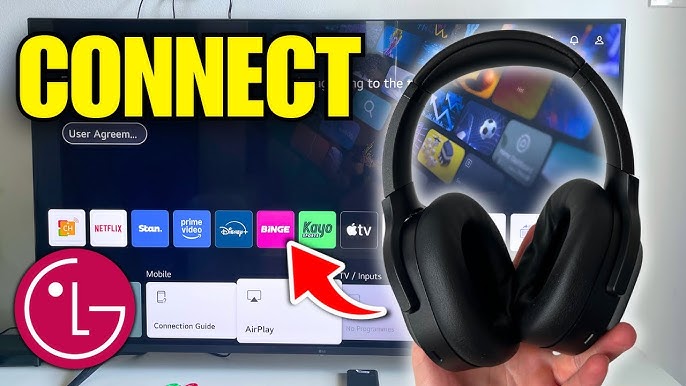
Have you ever tried to connect your LG Smart TV to a Bluetooth device, only to find yourself lost in a maze of settings and options? You’re not alone!
Many TV owners like you are eager to enhance their viewing experience by adding Bluetooth speakers, headphones, or other gadgets. The good news is, it’s easier than you think. Imagine the thrill of crisp sound or private listening, all at your fingertips.
In this guide, you’ll discover simple steps to seamlessly pair your Bluetooth devices with your LG Smart TV, transforming your entertainment space into a personalized audio haven. Dive in, and let’s make your TV experience smarter!
Check Bluetooth Compatibility
Before pairing any Bluetooth device with your LG Smart TV, checking its Bluetooth compatibility is essential. Not all LG TVs support Bluetooth connections. Confirming compatibility prevents frustration and saves time during setup.
This section guides you through identifying your LG TV model and verifying its Bluetooth support accurately.
Identify Your Lg Tv Model
Locate the model number on your TV. Look for a sticker on the back or side of the television.
You can also find it in the TV settings menu:
- Press the Settings button on the remote.
- Navigate to All Settings.
- Select Generaland then About This TV.
The model number usually starts with letters like “OLED,” “NANO,” or “UHD,” followed by numbers.
Verify Bluetooth Support
Check your TV’s user manual or LG’s official website using the model number.
Look for terms like:
- Bluetooth
- Wireless Audio
- Bluetooth Headset
Most LG Smart TVs from 2016 onward support Bluetooth. Older models may not have this feature.
Some TVs support Bluetooth only for specific devices, such as keyboards or headphones.
Confirm the Bluetooth version and supported devices to avoid connection issues.

Credit: www.youtube.com
Turn On Bluetooth On Lg Tv
Turning on Bluetooth on your LG Smart TV is a simple but crucial step to connect wireless devices like headphones, speakers, or game controllers. Without enabling Bluetooth, your TV won’t detect or pair with these devices, limiting your entertainment options. Let’s focus on how to quickly access and activate this feature.
Access Settings Menu
First, grab your LG TV remote and press the Settingsbutton. This usually looks like a gear icon. If your remote doesn’t have this button, you can press the Homebutton and navigate to the settings gear on the TV screen.
Once you’re in the settings menu, look for the All Settingsoption to open the full list of available configurations. This menu is where you control everything from picture quality to connectivity options.
Enable Bluetooth Function
Inside the settings, find and select the Soundor Connectioncategory — depending on your LG TV model, Bluetooth settings might be located under either. Look for an option named Bluetoothor Device Connection.
Toggle the Bluetooth option to On. Your TV will start searching for nearby Bluetooth devices automatically. Make sure your device is in pairing mode so the TV can detect it quickly.
Have you noticed how many devices you can connect this way? It’s surprising how much more immersive your TV experience becomes with wireless audio accessories. Go ahead and try pairing a Bluetooth speaker or headphones right now.
Prepare Bluetooth Device
Before you connect your Bluetooth device to your LG Smart TV, it’s essential to prepare the device properly. This preparation ensures a smooth and quick connection process. Skipping these steps can lead to frustration and wasted time.
Activate Pairing Mode
Most Bluetooth devices need to be in pairing mode to be found by your TV. To activate this, usually, you press and hold a specific button on your device until a light starts blinking. If you’re unsure, check the device’s manual or look online for exact instructions.
Have you noticed how some devices show different blinking patterns? That often indicates whether they’re ready to pair or already connected elsewhere. Make sure your device is in the right mode before moving forward.
Ensure Device Is Discoverable
Besides being in pairing mode, your Bluetooth device must be discoverable. This means it should be visible to other devices searching for a connection. Some gadgets automatically become discoverable in pairing mode, but others require you to toggle a setting.
If your device isn’t discoverable, your LG TV won’t detect it, causing unnecessary confusion. Double-check your device’s settings menu or app to confirm its visibility. Have you ever struggled because your device wasn’t visible? Avoid that by confirming discoverability now.
Credit: www.istoma.com
Pair Bluetooth Device With Lg Tv
Pairing a Bluetooth device with your LG Smart TV lets you enjoy wireless audio or control options. The process is simple and quick, making your TV experience more flexible. Follow these steps to connect your devices smoothly and start using them without cables.
Search For Devices
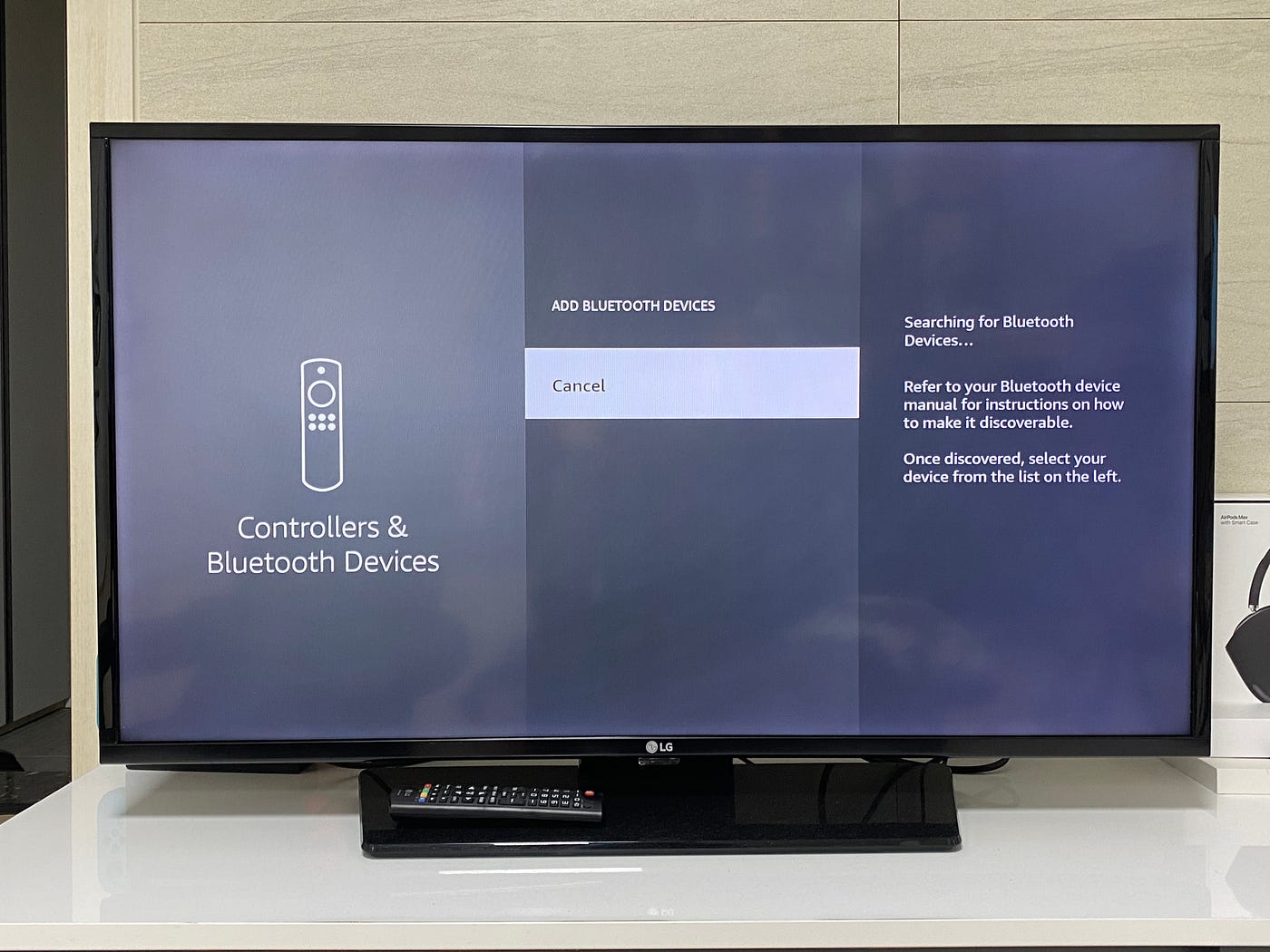
Turn on your Bluetooth device and make sure it is in pairing mode. On your LG TV, go to the Settings menu. Navigate to the “Devices” or “Bluetooth” section. Select “Add Bluetooth Device” or “Search for Devices.” The TV will scan and list all nearby Bluetooth devices available for connection.
Select And Connect Device
Look through the list of found devices on your LG TV screen. Find your device’s name and select it. The TV will start pairing with the device. Some devices may require a PIN code; enter it if asked. Once connected, you will see a confirmation message. Your device is now ready to use with the LG Smart TV.
Troubleshoot Connection Issues
Connection problems can stop your LG Smart TV from pairing with Bluetooth devices. Troubleshooting these issues helps restore smooth operation quickly. Simple fixes often solve common glitches.
Try these troubleshooting tips to get your Bluetooth devices working again.
Restart Devices
Turn off your LG Smart TV and the Bluetooth device you want to connect. Wait for about 30 seconds. Power both devices back on. Restarting clears temporary bugs and refreshes connections.
Update Tv Software
Check for the latest software update on your LG TV. Go to Settings > All Settings > General > About This TV > Check for Updates. Installing updates fixes known bugs and improves Bluetooth performance.
Reset Bluetooth Settings
Open the Bluetooth menu on your TV. Remove or forget all paired devices. Turn Bluetooth off and then back on. This reset can clear glitches blocking new device connections.

Credit: www.youtube.com
Manage Connected Devices
Managing connected Bluetooth devices on your LG Smart TV is simple. It helps keep track of devices paired with your TV. You can easily view or manage these devices anytime. This ensures smooth connections and better control over your Bluetooth gadgets.
View Paired Devices
Access the Bluetooth settings on your LG Smart TV. Look for a list showing all paired devices. This list includes headphones, speakers, and other Bluetooth gadgets. Checking paired devices helps you know which devices are currently connected or remembered by your TV.
Remove Or Reconnect Devices
To remove a device, select it from the paired list. Then, choose the option to disconnect or forget the device. This frees up space for new devices and avoids connection conflicts. To reconnect, simply select the device again and follow the prompts to pair it back. This keeps your Bluetooth connections fresh and working well.
Frequently Asked Questions
How Do I Enable Bluetooth On My Lg Smart Tv?
To enable Bluetooth, go to Settings > Sound > Sound Out. Select Bluetooth Speaker List, then turn on Bluetooth on your device and pair it with the TV.
Why Won’t My Lg Smart Tv Connect To Bluetooth Devices?
Ensure your Bluetooth device is in pairing mode and within range. Restart both devices and update your TV’s software for better compatibility.
Can I Connect Multiple Bluetooth Devices To Lg Smart Tv?
Most LG Smart TVs support one Bluetooth audio device at a time. For multiple devices, use a Bluetooth splitter or external Bluetooth transmitter.
How To Troubleshoot Bluetooth Connection Issues On Lg Smart Tv?
Restart your TV and Bluetooth device. Remove old paired devices in Bluetooth settings, then try pairing again. Check for software updates to fix bugs.
Conclusion
Connecting a Bluetooth device to your LG Smart TV is simple and quick. Just follow the steps carefully for the best results. Ensure your TV’s Bluetooth is on and the device is ready to pair. This setup lets you enjoy wireless sound or control easily.
Troubleshoot if needed by restarting devices or checking settings. Now, enjoy the freedom and convenience of Bluetooth with your LG Smart TV.
Leave a Reply