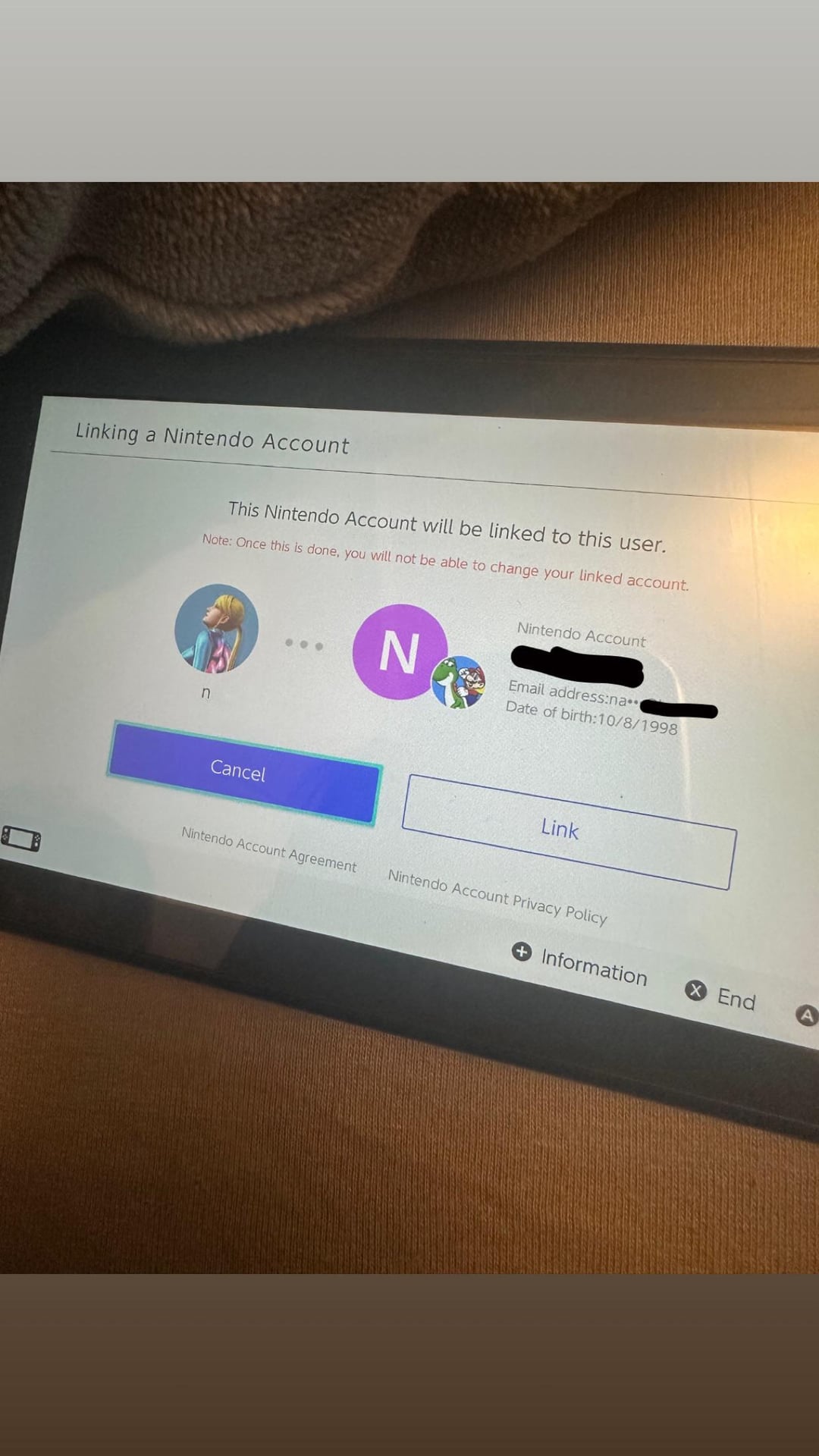
Are you struggling with unlinking your Nintendo account from your smart device? You’re not alone, and you’ve landed in the right place to find a solution.
Whether you’re looking to protect your privacy, switch devices, or simply streamline your digital life, knowing how to unlink your Nintendo account can offer peace of mind and security. In this guide, we’ll break down the steps in a straightforward way, so you can quickly and confidently unlink your account without any hassle.
Stick with us, and you’ll gain the clarity you need to take control of your gaming experience.
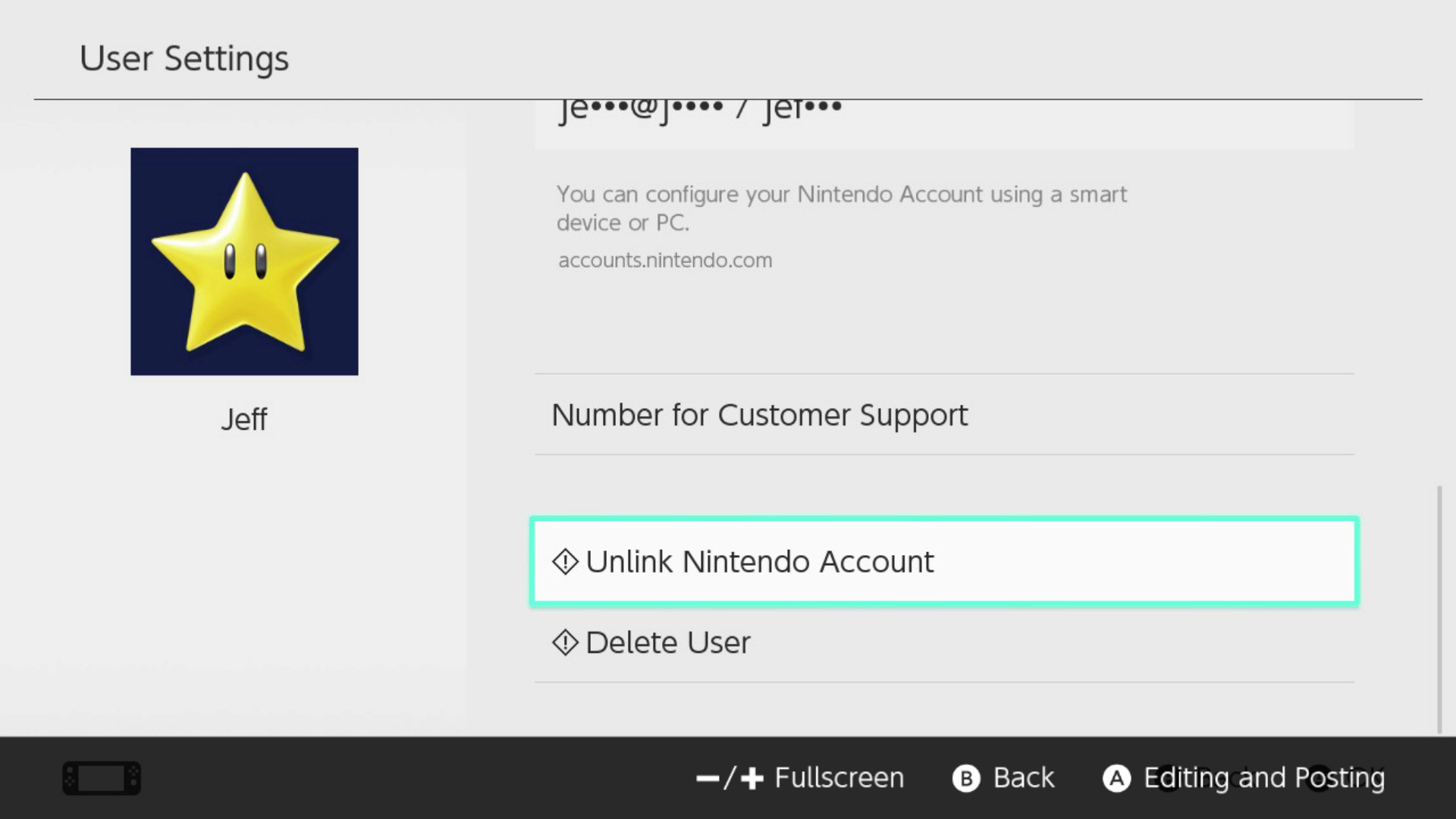
Credit: www.polygon.com
Reasons To Unlink Your Account
Unlinking your Nintendo account from a smart device can be necessary for several reasons. Sometimes, it helps protect your personal information and keeps your gaming data safe. Other times, it allows you to manage your devices better or fix connection problems. Understanding why you might want to unlink your account can guide you through the process smoothly.
Protecting Your Privacy
Unlinking your account stops unauthorized access to your personal information. It prevents others from using your Nintendo account on that device. This action is important if you share your device with family or friends.
Resolving Connection Issues
Sometimes, your Nintendo account may not sync properly with your device. Unlinking and then linking the account again can fix these bugs. This step refreshes the connection and improves performance.
Switching To A New Device
When you get a new smart device, unlinking your account from the old one helps avoid conflicts. It ensures your gaming progress and settings transfer correctly. This makes the switch smoother and hassle-free.
Managing Multiple Accounts
If you have more than one Nintendo account, unlinking helps keep things organized. You can control which account connects to each device. This avoids confusion and keeps your games separate.
Preparing To Sell Or Give Away The Device
Before selling or giving away your smart device, unlink your Nintendo account. This step protects your data from being accessed by the new owner. It also resets the device for the next user.
Preparing Your Device
Before you unlink your Nintendo Account from your smart device, it’s important to get your device ready. Taking a little time to prepare can save you from losing valuable data or facing connection issues later. Let’s focus on two key areas that will help you make the process smooth and hassle-free.
Backup Important Data
Backing up your data is crucial before unlinking your Nintendo Account. This includes game progress, saved settings, and any personal information linked to your account on the device.
Use cloud backup services or transfer data to a computer or external storage. This step ensures you won’t lose anything important if something goes wrong during the unlinking process.
Have you ever lost game progress because you skipped backing up? Avoid that frustration by securing your data first.
Check Internet Connection
A stable internet connection is necessary when unlinking your Nintendo Account. The process often requires communication with Nintendo’s servers to update account settings properly.
Make sure your device is connected to a reliable Wi-Fi network or has strong mobile data. Slow or interrupted connections can cause errors or incomplete unlinking.
Test your connection by loading a webpage or streaming a video before you start. This small check can save you time and prevent unnecessary complications.
Unlinking Via Nintendo Account Website
Unlinking your Nintendo Account from a smart device through the official Nintendo Account website is a straightforward process. It gives you control over which devices have access to your account, helping you maintain security and manage connections effectively. Let’s walk through the steps to remove a smart device from your linked devices list.
Accessing Account Settings
Start by visiting the Nintendo Account websiteand logging in with your credentials. Once logged in, look for the profile icon or menu in the top-right corner and click on it to access your account settings.
This area holds all your account management options, including device connections and security settings. It’s your control hub for managing what’s linked to your Nintendo Account.
Navigating To Linked Devices
Within the account settings, locate the section labeled “Linked Devices” or “Connected Devices.” This section lists all the smart devices and consoles currently connected to your Nintendo Account.
Reviewing this list can be insightful—have you connected any old devices that you no longer use? Removing unused devices helps keep your account safer.
Removing The Smart Device
Find the smart device you want to unlink and select the option to remove or unlink it. The website usually asks for confirmation to ensure you don’t accidentally disconnect an important device.
After confirmation, the device will no longer have access to your Nintendo Account. This can prevent unauthorized access, especially if you’ve lost a device or are selling it.

Credit: www.youtube.com
Unlinking Directly From Smart Device
Unlinking your Nintendo Account directly from your smart device is a straightforward process that gives you control without needing a computer. This approach is perfect if you want to manage your accounts quickly while on the go. Let’s walk through the steps to make sure you can do it confidently and without hassle.
Opening Nintendo App
Start by locating the Nintendo app on your smart device. If you don’t have it installed, you’ll need to download it from your device’s app store. Once opened, ensure you’re logged into the app with the Nintendo Account you want to unlink.
Have you ever struggled to find an app buried in your device? Keeping your frequently used apps organized can save you time when managing accounts.
Accessing Account Management
Inside the app, look for the menu icon, usually represented by three horizontal lines or a gear symbol. Tap this to find the “Account Settings” or “Account Management” section. This is where you’ll control your linked accounts and personal information.
Not all apps label their settings clearly. If you can’t spot “Account Management,” try looking under “Profile” or “Settings” to find the right option.
Disconnecting The Account
Once in the Account Management area, locate the option to disconnect or unlink your Nintendo Account from the device. Confirm your choice when prompted to complete the unlinking process. This will ensure your account is no longer connected to that particular smart device.
Remember, unlinking doesn’t delete your Nintendo Account; it just removes the connection from the device. How often do you review your linked devices to keep your account secure?
Troubleshooting Common Issues
Troubleshooting common issues can help resolve problems while unlinking your Nintendo account. Some errors may occur due to device or network problems. Others might be caused by account settings or app glitches. Understanding these issues speeds up the fix.
Failed Unlink Attempts
Failed attempts often happen due to poor internet connection. Check your Wi-Fi or mobile data before trying again. Close the Nintendo app and reopen it to clear temporary bugs. Restarting the device may also help refresh the system. Make sure you use the correct login details for your Nintendo account.
Account Still Linked
Sometimes the account appears linked even after unlinking. This can result from server delays or sync issues. Log out and log back into the app to update your status. Clear the app cache in your device settings to remove old data. Confirm the unlink process completed on the Nintendo website as well.
Resetting Device Settings
Resetting device settings can fix persistent problems blocking unlinking. This step removes any conflicting configurations or app restrictions. Go to your device’s settings menu and find the reset option. Choose to reset network or app preferences first. Avoid a full factory reset unless other steps fail. Back up important data before any major reset.
Tips For Managing Linked Devices
Managing linked devices on your Nintendo account helps keep your data safe. Knowing how to handle these connections prevents unauthorized access. It also ensures you control which devices can use your account. Here are some simple tips for managing linked devices effectively.
Regular Account Reviews
Check your linked devices often. This helps spot any unfamiliar devices quickly. Remove devices you no longer use or recognize. Keeping the list short reduces security risks. Nintendo’s account settings let you see all connected devices at once. Make it a habit to review this list monthly.
Securing Your Account
Strong passwords are crucial for security. Use a mix of letters, numbers, and symbols. Avoid common words or easy patterns. Enable two-factor authentication for extra protection. This adds a second step to verify your identity. Also, never share your login details with others. Protect your account like you protect your personal info.

Credit: www.reddit.com
Frequently Asked Questions
How Do I Unlink My Nintendo Account From A Device?
To unlink, go to your Nintendo Account settings online. Select “Linked Accounts,” find the device, and choose “Unlink. ” Confirm the action. This disconnects your account from that smart device safely.
Can I Unlink My Nintendo Account On The Console?
No, unlinking must be done through the Nintendo Account website. The console itself doesn’t offer an option to unlink devices directly.
Will Unlinking Delete My Nintendo Account Data?
Unlinking a device won’t delete your Nintendo Account or data. It only removes the connection between that device and your account.
How To Unlink Nintendo Account If Device Is Lost?
If your device is lost, unlink via Nintendo Account website. Access “Linked Accounts,” select the lost device, and unlink remotely to protect your data.
Conclusion
Unlinking your Nintendo account from a smart device is simple and quick. Follow the steps carefully to avoid any mistakes. Keep your account safe by managing connections regularly. This helps protect your personal information and gaming progress. Remember, staying in control of your accounts is important.
Now, you can enjoy gaming without worries on your devices.
Leave a Reply