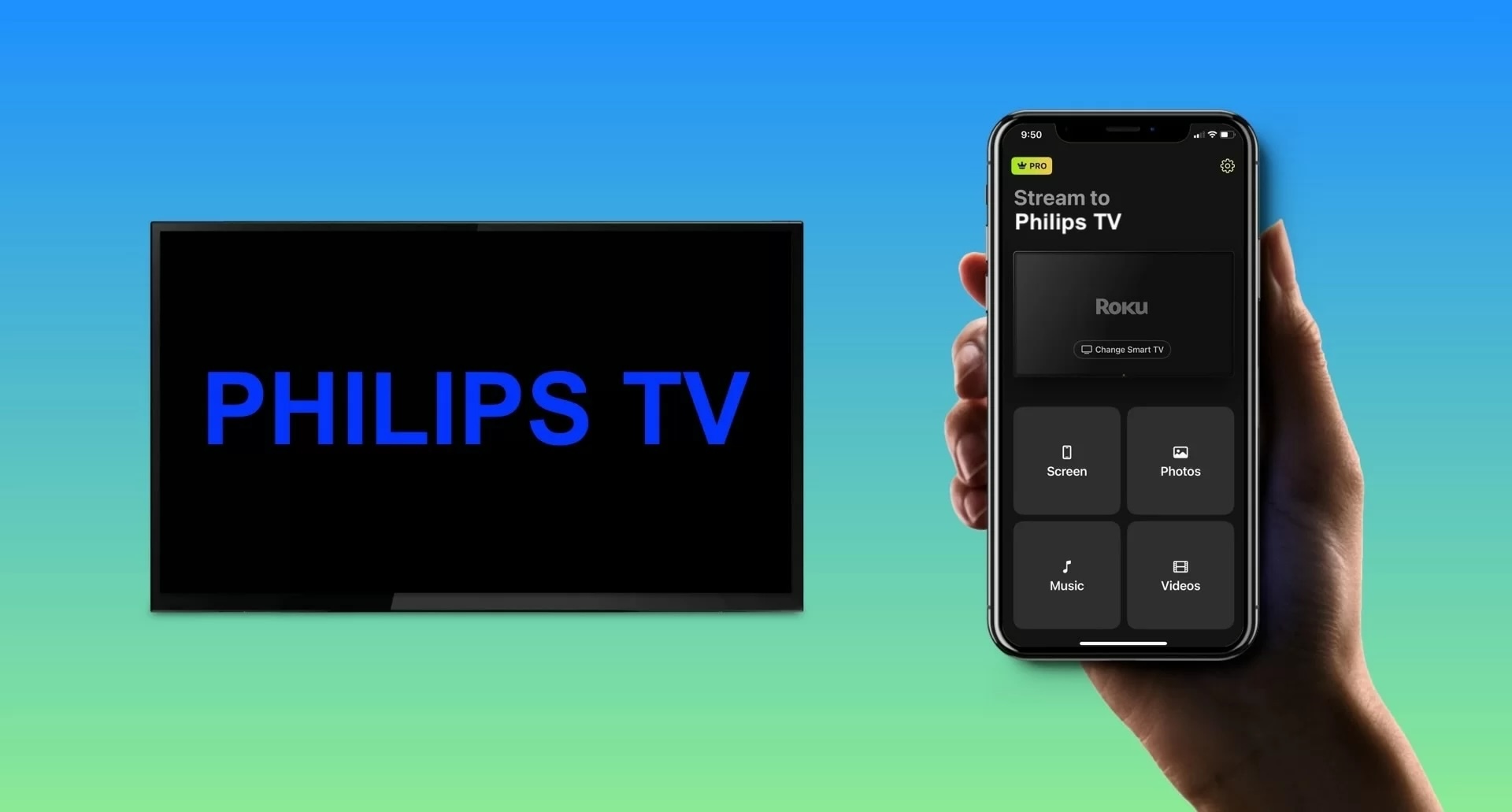
Imagine being able to share your favorite photos, videos, or even games from your phone directly onto your big-screen TV, without any hassle. This is the magic of screen mirroring—a feature that turns your smartphone and Smart TV into a perfect team.
But here’s the catch: not every Smart TV can mirror your phone right out of the box. So, what device does a Smart TV need to mirror your phone? The answer might surprise you. Understanding the tools that make this feature work can transform how you interact with your devices.
It’s like discovering a secret shortcut to a more enjoyable viewing experience. Whether you want to impress friends with your latest travel photos or enjoy a movie night with your loved ones, knowing the right device can make all the difference. Dive into the details with us and unlock the full potential of your Smart TV. Are you ready to elevate your entertainment game? Let’s explore what you need to make it happen!
Types Of Devices For Mirroring
Mirroring your phone to a smart TV can transform the way you share photos, watch videos, or even play games on a bigger screen. But to get started, you need the right device that supports this connection. Different types of devices offer various features, ease of use, and compatibility, so understanding these options helps you choose what fits your needs best.
Built-in Smart Tv Features
Many modern smart TVs come with built-in mirroring capabilities. These TVs support technologies like Miracast, AirPlay, or Chromecast natively, allowing you to mirror your phone without extra gadgets.
If your TV supports AirPlay, you can mirror from an iPhone seamlessly. Android users might find Miracast or Google Cast more useful. Check your TV’s manual or settings to see which mirroring options are available.
Streaming Sticks And Dongles
Streaming sticks like Google Chromecast, Amazon Fire TV Stick, and Roku provide an easy way to add mirroring to any TV. These devices plug into your TV’s HDMI port and connect to your phone over Wi-Fi.
- Chromecast:Excellent for Android and iPhone users alike. It supports screen casting and streaming apps directly.
- Fire TV Stick:Best for Amazon ecosystem users but also supports mirroring from Android phones.
- Roku:Offers screen mirroring for Android and Windows devices, with some support for iPhones via specific apps.
These sticks are affordable and easy to set up, making them a popular choice if your TV lacks built-in mirroring.
External Mirroring Devices
If you want more control or advanced features, external mirroring devices like Apple TV or Miracast adapters come into play. Apple TV is ideal if you’re deep into Apple’s ecosystem, offering smooth AirPlay mirroring and extra apps.
Miracast adapters plug into your TV and work well with many Android phones and Windows PCs. They often provide a lag-free experience but may require some setup.
Choosing an external device depends on your phone type, budget, and how often you plan to mirror your screen. What’s your priority: ease, quality, or extra features?
Credit: www.youtube.com
Compatibility With Phone Operating Systems
Understanding the compatibility between your phone’s operating system and the smart TV is key to seamless screen mirroring. Different devices use different technologies, which means the type of smart TV or additional devices you need will vary. Knowing these differences helps you avoid compatibility issues and enjoy smooth streaming.
Mirroring Iphone To Smart Tv
iPhones primarily use AirPlay for mirroring, which works best with Apple TVs or smart TVs that support AirPlay 2. If your TV doesn’t support AirPlay natively, you might need an Apple TV device connected via HDMI.
Some smart TV brands like Samsung, LG, and Sony have started integrating AirPlay 2, allowing direct mirroring without extra devices. However, if your TV lacks this feature, apps like Reflector or third-party dongles can bridge the gap.
Mirroring Android Phones
Android phones often rely on Miracast or Chromecast for screen mirroring. Many smart TVs come with Miracast support built-in, making it easy to connect without additional hardware.
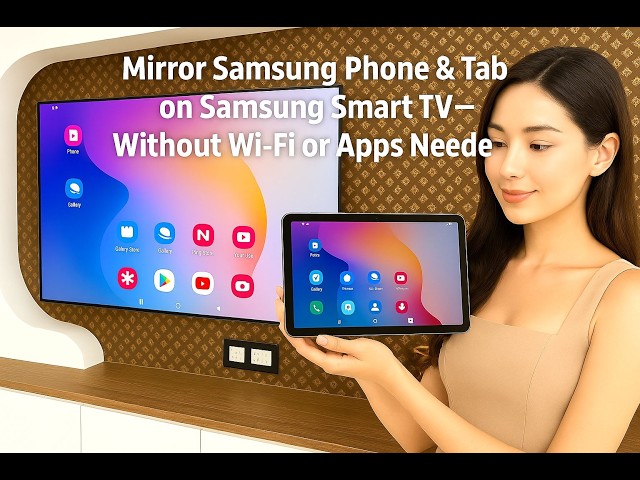
If your TV doesn’t support these protocols, devices like Google Chromecast are affordable and effective options to mirror your Android phone. Also, some brands offer their own casting technologies, such as Samsung’s Smart View, which can simplify the process.
Cross-platform Solutions
What if you switch between Android and iPhone? Some devices and apps work across platforms, offering flexibility. For instance, Google Chromecast supports both iOS and Android, although AirPlay features won’t work on it.
Other third-party apps like AirScreen or LetsView provide cross-platform compatibility and can be installed on many smart TVs or streaming devices. These options are perfect if you want one device to mirror multiple phone types without hassle.
Setup And Connection Methods
Setting up your smart TV to mirror your phone requires choosing the right connection method. Each method offers different benefits for speed, stability, and ease of use. Understanding these options helps create a smooth mirroring experience.
Using Wi-fi Networks
Wi-Fi is the most common way to mirror a phone to a smart TV. Both devices connect to the same wireless network. This allows the TV to receive the screen signal from the phone easily.
Most smart TVs support popular protocols like Miracast, AirPlay, or Google Cast. These work over Wi-Fi without extra cables. Simply enable screen mirroring on your phone and select the TV from the device list.
Wired Connections
Wired connections provide a stable and fast link between your phone and TV. HDMI cables or USB adapters connect your phone directly to the TV. This method avoids Wi-Fi interference and lag.
Some phones need special adapters to connect via HDMI. Check if your phone supports MHL or Slimport standards. Wired setups are ideal for watching videos or playing games without delays.
Bluetooth Options
Bluetooth can connect your phone to a smart TV for limited functions. It is useful mainly for audio or controlling the TV remotely. Screen mirroring over Bluetooth alone is rare and slow.
Use Bluetooth to pair devices for sound output or simple app control. For full screen mirroring, rely on Wi-Fi or wired methods instead. Bluetooth adds convenience but not high-quality video streaming.
Popular Mirroring Devices
Popular mirroring devices let you display your phone screen on a smart TV. These gadgets connect easily and offer smooth streaming. They work with different phone models and TV brands. Choosing the right one depends on your phone type and TV compatibility.
Google Chromecast
Google Chromecast plugs into your TV’s HDMI port. It streams content from your phone through Wi-Fi. Works well with Android and iPhone devices. You can mirror apps, videos, and photos. The setup is quick using the Google Home app.
Apple Tv
Apple TV supports AirPlay for iPhone screen mirroring. Connect it to your TV via HDMI. It streams high-quality video and audio. Apple TV also offers apps and games. Perfect for users with Apple devices.
Amazon Fire Stick
Amazon Fire Stick fits into the TV’s HDMI port. It supports screen mirroring with Android phones. You can cast videos, photos, and apps easily. It also provides access to streaming apps. Setup is simple through the Fire TV interface.
Miracast Adapters
Miracast adapters create a direct wireless connection between your phone and TV. They work with many Android devices and some Windows phones. No internet is needed for mirroring. Just plug the adapter into your TV’s HDMI port and connect your phone.
Troubleshooting Common Issues
Mirroring a phone to a smart TV can enhance your viewing experience. Yet, some common problems may arise during the process. Troubleshooting these issues helps maintain smooth connections and clear displays. Below are typical problems and ways to address them.
Connection Failures
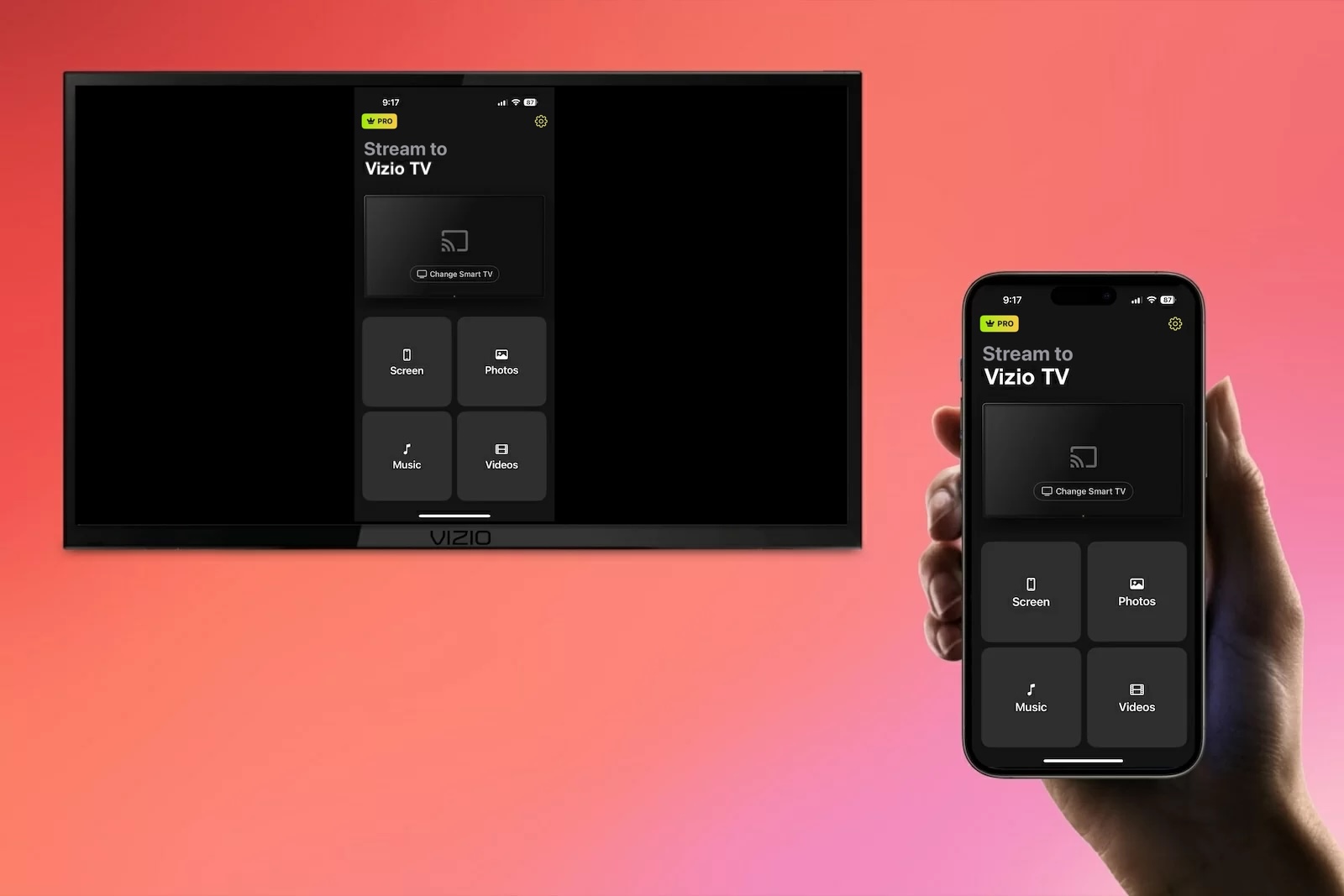
Connection failures often occur due to network problems or device settings. Check if both phone and TV are on the same Wi-Fi network. Restart the router to refresh the connection. Make sure the TV supports the mirroring protocol of your phone, such as Miracast or AirPlay. Disable any VPNs or firewalls that might block the connection. Update the software on both devices to fix bugs.
Lag And Latency Problems
Lag happens when the data transfer between devices is slow. Reduce the distance between the phone and TV to improve signal strength. Close apps running in the background on your phone to free up resources. Avoid using public or congested Wi-Fi networks. Try lowering the streaming quality to reduce delay. Restart both devices to clear temporary glitches.
Audio And Video Sync
Audio and video sync issues make watching frustrating. Check if the TV’s audio settings match the phone’s output. Restart the mirroring app or feature on your phone. Update the firmware on the TV to fix compatibility issues. Use a wired connection like HDMI if wireless syncing fails. Adjust the audio delay settings on the TV if available.
Credit: mac.eltima.com
Tips For Best Mirroring Experience
Getting the best mirroring experience between your phone and smart TV can make a huge difference in how you enjoy your content. Small adjustments and smart choices ensure smooth playback, clear visuals, and secure connections. Let’s dive into some practical tips that you can apply right away to improve your screen mirroring setup.
Optimizing Network Speed
Your network speed plays a vital role in mirroring quality. A slow or unstable Wi-Fi connection causes lag and buffering, which can ruin your viewing experience.
- Place your router closer to both your phone and smart TV to reduce signal interference.
- Use a 5GHz Wi-Fi band instead of 2.4GHz for faster data transfer if your devices support it.
- Limit the number of devices connected to the same network while mirroring to avoid bandwidth congestion.
Think about times when your video froze or the audio lagged. Improving your Wi-Fi setup can prevent these interruptions and keep the stream smooth.
Adjusting Display Settings
Display settings affect how clear and vibrant your mirrored content looks. Sometimes, default settings on your TV or phone aren’t optimized for mirroring.
- Set your TV’s resolution to match your phone’s output for the best picture quality.
- Adjust brightness and contrast on your TV to avoid washed-out colors or overly dark images.
- Enable screen scaling options on your phone if available, to fit the image perfectly on your TV screen.
Try tweaking these settings to see what looks best. You might be surprised how much a small change improves your viewing comfort.
Security Considerations
Mirroring your phone to a smart TV opens a pathway between devices, which could expose personal data if not handled carefully.
- Only connect your phone to trusted smart TVs and avoid public or shared networks when mirroring sensitive content.
- Use apps or built-in features that support encrypted connections for mirroring.
- Turn off mirroring when you’re done to prevent unauthorized access.
Have you ever wondered what might happen if someone else accessed your screen? Protecting your privacy ensures your mirroring experience stays safe and stress-free.
Credit: deskin.io
Frequently Asked Questions
What Device Is Needed To Mirror Phone To Smart Tv?
You need a casting device like Chromecast or a smart TV with built-in Miracast or AirPlay support. These devices connect your phone and TV, enabling wireless screen mirroring for seamless content sharing.
Can I Use Chromecast To Mirror My Phone Screen?
Yes, Chromecast is widely used for mirroring phones to TVs. It supports both Android and iOS devices, allowing easy streaming of photos, videos, and apps directly on your Smart TV.
Do I Need Special Apps To Mirror Phone To Smart Tv?
Generally, no special app is needed if your TV supports Miracast or AirPlay. However, some devices like Chromecast require the Google Home app for setup and control.
Is A Wi-fi Connection Necessary For Screen Mirroring?
Yes, a stable Wi-Fi network is essential for most screen mirroring devices. It ensures smooth, lag-free streaming between your phone and Smart TV without cables.
Conclusion
Smart TVs need specific devices to mirror your phone screen smoothly. Devices like Chromecast, Roku, or Apple TV work well for screen mirroring. These devices connect easily to your TV and phone. They help share videos, photos, and apps on a bigger screen.
Choosing the right device depends on your phone and TV type. Using the right device makes mirroring simple and enjoyable. Try one to see your phone on the big screen quickly. Enjoy your favorite content with just a few clicks.
Leave a Reply