Imagine being able to dim the lights, adjust your thermostat, or even start your coffee maker without leaving your couch. With your iPhone, this isn’t just a dream—it’s your new reality.
You’re just a few taps away from turning your home into a smart oasis. Whether you’re tech-savvy or just starting, mastering how to control home electronics from your iPhone is easier than you think. This guide will walk you through simple steps to streamline your day-to-day life, giving you more time for what truly matters.
Dive in, and discover how to transform your home into a hub of convenience and efficiency.

Credit: www.reddit.com
Choosing Compatible Devices
Choosing the right devices is key to control home electronics from your iPhone smoothly. Compatibility ensures that your gadgets work well with Apple’s HomeKit or other apps. This makes setup easy and gives you full control from one place.
Check device compatibility before buying. Some devices need a central hub, while others connect directly. Understanding the difference helps avoid frustration later.
Smart Home Hubs
Smart home hubs act as the brain of your system. They connect multiple devices and let your iPhone control them together. Popular hubs include Apple HomePod, Amazon Echo, and Samsung SmartThings.
Choose a hub that supports your preferred devices. Some hubs only work with specific brands or protocols. Make sure the hub integrates well with iPhone apps.
Wi-fi Vs Bluetooth Devices
Wi-Fi devices connect through your home internet network. They offer longer range and better speed. Bluetooth devices connect directly to your iPhone but work best nearby.
Wi-Fi devices suit larger homes or multiple users. Bluetooth devices are simple and great for single-room setups. Decide based on your home size and device location.
Popular Brands And Models
- Philips Hue lights – easy to control and set schedules.
- Ecobee smart thermostats – work well with Apple HomeKit.
- August smart locks – provide secure, remote access.
- LIFX bulbs – no hub needed, connect via Wi-Fi.
- Sonos speakers – great sound and iPhone compatibility.
Choose brands with good reviews and frequent software updates. These ensure reliable performance and new features over time.
Credit: www.bgr.com
Setting Up Your Iphone
Getting your iPhone ready to control your home electronics is simpler than you might think. The key is to set up the right apps and voice commands that let you manage devices effortlessly. Once your iPhone is configured, you’ll wonder how you ever managed without it.
Enabling Home App
The Home app is your central hub for controlling smart devices from your iPhone. First, make sure the app is installed and updated to the latest version from the App Store.
Open the Home app and tap on “Add Accessory.” Follow the prompts to connect compatible devices like lights, thermostats, or plugs. You can organize your devices by room, making it easier to control multiple gadgets at once.
Have you checked if your devices support HomeKit? This is crucial since only HomeKit-enabled devices will show up in the Home app automatically.
Configuring Siri For Control
Siri can be your personal assistant for managing home electronics hands-free. To enable this, go to Settings > Siri & Search, and turn on “Listen for ‘Hey Siri’” and “Press Side Button for Siri.”
Try creating custom Siri shortcuts that trigger multiple actions with a single command. For example, saying “Good night” can turn off lights and lock doors simultaneously.
Have you experimented with different voice commands? Sometimes, tweaking the phrasing can improve Siri’s responsiveness and accuracy.
Installing Third-party Apps
Some devices don’t natively connect with the Home app and require third-party apps. Identify your device brands and download their official apps from the App Store.
These apps often offer advanced settings and features not available in the Home app. For example, a smart camera app might allow you to view live footage or set motion alerts.
Don’t forget to check if these third-party apps support Siri integration. This can unify your control experience under voice commands, even for devices outside the Home app.
Connecting Electronics To Iphone
Connecting your home electronics to your iPhone opens a world of convenience and control right at your fingertips. It lets you manage lighting, thermostats, speakers, and more without leaving your couch. But getting started can feel tricky, especially if you’re not sure how to link these devices effectively.
Pairing Devices
Pairing your iPhone with home electronics usually begins with Bluetooth or Wi-Fi. Start by turning on the device you want to connect and making sure it’s in pairing mode. On your iPhone, go to Settings > Bluetooth, then select the device from the list that appears.
Some devices require you to enter a code or confirm a pairing request. If you’ve ever paired wireless headphones or a speaker, the process is similar for many smart home gadgets. Staying close to the device during pairing can prevent connection failures.
Using Homekit Accessories
Apple’s HomeKit framework simplifies controlling compatible accessories through the Home app. To add a HomeKit accessory, open the Home appand tap the plus icon to “Add Accessory.”
Scan the HomeKit setup code, usually found on the device or its packaging. Once added, you can organize devices by room and create automation routines. Have you tried setting a “Good Night” scene that turns off all your lights and locks the doors automatically?
Troubleshooting Connection Issues
Sometimes your iPhone might fail to connect or control a device. Start by checking if the device and your iPhone are on the same Wi-Fi network. Restarting both devices often resolves minor glitches.
If problems persist, try resetting the device’s network settings or removing and re-adding it in the Home app. Don’t forget to update your iPhone’s iOS and the device’s firmware to ensure compatibility. Have you ever discovered that a simple update fixed what seemed like a complex issue?
Controlling Devices Remotely
Controlling your home electronics remotely transforms how you interact with your living space. It gives you freedom and convenience, whether you’re across the house or across the world. Imagine adjusting your thermostat on the way home or turning off lights after you’ve left—these small actions can save energy and reduce stress.
Using Control Center Shortcuts
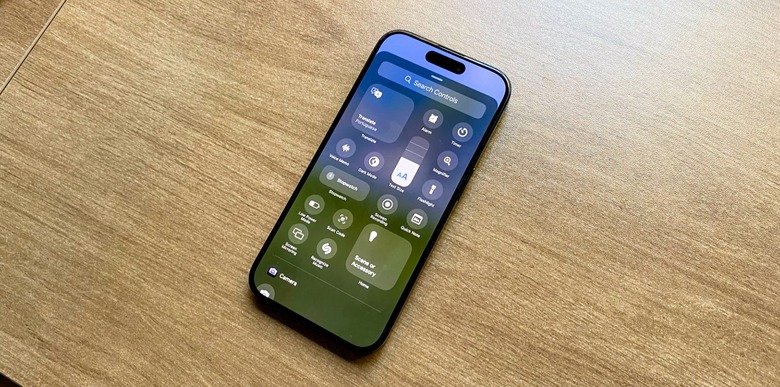
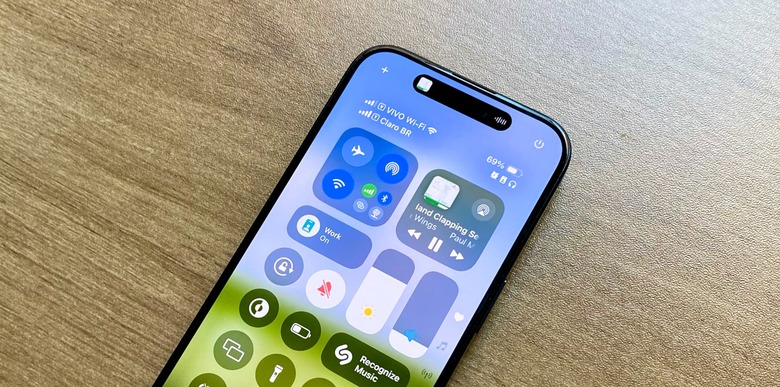
Your iPhone’s Control Center is a powerful tool for quick access to smart devices. You can add shortcuts for lights, plugs, or even your security system. This means you don’t have to open apps or search through menus to control your devices.
To add shortcuts, open the Home app and select the devices or scenes you use most. Then, add them to Control Center for instant control. This setup makes it easy to turn things on or off with just a swipe and a tap.
Setting Up Automation
Automation lets your devices work on their own schedule. You can program your lights to turn on at sunset or your coffee maker to start brewing as your alarm goes off. This hands-off approach saves you time and makes your home smarter.
Setting up automation is simple. Use the Home app to create rules based on time, location, or sensor triggers. Have you ever thought about how much time you spend fiddling with switches? Automations cut that down drastically.
Remote Access With Home Hub
To control devices remotely when you’re away, you need a Home Hub. Devices like Apple TV, HomePod, or an iPad set up as a hub act as a bridge between your iPhone and your home electronics.
Once the hub is connected, you can manage your smart home from anywhere with an internet connection. This setup ensures your devices stay responsive even if you’re miles away. Are you ready to check your home’s status or adjust settings without stepping inside?
Voice Commands And Siri
Voice commands paired with Siri transform how you interact with your home electronics. You don’t need to hunt for remotes or fumble with apps. Just speak naturally, and your iPhone becomes a powerful tool to control lights, thermostats, speakers, and more.
Imagine walking into your living room and saying, “Hey Siri, turn on the lights,” while your hands are full. No tapping, no searching—just instant response. This ease of use can save time and reduce frustration, especially in busy moments.
Basic Voice Controls
Starting with voice commands is straightforward. Simply say “Hey Siri” to activate your iPhone and follow with clear instructions like:
- “Turn off the bedroom lights.”
- “Set the thermostat to 72 degrees.”
- “Play jazz music in the kitchen.”
These commands are designed to be intuitive, so you don’t have to memorize complex phrases. Siri understands common requests related to your connected devices, making everyday tasks effortless.
Customizing Siri Commands
Want Siri to respond in a way that feels personal? You can create shortcuts for specific actions. For example, telling Siri “Good night” could dim the lights, lock doors, and lower the thermostat all at once.
Setting up these shortcuts is done through the Shortcuts app on your iPhone. Pick the actions you want, assign a phrase, and test it out. This customization tailors your smart home experience to fit your lifestyle perfectly.
Managing Multiple Devices
Controlling several smart devices at once can get confusing, but Siri simplifies it. You can ask Siri to control devices by room or group, like “Turn off all the lights downstairs.”
This ability to manage multiple devices with a single command keeps your home organized and responsive. It also means you don’t have to specify each device, saving time and effort.
Advanced Automation Tips
Advanced automation can transform your iPhone into a powerful hub for controlling home electronics effortlessly. It’s not just about turning devices on and off anymore. You can customize actions that fit your lifestyle perfectly, saving time and energy while enhancing comfort.
Creating Scenes
Scenes let you control multiple devices with a single tap. Imagine setting a “Movie Night” scene that dims your lights, closes the blinds, and turns on your TV. You can create scenes for any mood or routine, making your home respond exactly how you want it.
Setting up scenes is easy in the Home app. Just choose the devices, set their states, and name the scene. Don’t forget to test your scenes to make sure everything works smoothly before relying on them daily.
Scheduling Device Actions
Scheduling lets your devices work on your timeline without manual input. You can program your smart lights to turn on at sunset or your coffee maker to start brewing before you wake up. This helps your home adapt to your schedule automatically.
Try using the automation tab on your iPhone to set specific times or recurring schedules. It’s a great way to save energy and ensure your home is always ready for you. Have you thought about what daily tasks could be automated to free up your time?
Using Geofencing
Geofencing uses your iPhone’s location to trigger actions when you arrive or leave a specific area. For example, your thermostat can lower the temperature when you leave home and raise it again when you’re close. It’s like having your home anticipate your needs.
Set up geofencing by enabling location services for your Home app and creating location-based automations. This feature is especially useful if you want your home to respond without pressing a single button. How could geofencing make your daily routine easier?
Security And Privacy
Controlling your home electronics from your iPhone offers amazing convenience, but it also opens doors to potential security and privacy risks. Protecting your devices and personal data requires careful attention to how you connect and manage these smart gadgets. Let’s look at practical ways you can keep your smart home safe and secure.
Securing Your Network
Your home Wi-Fi network is the gateway to all your connected devices. If someone gains access to your network, they can control your electronics or steal personal information.
- Change default router passwordsimmediately—these are often easy to guess.
- Use strong encryption like WPA3to protect your Wi-Fi signal from outsiders.
- Create a separate guest networkfor visitors so your smart devices stay isolated.
I once overlooked my router’s default password, and a nearby hacker almost accessed my smart locks. That taught me how crucial network security really is.
Managing Permissions
Each app on your iPhone that controls home electronics asks for permissions. These can include access to your location, microphone, or camera.
- Review app permissions regularly and only grant what’s necessary.
- Disable permissions that seem unrelated to the app’s function.
- Be wary of third-party apps that require excessive permissions.
Think about what could happen if a malicious app gained control over your smart thermostat or security cameras—do you really want to risk it?
Updating Firmware Regularly
Smart devices rely on firmware to operate securely. Manufacturers often release updates to fix vulnerabilities and improve performance.
- Check for updates frequently through the device’s app or website.
- Enable automatic updates when possible to avoid missing critical patches.
- Don’t ignore update notifications, even if they seem inconvenient.
After skipping a few updates on my smart lights, I found out they were vulnerable to hacking. Regular updates keep your devices protected against the latest threats.
Troubleshooting Common Problems
Controlling home electronics from an iPhone can sometimes face hiccups. Troubleshooting these common problems helps keep your smart home running smoothly. Understanding simple fixes saves time and avoids frustration.
Device Not Responding
Devices may not respond due to poor Wi-Fi connection or low battery. Check if the device is powered on and within range. Restart your Wi-Fi router to improve the connection. Confirm the device is connected to the same network as your iPhone.
App Crashes And Bugs
App crashes can disrupt control of your devices. Close the app and reopen it to refresh the session. Check for app updates in the App Store to fix bugs. Clear the app cache if possible, or reinstall the app to resolve persistent issues.
Resetting And Re-pairing Devices
Resetting devices often fixes communication problems. Follow the device manual to reset it safely. Remove the device from the app, then pair it again. Re-pairing ensures a fresh connection between the iPhone and your device.

Credit: www.youtube.com
Frequently Asked Questions
How Can I Control Home Electronics From Iphone?
You can control home electronics using the Home app or third-party apps. Connect devices via Wi-Fi or Bluetooth for seamless control.
Which Apps Work Best For Iphone Home Automation?
Apple’s Home app, Google Home, and SmartThings are popular. These apps offer easy device control and automation features.
Is An Iphone Compatible With Smart Home Devices?
Yes, most smart home devices support iPhone through HomeKit or dedicated apps. Ensure your device is HomeKit-enabled for best integration.
Can I Control Home Electronics Remotely With Iphone?
Yes, remote control is possible if devices connect to the internet. Use the Home app or compatible apps from anywhere.
Conclusion
Controlling home electronics from your iPhone saves time and adds comfort. You can turn devices on or off with just a tap. Adjust settings without moving around. This makes daily tasks easier and more fun. Start with simple tools and learn step by step.
Soon, managing your home will feel natural and smooth. Enjoy the convenience and control right in your hand.
Leave a Reply