Are you feeling overwhelmed by the clutter of devices on your Peel Smart Remote app? You’re not alone.
Many Samsung users find themselves tangled in a web of unnecessary devices that complicate their smart remote experience. Imagine the relief of a streamlined device list, where only the essentials remain. By learning how to remove a device from your Peel Smart Remote, you can regain control and simplify your digital interactions.
This guide will take you step-by-step through the process, ensuring you can easily clear out the clutter. Ready to enhance your remote experience? Let’s dive into the details and make your smart remote as efficient as possible.
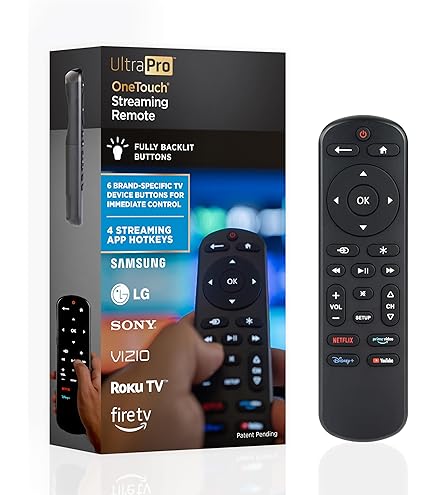
Credit: www.amazon.com.au
Peel Smart Remote Overview
The Peel Smart Remote app turns your Samsung device into a powerful universal remote. It simplifies managing multiple gadgets by combining their controls into one easy interface. If you’ve ever felt overwhelmed by juggling different remotes, this app offers a streamlined solution.
Before you remove a device from Peel Smart Remote, it helps to understand what the app offers and which devices it supports. Knowing this can make your experience smoother and more efficient.
Key Features
- Universal Remote Control:Controls TVs, set-top boxes, DVD players, and more from your Samsung phone or tablet.
- Personalized Recommendations:Suggests TV shows and movies based on your preferences and viewing habits.
- Easy Setup:Automatically detects devices and configures controls with minimal input.
- Multiple Device Management:Allows adding and switching between several devices within one app.
- Voice Command Support:Lets you search and control devices using voice commands for hands-free convenience.
Imagine how much easier it is to find your favorite show without switching remotes. This app saves time and reduces clutter on your coffee table.
Supported Devices
The Peel Smart Remote app works with a broad range of devices, especially Samsung phones and tablets equipped with an IR blaster. It supports:
- Most Samsung smart TVs
- Various brands of set-top boxes like Comcast, DirecTV, and Dish Network
- DVD and Blu-ray players from popular manufacturers
- Streaming devices including Roku and Apple TV (limited support)
Have you checked if your gadgets are compatible yet? The app usually lists supported devices during setup, but you can also visit Peel’s official support page for the latest info.
Knowing this helps you decide which devices to keep in your remote list and which ones to remove for a cleaner interface.

Credit: www.reddit.com
Reasons To Remove A Device
Knowing when to remove a device from your Peel Smart Remote app can save you time and prevent frustration. It keeps your remote interface clutter-free and ensures you control only the devices you actively use. Let’s look at why you might want to remove a device from the app.
Device No Longer Used
Sometimes, you replace an old TV or sound system with a new one. Keeping the old device in your Peel Smart Remote can cause confusion when selecting which device to control. Removing devices you no longer use helps you focus only on the gadgets that matter to you now.
Have you ever spent minutes trying to find the right device in a long list? Clearing out unused devices can make your remote experience smoother and faster.
Troubleshooting Issues
If your Peel Smart Remote isn’t responding correctly, the problem might be linked to a device’s setup. Removing and re-adding the device often fixes connection or control issues.
This simple step can resolve glitches that might otherwise require more time-consuming troubleshooting. It’s a quick way to refresh the app’s connection with your equipment and get back to seamless control.
Preparing To Remove A Device
Preparing to remove a device from Peel Smart Remote on your Samsung is an important step. It helps avoid errors and ensures a smooth process. Taking time to check your device connection and update the app saves frustration later.
Make sure your Samsung is connected properly to the device you want to remove. This confirms that Peel Smart Remote recognizes the device. Also, updating the Peel app ensures you have the latest features and bug fixes. These simple preparations make the removal quick and easy.
Check Device Connection
Start by checking the connection between your Samsung and the device. Verify that both devices are on the same Wi-Fi network. Confirm the device appears in the Peel Smart Remote app. If the device is offline or missing, reconnect it before removal.
Look for signs like:
- Device status showing online in the app
- Ability to control the device via Peel
- Stable Wi-Fi signal on both devices
Fix any connection problems first. This prevents issues during device removal.
Update Peel App
Open the Google Play Store or Samsung Galaxy Store on your phone. Search for Peel Smart Remote and check for updates. An updated app has improved security and smoother functions.
Updates often include:
- Bug fixes for device management
- Improved compatibility with Samsung models
- New features for better control
Install the latest version before removing any device. This avoids errors and improves your experience.
Steps To Remove Device On Samsung
Removing a device from the Peel Smart Remote app on Samsung is simple. Follow a few clear steps to get this done quickly. This guide helps you manage your devices efficiently.
Open Peel Smart Remote App
Start by unlocking your Samsung phone. Locate the Peel Smart Remote app icon on your home screen or app drawer. Tap the icon to open the app.
Wait a moment for the app to load completely before moving forward.
Access Device Settings
Inside the app, find the menu or settings option. This is usually represented by three lines or a gear icon. Tap on it to open the settings menu.
Look for the section labeled “Devices” or “My Devices” to see the list of connected devices.
Select Device To Remove
Scroll through your list of devices to find the one you want to remove. Tap on the device name to open its settings page. This will display options related to that device.
Confirm Removal
On the device settings page, find the option that says “Remove Device” or “Delete Device.” Tap this option. A confirmation message will appear asking you to confirm your choice.
Confirm by tapping “Yes” or “Remove.” The device will then be deleted from your Peel Smart Remote app.
Troubleshooting Removal Issues
Removing a device from Peel Smart Remote for Samsung should be simple. Sometimes, the app might not respond as expected. Troubleshooting removal issues helps fix common problems fast. Try basic fixes to get the app working again.
App Restart
Close the Peel Smart Remote app completely. Make sure it is not running in the background. Open the app again and try to remove the device. Restarting clears minor glitches and refreshes the app’s functions.
Clear Cache And Data
Open your phone’s Settings and go to Apps. Find Peel Smart Remote in the list. Tap on Storage, then select Clear Cache first. Check if the device removal works. If not, choose Clear Data. This resets the app but may remove saved preferences.
Reinstall App
Uninstall Peel Smart Remote from your Samsung device. Restart your phone for a clean start. Download and install the app again from the Play Store or Galaxy Store. Log in and set up your devices anew. This step solves deeper app issues that block removal.
Alternative Methods To Manage Devices
Managing devices on Peel Smart Remote can sometimes be tricky, especially if the usual removal process doesn’t work for you. Luckily, there are alternative ways to handle your device list that give you more control and flexibility. These methods can help you quickly tidy up your remote app and ensure it stays synced with the devices you actually use.
Using Samsung Settings
Samsung devices have built-in settings that let you manage connected devices, including those linked to Peel Smart Remote. You can access these settings to disconnect or remove devices without opening the Peel app.
Start by going to Settingson your Samsung phone. Then navigate to Connectionsor Bluetooth & Device Connection, depending on your model. Here, you’ll see a list of paired devices.
Look for the device associated with Peel Smart Remote and tap on it. You should find an option to Unpairor Removethe device. This action forces the Peel app to forget that device the next time it syncs.
Resetting Peel Smart Remote
If you want a fresh start, resetting the Peel Smart Remote app can clear all saved devices and settings. This approach works well if the app is glitching or showing outdated devices.
To reset, go to your phone’s Settings, then Apps, and find Peel Smart Remote in the list. Tap on it, then select Storage, and finally tap Clear Dataor Clear Cache.
After resetting, reopen Peel Smart Remote and set up your devices again. Keep in mind this will erase all your customized preferences in the app, so be ready to reconfigure your remote controls.
Tips For Smooth Device Management
Managing your devices on Peel Smart Remote can sometimes feel overwhelming, especially if you frequently add or remove devices like your Samsung TV. Smooth device management helps keep your remote app running efficiently and saves you from unnecessary troubleshooting. Let’s look at a couple of practical tips that make handling your devices easier and stress-free.
Regular App Updates
Keeping Peel Smart Remote updated is crucial. Each update can fix bugs, improve device compatibility, and add new features that enhance your experience.
Imagine trying to remove a Samsung TV from an outdated app version that doesn’t support the latest device protocols. It can cause delays or errors. Updates ensure the app communicates properly with your devices, making actions like device removal smoother.
Check for updates regularly in your app store or enable automatic updates to stay current without hassle. Have you noticed improved app performance right after an update? That’s the app working better for you.
Backup Settings
Backing up your Peel Smart Remote settings can save you from a lot of trouble. If you accidentally remove the wrong device or your app resets, a backup lets you restore your preferred setup quickly.
You can back up settings through the app’s account or cloud sync options. This way, you avoid starting from scratch and re-adding every device manually.
Ask yourself how often you add or remove devices. If it’s frequent, backing up after each change can save time and prevent frustration. Don’t let a simple mistake erase your carefully configured remote setup.

Credit: www.youtube.com
Frequently Asked Questions
How Do I Remove A Device From Peel Smart Remote?
Open the Peel app, go to Settings, select Devices. Choose the device you want to remove and tap Delete or Remove. Confirm your action to successfully remove the device from the Peel Smart Remote app.
Can I Delete Multiple Devices At Once In Peel Remote?
No, Peel Smart Remote currently requires you to delete devices one by one. You must repeat the removal process for each device separately in the app.
Will Removing A Device Affect Peel Remote’s Performance?
Removing unused or incorrect devices improves app performance and accuracy. It helps Peel focus on controlling your active devices without confusion.
How To Reset Peel Smart Remote To Factory Settings?
Go to Peel app Settings, scroll to Reset or Clear Data option. Confirm the reset to remove all devices and restore default settings.
Conclusion
Removing a device from Peel Smart Remote on Samsung is simple and quick. Just follow the steps carefully, and you will be done in minutes. This helps keep your remote list clean and organized. You can add new devices anytime without confusion.
Managing your remote apps this way saves time and avoids errors. Keep your Peel Smart Remote working smoothly by updating your devices regularly. Now, controlling your Samsung devices feels easier and more efficient. Give it a try and enjoy the convenience.
Leave a Reply