Imagine you’ve just bought a shiny new smart device, and you’re eager to get it up and running. But there’s a catch: you’ve heard that setting up smart devices on your main network can sometimes lead to security risks.
What if there was a safer way to connect your gadgets without compromising your privacy? This is where using a guest network comes in. Setting up your smart devices on a guest network might sound a bit technical, but don’t worry.
You don’t need to be a tech genius to do this. By the end of this article, you’ll know exactly how to keep your main network secure while enjoying the convenience of your smart devices. Ready to learn how to protect your data while embracing the future of technology? Keep reading, because this guide is all about making your life easier and your home smarter.

Credit: help.eastlink.ca
Benefits Of Using A Guest Network
Using a guest network for smart devices offers several key benefits. It separates your main network from less secure devices. This separation helps keep your personal data safe. It also makes your home network run smoother. Let’s explore these benefits in detail.
Enhanced Security
A guest network keeps smart devices isolated from your main network. This limits access to sensitive information on your primary devices. If a smart device is hacked, your main network stays protected. It lowers the risk of spreading malware or unauthorized access. This setup creates a safer environment for all your devices.
Improved Network Performance
Smart devices often use a lot of bandwidth. Running them on a guest network prevents them from slowing down your main devices. Your phone, laptop, or tablet will have better speeds. It reduces congestion and interference on the main network. This results in a smoother online experience for everyone.
Privacy Protection
Guest networks help keep your personal data private. Devices connected to the guest network cannot see files or information on your main devices. This limits data sharing and exposure. It also restricts smart devices from collecting unnecessary data from your personal devices. Privacy stays intact, even with many devices connected.

Credit: www.reddit.com
Preparing Your Router
Preparing your router is essential for setting up smart devices on a guest network. This step keeps your main network secure while allowing guests to use smart devices. Start by accessing your router’s settings. Then, enable the guest network feature to create a separate connection.
Accessing Router Settings
Find your router’s IP address. It usually looks like 192.168.1.1 or 192.168.0.1.
Open a web browser and enter this IP address in the address bar.
Log in using your router’s username and password. Check your router’s manual if you don’t know these details.
Once logged in, you will see the router’s dashboard or control panel.
Enabling Guest Network Feature
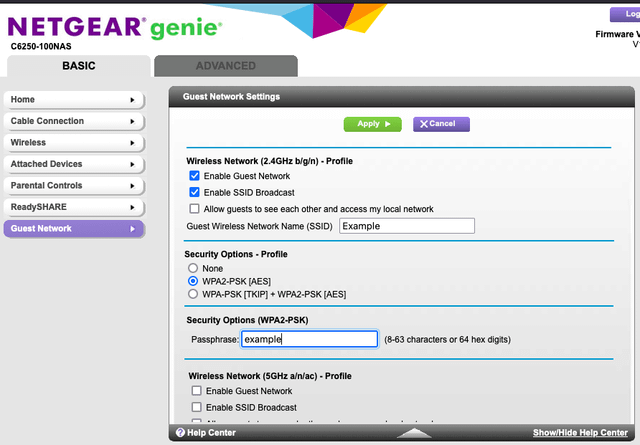
Look for the “Guest Network” option in the router’s menu. It may be under Wireless Settings or Network Settings.
Turn on the guest network feature.
Set a network name (SSID) different from your main network’s name.
Create a strong password to protect the guest network.
Save the changes and restart your router if required.
Configuring Guest Network Settings
Configuring guest network settings is essential for secure and smooth smart device use. A properly set guest network keeps your main network safe and controls guest access. This section explains how to set the network name and password, adjust access limits, and manage bandwidth and device connections.
Setting Network Name And Password
Choose a clear and simple network name for easy recognition. Avoid personal information in the name. Set a strong password to protect the network. Use a mix of letters and numbers. Change the password regularly to keep security tight. This stops unauthorized users from joining your network.
Adjusting Access Restrictions
Limit what guests can do on the network. Block access to your main devices and sensitive information. Many routers let you control access by enabling restrictions. You can block certain websites or services. Set time limits to control how long guests stay connected. These steps keep your network safe and organized.
Limiting Bandwidth And Device Access
Manage how much data guests can use. Bandwidth limits prevent one user from slowing the network. Some routers allow you to set speed caps per device. Also, restrict how many devices connect at once. This avoids network overload and keeps your smart devices working well. Check your router settings to apply these limits easily.
Connecting Smart Devices To Guest Network
Connecting smart devices to a guest network keeps your main network safe. It also lets guests use the internet without accessing your personal devices. Many smart devices support Wi-Fi setup for guest networks. The process involves finding the right network, entering the password, and confirming the connection. Each step is simple but important for security and performance.
Locating Network On Device
Start by opening the smart device’s settings menu. Look for the Wi-Fi or network option. The device shows a list of available networks. Find your guest network’s name (SSID) on this list. Sometimes the guest network name has “guest” in it. Select the guest network to prepare for connection.
Entering Credentials Correctly
After selecting the guest network, enter the Wi-Fi password. Type carefully to avoid mistakes. Passwords are case-sensitive and must match exactly. Avoid spaces before or after the password. Some devices show the password as dots. Use the “show password” option if available. Double-check each character before confirming.
Verifying Connection
Once the password is accepted, the device tries to connect. Wait for the confirmation message or icon. Check if the device shows “Connected” or a Wi-Fi symbol. Test the connection by using the device’s app or browser. If it does not connect, repeat the steps. Confirm the guest network is active and password is correct.
Maintaining Security And Performance
Maintaining security and performance on your guest network is essential for smooth operation of smart devices. Strong security protects your data and keeps unauthorized users out. Good performance ensures devices respond quickly and work without interruptions.
Regular attention to key areas helps keep your guest network safe and efficient. Small actions can prevent big problems later. Focus on simple habits to secure and optimize your network.
Regular Password Updates
Change your guest network password often. Set a strong password with letters, numbers, and symbols. Avoid easy-to-guess words like “password” or “123456.”
Updating passwords limits access for unwanted users. It keeps your devices safer from hackers. Share the new password only with trusted guests.
Monitoring Connected Devices
Check which devices connect to your guest network regularly. Use your router’s admin page or app to see device lists. Look for unknown or suspicious devices.
Removing unfamiliar devices prevents security risks. It also frees up bandwidth, improving device speed. Keep a record of devices you recognize.
Firmware Updates
Keep your router and smart devices updated with the latest firmware. Updates fix security holes and improve performance. Set automatic updates if your device supports them.
Outdated firmware can cause slowdowns and vulnerabilities. Regular updates ensure your network runs smoothly and stays protected.
Troubleshooting Common Issues
Troubleshooting common issues is key to a smooth smart device setup on a guest network. Problems can block device connection or cause interruptions. Understanding typical challenges helps fix them fast and keeps your devices running well.
Guest Network Not Visible
Sometimes, the guest network does not appear on your device’s Wi-Fi list. Check if the guest network is enabled in your router settings. Restart the router to refresh network broadcasts. Confirm the guest network uses a different name (SSID) than the main network. Make sure your device is within range and supports the Wi-Fi frequency (2.4 GHz or 5 GHz) used by the guest network.
Connection Drops
Connection drops can disrupt your smart devices often. Reduce the distance between devices and the router to improve signal strength. Avoid interference from other electronics like microwaves or cordless phones. Change the guest network channel in router settings to a less crowded one. Keep router firmware updated to ensure stable performance.
Device Compatibility Problems
Some smart devices may not connect to a guest network due to compatibility issues. Verify the device supports the Wi-Fi standards used by your router. Check if the guest network allows device communication within the network, as some routers isolate devices on guest networks. Update your smart device’s software or app to the latest version. Consult device manuals for any specific network requirements.

Credit: www.asus.com
Frequently Asked Questions
What Is A Guest Network For Smart Devices?
A guest network is a separate Wi-Fi network for visitors or smart devices. It keeps your main network secure by isolating guest traffic. Using a guest network for smart devices prevents unauthorized access and enhances privacy.
How Do I Connect Smart Devices To A Guest Network?
To connect smart devices, access your router settings and enable the guest network. Then, use the guest network’s SSID and password to connect each smart device. This keeps devices separate from your main network.
Can Smart Devices Work Well On A Guest Network?
Yes, smart devices function normally on a guest network. However, some advanced features may require access to your main network. Guest networks offer good security without significantly affecting performance.
Is It Safe To Use Smart Devices On Guest Networks?
Using smart devices on a guest network improves security by isolating them. It reduces risks of hacking and data breaches. Always use strong passwords and keep your router firmware updated.
Conclusion
Setting up smart devices on a guest network keeps your main network safe. It limits access and protects your personal data. The process is simple and quick to follow. You just need to connect devices to the guest Wi-Fi. This way, guests and devices stay separate.
Enjoy smart technology without worrying about security risks. Try these easy steps to keep your home network strong and secure.
Leave a Reply