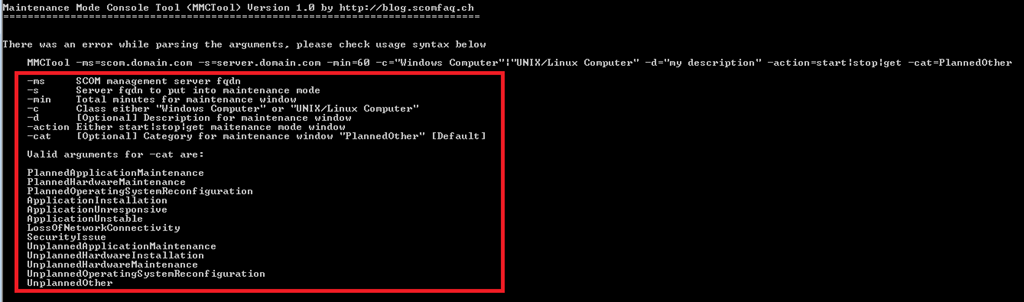
Have you ever needed to fix something important on your Linux system but didn’t want it running normally? Starting your system in maintenance mode lets you do just that.
It’s a powerful way to access your system with minimal services running, so you can troubleshoot, repair, or update without distractions. If you want to learn how to enter maintenance mode quickly and safely, this guide is made for you.
Keep reading, and you’ll discover simple steps that anyone can follow to take control of your Linux system when it matters most.
Understanding Maintenance Mode
Maintenance mode is a special state in Linux systems. It helps fix problems without running all services. In this mode, the system boots with minimal processes active. This limits access to only essential functions.
Using maintenance mode allows safe troubleshooting. It stops most users from logging in. This protects the system during repairs or updates. It is often called single-user mode.
What Happens In Maintenance Mode
The system runs only core services. Network and graphical interfaces are usually off. You get a command-line interface to work with. This environment helps repair disks, fix configurations, or reset passwords.
Why Use Maintenance Mode
- Fix broken system files
- Recover lost passwords
- Update critical system settings
- Repair disk errors
- Stop services causing issues
Who Can Access Maintenance Mode
Only the system administrator or root user can enter this mode. It requires physical or console access to the machine. This restriction keeps the system secure during maintenance.
When To Start Maintenance Mode
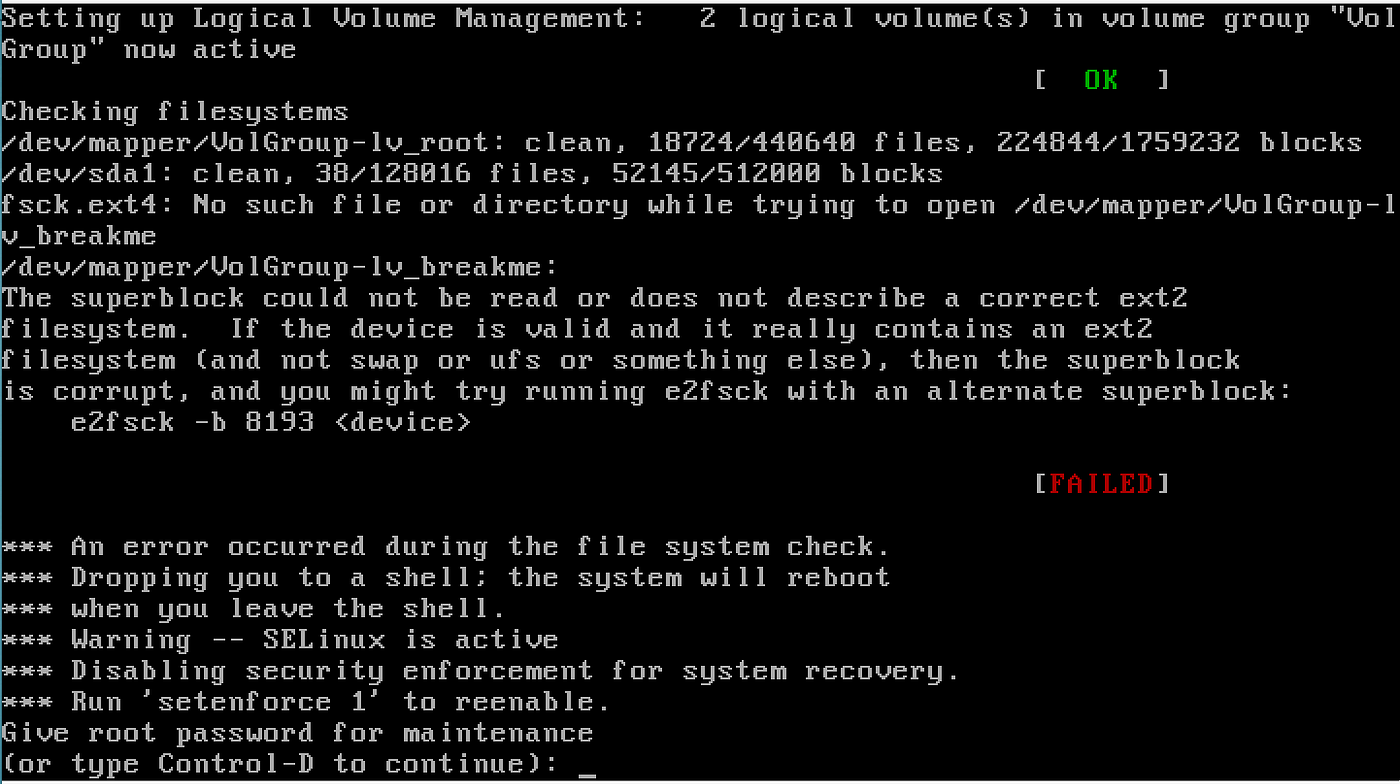
Start maintenance mode during system failures or upgrades. Use it when normal boot fails or causes errors. It helps isolate and solve problems safely.
Credit: medium.com
Importance Of Maintenance Mode
Maintenance mode is a crucial feature in Linux systems that allows you to troubleshoot and fix critical issues without interference from normal operations. It provides a controlled environment where only essential services run, making it easier to identify and resolve problems.
Have you ever faced a situation where your system was too busy or unstable to fix a problem? Maintenance mode gives you a safe way to regain control and repair your system without risking further damage.
Why Maintenance Mode Is Essential For System Recovery
When your Linux system encounters severe errors, normal boot processes might fail or become unreliable. Maintenance mode boots the system with minimal services, helping you isolate the root cause of the problem.
This mode ensures that no conflicting applications or users interfere, giving you a clear path to recovery.
How Maintenance Mode Helps In System Updates And Configuration
Updating or changing system configurations can sometimes cause unexpected issues. Running these tasks in maintenance mode reduces risks because the system is in a stable, minimal state.
You can safely modify critical files or apply patches without worrying about other processes disrupting the changes.
Security Benefits Of Using Maintenance Mode
Maintenance mode limits access to the system, usually requiring root credentials. This restriction prevents unauthorized users from making harmful changes during sensitive operations.
It also minimizes exposure to network threats by disabling unnecessary services, protecting your system during crucial maintenance tasks.
When Should You Use Maintenance Mode?
- If your system fails to boot normally or crashes frequently.
- Before performing major updates or configuration changes.
- To repair corrupted filesystems or recover deleted data.
- When investigating security breaches or malware infections.
Asking yourself, “Is my system stable enough for normal operations?” can help you decide if maintenance mode is necessary.
Preparing For Maintenance Mode
Preparing for maintenance mode is essential for smooth system updates or repairs. It helps avoid data loss and service interruptions. Proper preparation ensures a safe environment for system changes. You must follow clear steps before starting maintenance mode.
Backing Up Data
Backing up data protects important files from accidental loss. Create copies of critical files and system configurations. Use external drives or cloud storage for backups. Verify backup integrity before proceeding. This step saves time and stress if something goes wrong.
Notifying Users
Inform users about upcoming maintenance to avoid surprises. Send clear messages explaining the start and expected end times. Use emails, system alerts, or messaging apps. This helps users plan their work and reduces confusion. Keep communication simple and direct.
Credit: medium.com
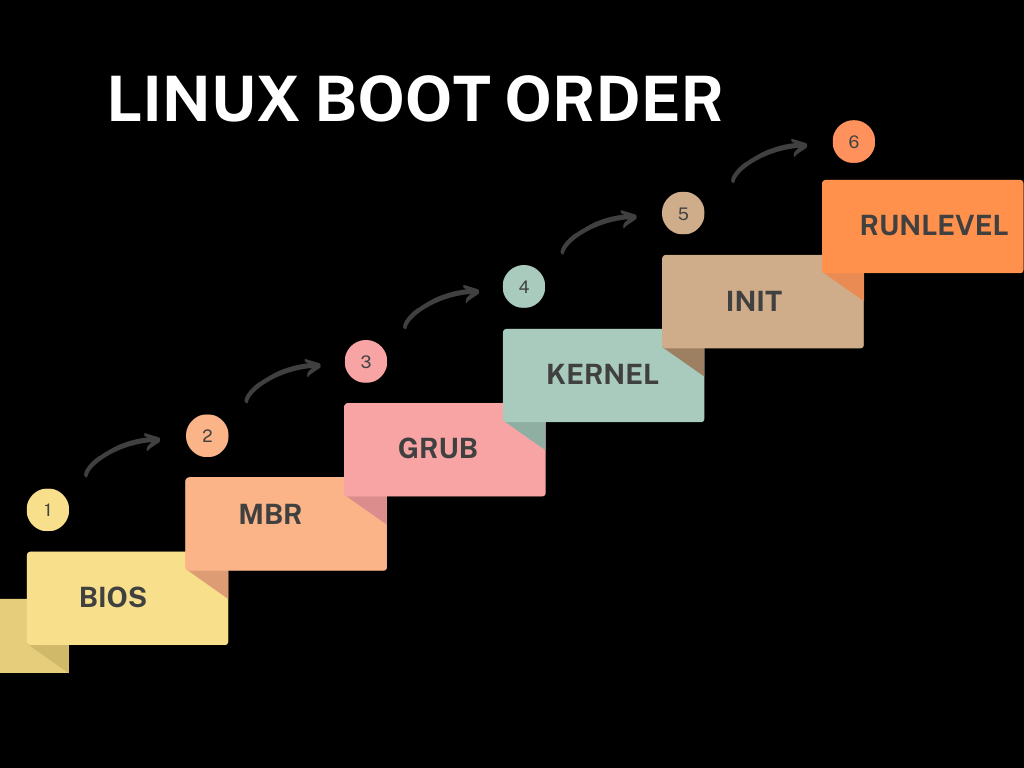
Accessing Boot Menu
Accessing the boot menu is a crucial step to start your Linux system in maintenance mode. It allows you to choose the right boot options or kernel parameters needed for troubleshooting. Knowing how to get into this menu can save you time and prevent frustration when your system needs repair.
Using Grub
The GRUB menu appears right after your computer starts, before Linux loads. To access it, press and hold the Shiftkey or tap Escrepeatedly as your system boots.
Once the menu shows, you’ll see a list of available kernels. Highlight the kernel you want to boot into, then press eto edit its parameters.
Add systemd.unit=maintenance.targetat the end of the line starting with linuxto boot into maintenance mode. Press Ctrl + Xor F10to start with these settings.
Have you ever missed the GRUB menu because it disappeared too fast? Practicing this key press timing can make a big difference.
Accessing Bios
Sometimes, you need to change the boot order or enable specific settings in BIOS before accessing the boot menu. To enter BIOS, restart your computer and press the BIOS key during startup. Common keys include F2, Del, or F10, but this varies by manufacturer.
Inside BIOS, navigate to the boot or startup settings. Here, you can set your system to boot from a specific device or enable advanced boot options.
Remember, BIOS interfaces differ widely. If you don’t see the boot menu option immediately, explore the menus carefully or check your motherboard’s manual.
Entering Maintenance Mode
Entering maintenance mode on a Linux system is essential when you need to perform critical system repairs or updates without interference from other processes. It isolates your system, allowing you to troubleshoot issues safely and efficiently. Understanding how to enter maintenance mode can save you time and prevent further system damage.
Single User Mode
Single User Mode boots your system into a minimal environment where only the root user has access. This mode is perfect for fixing file system errors or resetting passwords because it stops most services and network connections.
To enter Single User Mode, reboot your system and interrupt the boot loader (usually GRUB). Then, edit the boot parameters by adding singleor 1to the kernel line and continue booting.
You’ll land in a root shell without needing a password in most configurations. This direct access gives you full control but also comes with responsibility—any mistake here can affect your whole system. Have you ever felt the power and risk in such a moment?
Emergency Mode
Emergency Mode is an even more restricted environment than Single User Mode. It loads only the most essential services required to repair critical system issues that prevent normal booting.
To enter Emergency Mode, you again interrupt the boot process and add emergencyto the kernel parameters. Unlike Single User Mode, Emergency Mode drops you into a root shell immediately but with minimal system functionality.
This mode is your last resort when the system refuses to boot normally or in Single User Mode. It’s like having a barebones toolkit—basic but enough to fix serious problems.
Performing System Maintenance
Performing system maintenance in Linux’s maintenance mode is crucial to keep your system stable and secure. It allows you to work on critical tasks without interference from regular processes. This focused environment helps you address issues efficiently and prevent potential data loss or system failures.
Checking File System
File system errors can cause serious issues if left unchecked. Use the fsckcommand to scan and repair your disks while in maintenance mode. This tool detects corrupted files, bad sectors, and inconsistencies that might slow down or crash your system.
Run fsck /dev/sdX(replace /dev/sdXwith your actual device name) to start the check. If errors appear, the tool offers options to fix them automatically. Regular file system checks can save you from unexpected downtime.
Updating Software
Keeping your software up to date is vital for security and performance. In maintenance mode, you have full control to safely update system packages without risking interruptions. Use your package manager, like aptor yum, to apply patches and upgrades.
Try running apt update && apt upgradeor yum updatedepending on your distribution. This ensures your system has the latest fixes and features. Have you experienced a bug that vanished after a timely update?
Managing User Accounts
Maintenance mode is the perfect time to manage user accounts securely. You can add, remove, or modify users without other users logged in. This reduces the risk of conflicting changes or unauthorized access during sensitive operations.
Commands like adduser, deluser, and usermodhelp you control user permissions and access. For example, removing unused accounts tightens your system’s security. Are you regularly reviewing who has access to your system?
Exiting Maintenance Mode
Exiting maintenance mode is a crucial step after troubleshooting or system repairs in Linux. It lets your system return to normal operations while ensuring that any issues have been resolved. Understanding how to properly exit this mode can save you from unexpected downtimes or system instability.
Rebooting System
Once you finish your maintenance tasks, rebooting your system is the next step to exit maintenance mode. This process reloads all services and allows the system to boot normally.
To reboot, simply type rebootor systemctl rebootin the terminal. Avoid shutting down abruptly; a clean reboot helps prevent filesystem corruption.
Have you ever noticed how a quick reboot can sometimes fix lingering issues? It’s a simple action that confirms your system is ready for regular use again.
Verifying System Health
After reboot, it’s important to verify your system’s health before resuming full operations. Check essential services with systemctl statusto ensure they are active and running.
Look into system logs using journalctl -xeto catch any hidden errors. Also, confirm network connectivity and disk usage to avoid surprises later.
Taking these few minutes to verify your system’s health can prevent bigger problems down the road. What’s the point of exiting maintenance mode if you don’t know your system is truly stable?
Credit: www.stefanroth.net
Troubleshooting Common Issues
Starting your Linux system in maintenance mode is a powerful way to troubleshoot and fix critical issues. However, you might encounter some common problems that prevent smooth access or operation. Knowing how to identify and resolve these issues quickly can save you valuable time and avoid frustration.
Boot Failures
Boot failures during maintenance mode often occur due to incorrect kernel parameters or corrupted system files. If the system freezes or drops to an emergency shell, check the boot loader configuration (like GRUB) for errors. Sometimes, a missing or misconfigured initramfscan cause the system not to load properly.
Try these quick checks:
- Verify that the boot entry has the correct root device specified.
- Ensure the maintenance mode parameter (usually
singleorrescue) is added correctly. - Use a live USB to repair damaged system files or rebuild
initramfs.
If you face repeated boot failures, ask yourself: Have you recently changed system files or installed new software that might affect startup?
Permission Errors
Permission errors can block you from accessing essential files or running necessary commands in maintenance mode. Since you are operating with root privileges, these errors often point to filesystem issues or incorrect ownership.
Check the following to resolve permission problems:
- Run
ls -lto inspect file permissions on critical files like/etc/passwdor configuration scripts. - Use
chmodandchowncommands to reset permissions to their defaults. - Look for mounted filesystems in read-only mode and remount them with write access if needed.
Have you checked whether the root partition is mounted read-only? This is a common oversight that leads to permission issues in maintenance mode.
Best Practices For Maintenance Mode
Maintenance mode is essential for keeping Linux systems secure and efficient. It lets you perform updates and fixes safely. Following best practices reduces risks and downtime. Careful planning and clear steps help maintain system health.
Regular Maintenance
Schedule maintenance tasks regularly. This includes applying updates and patches. Check system logs for errors and warnings. Clean unnecessary files to free disk space. Monitor system performance to spot problems early. Consistent checks prevent unexpected failures.
Documenting Changes
Record all actions taken during maintenance mode. Note commands run and files changed. Keep a log of software versions updated. Document reasons for each change clearly. This helps track system history and troubleshoot issues. Good records improve team communication and system management.
Frequently Asked Questions
What Is Maintenance Mode In Linux System?
Maintenance mode is a minimal environment for system repairs. It allows troubleshooting without starting full services or multi-user mode. This mode is useful for fixing critical issues safely.
How Do I Boot Linux Into Maintenance Mode?
To boot Linux into maintenance mode, edit the GRUB menu at startup. Add “single” or “rescue” to the kernel parameters. Then press Enter to boot into single-user mode.
Why Use Maintenance Mode On Linux Systems?
Maintenance mode helps fix system errors without full service interference. It provides root access and disables network services. This ensures safe troubleshooting and recovery.
Can I Perform Updates In Maintenance Mode?
Yes, updates can be done in maintenance mode. Limited services reduce conflicts during package installations. Always ensure network access if updates require it.
Conclusion
Starting your Linux system in maintenance mode helps fix many issues. It gives you control to repair files and settings safely. Follow the steps carefully to avoid mistakes. This mode runs with minimal services, making troubleshooting easier. Remember to back up important data before changes.
Practice these steps to feel confident using maintenance mode. It’s a useful skill for managing Linux systems effectively. Keep learning and exploring to improve your system knowledge. Maintenance mode can save time and prevent bigger problems. Give it a try next time your system needs fixing.
Leave a Reply