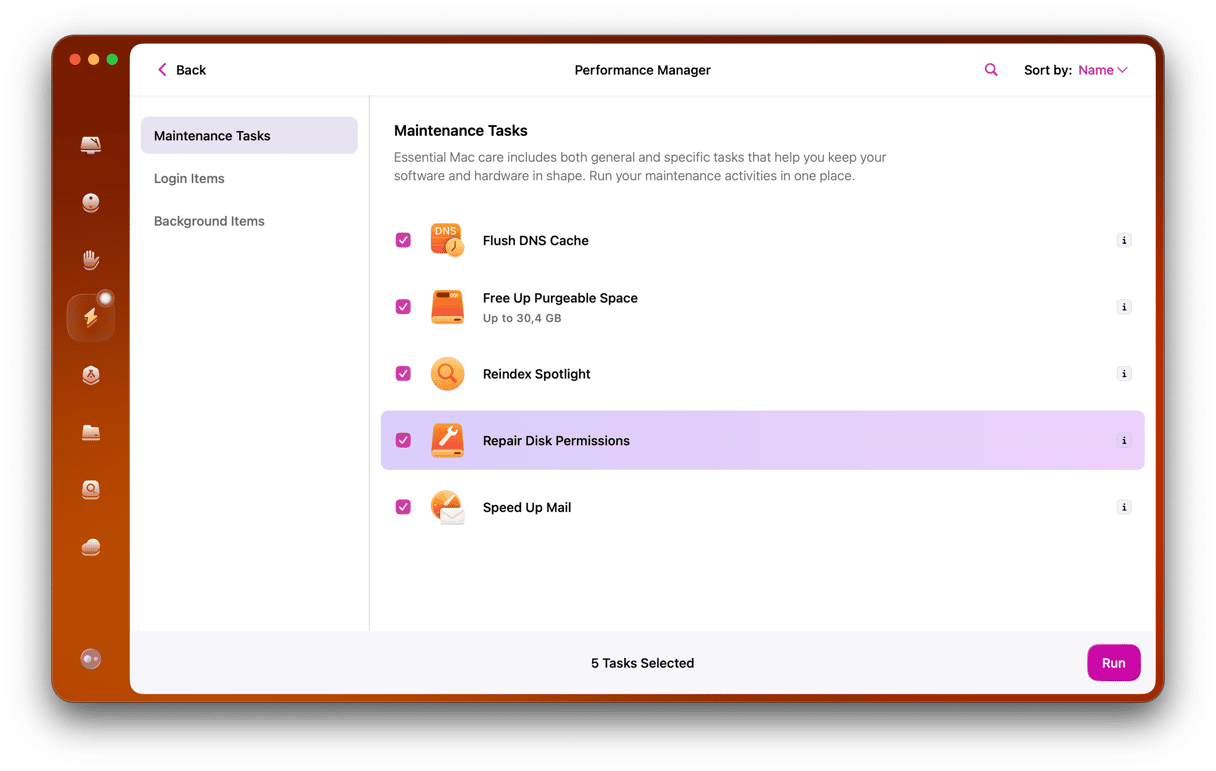
Your Mac is a powerful tool, but like any machine, it needs regular care to run smoothly. If you’ve noticed it slowing down, freezing, or acting up, it’s time for some system maintenance.
Taking a few simple steps can boost your Mac’s speed, free up space, and prevent future problems. You’ll discover easy and effective ways to keep your Mac in top shape—no tech skills required. Keep reading, and make your Mac work faster and smarter for you.
Credit: macpaw.com
Prepare Your Mac For Maintenance
Preparing your Mac for maintenance is a crucial step that sets the stage for smooth and effective system care. Before you dive into cleaning and optimizing, it’s important to safeguard your data and ensure your software is current. This preparation helps prevent data loss and compatibility issues during the maintenance process.
Backup Important Files
Backing up your important files protects you from unexpected data loss. Use Time Machine, Apple’s built-in backup tool, to create a complete snapshot of your Mac. Alternatively, consider cloud services like iCloud, Dropbox, or Google Drive for quick and accessible backups.
Think about the last time you lost a file—did it disrupt your work or personal life? Regular backups mean you won’t have to worry about that ever again. Also, remember to verify your backup to make sure all critical files are included.
Check For Software Updates
Keeping your software updated is key to a healthy Mac. Apple regularly releases updates that fix bugs and improve security. Head to System Settings > General > Software Update to check for the latest macOS version.
Don’t skip updates for your apps either; outdated software can cause conflicts or slow down your system. Have you checked your apps recently? Updating them ensures they work well with the newest macOS and can even add useful features.
Optimize Storage Space
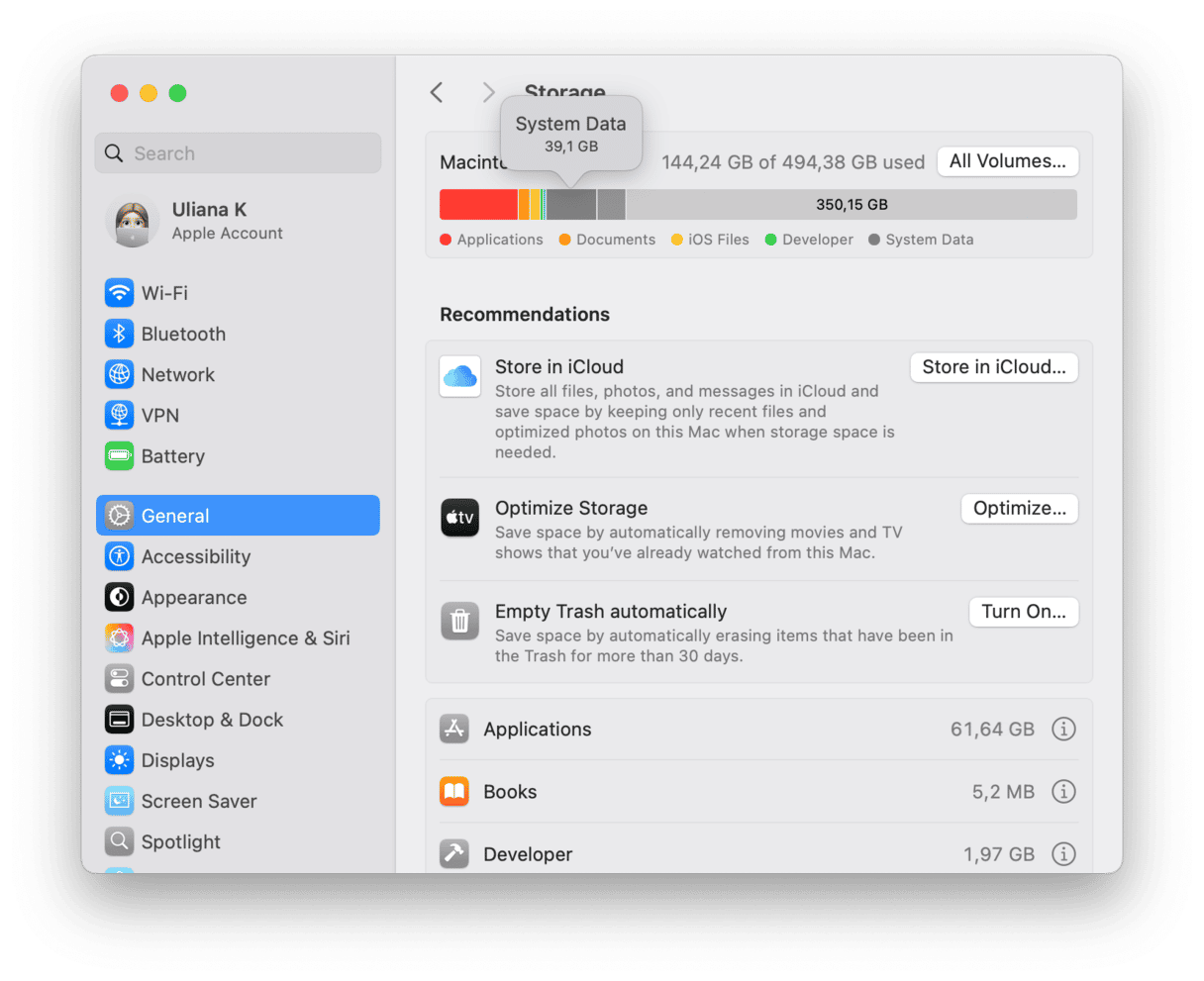
Optimizing storage space on your Mac is key to keeping it running smoothly and efficiently. Over time, your hard drive can become cluttered with files and apps you no longer need. Freeing up space not only improves performance but also makes it easier to find what’s important.
Clear Cache And Temporary Files
Cache and temporary files build up silently in the background. They help apps run faster but can pile up and waste valuable space. You can clear these files manually by going to the Finder, selecting Go > Go to Folder, and typing ~/Library/Caches. From here, delete the contents of folders related to apps you recognize.
If manual cleaning feels risky, apps like CleanMyMac or OnyX can safely remove cache files for you. Remember, clearing cache might slow down apps slightly at first, but it’s a small trade-off for freeing gigabytes of space.
Remove Unnecessary Applications
Have you ever installed an app “just to try it” and forgotten about it? These forgotten apps take up space and sometimes run background processes that drain resources. Go through your Applications folder and ask yourself if you really use each app.
- Drag unwanted apps to the Trash or use Launchpad to uninstall them.
- Consider apps that have large file sizes or haven’t been opened in months as prime candidates for removal.
- Check for leftover files by searching for the app’s name in Finder after deletion.
Cleaning out unused apps can instantly recover several gigabytes of storage.
Organize Files And Folders
Randomly scattered files make your hard drive chaotic and slow down your workflow. Creating a simple system of folders helps you stay organized and spot files you no longer need. Start by grouping files by type or project and labeling folders clearly.
Don’t hesitate to move old files you rarely access to an external drive or cloud storage. This keeps your Mac’s internal storage lighter and faster. Could a little extra organization save you hours of searching later?
Enhance System Performance
Enhancing your Mac’s system performance is key to keeping it running smoothly and efficiently. Small tweaks can make a noticeable difference in speed and responsiveness. Let’s look at practical ways you can optimize your Mac right now.
Manage Startup Programs
Startup programs can slow down your Mac’s boot time significantly. You can control which apps launch automatically by going to System Preferences > Users & Groups > Login Items. Remove unnecessary apps from this list to speed up startup.
Think about the apps you really need immediately after logging in. Do you need your messaging app or photo editor to start every time? Cutting down on startup programs frees up memory and CPU resources, making your Mac feel quicker.
Adjust Energy Saver Settings
Energy Saver settings affect how your Mac balances power use and performance. Open System Preferences > Battery (or Energy Saver on older Macs)to customize these options. For better performance, disable settings like “Put hard disks to sleep when possible” or “Enable Power Nap.”
Have you noticed your Mac slowing down while on battery? Tweaking these settings can help maintain speed without draining your battery too fast. It’s about finding the right balance for your usage.
Update And Manage Drivers
Keeping your drivers up to date ensures hardware components run efficiently. macOS usually handles driver updates automatically through system updates, but it’s good to check manually by visiting System Preferences > Software Update.
If you use external devices like printers or graphics tablets, visit the manufacturer’s website regularly for the latest drivers. Outdated drivers can cause lag or hardware malfunctions, impacting your Mac’s overall performance.
Strengthen Security Measures
Strengthening your Mac’s security is a crucial part of system maintenance. It protects your personal data and ensures smooth, worry-free performance. Taking simple, clear steps can make a big difference in keeping threats at bay.
Enable Firewall Protection
Your Mac comes with a built-in firewall that acts like a gatekeeper, blocking unwanted connections. Turning it on helps prevent hackers and malicious software from accessing your computer through the internet or local network.
To enable the firewall, go to System Preferences > Security & Privacy > Firewall. Click “Turn On Firewall” and customize settings if needed, such as allowing specific apps to receive incoming connections.
Have you checked your firewall settings recently? Many users overlook this simple step, yet it’s one of the easiest ways to tighten security.
Install Antivirus Software
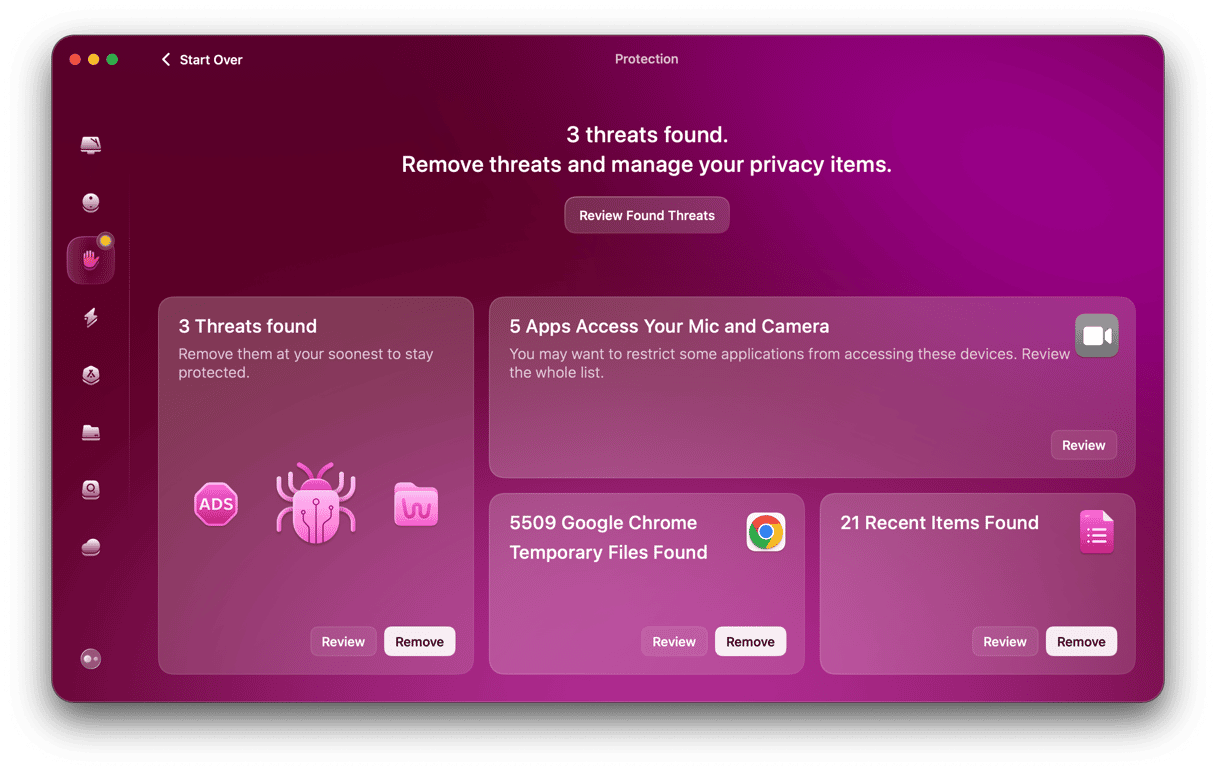
Even Macs are not immune to malware or viruses, so adding antivirus software is a smart move. Good antivirus programs scan for threats, block suspicious files, and keep your system safe without slowing it down.
Look for antivirus tools that offer real-time scanning and regular updates. Apps like Bitdefender or Norton are popular choices that work well on Mac systems.
Think about how often you download files or visit new websites—would you want your Mac protected against hidden risks from those activities?
Set Up Two-factor Authentication
Two-factor authentication (2FA) adds an extra layer of security to your accounts by requiring a second form of verification beyond your password. This drastically reduces the chance of unauthorized access.
You can enable 2FA for your Apple ID and other important online accounts. Use apps like Google Authenticator or receive codes via text messages to complete the login process securely.
Ask yourself: if someone guessed your password, would 2FA stop them from getting in? Setting it up now can save you from potential headaches later.
Regular Maintenance Schedule
Maintaining your Mac regularly keeps it running smoothly and prevents small issues from turning into big headaches. Setting up a regular maintenance schedule helps you stay on top of cleanups and system checks without overwhelming yourself. Splitting tasks into weekly, monthly, and yearly routines makes maintenance manageable and effective.
Weekly Quick Clean
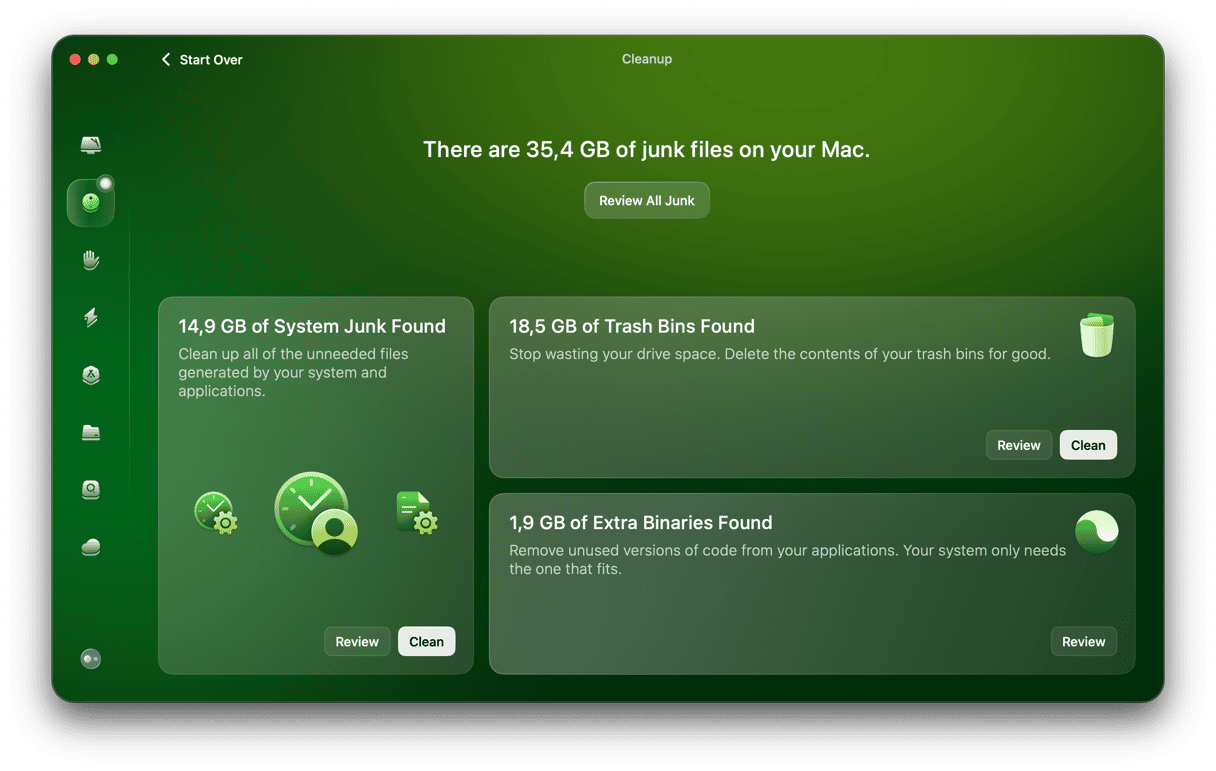
Each week, spend a few minutes clearing out temporary files and emptying your Trash. This quick cleanup prevents unnecessary clutter from building up and slowing down your Mac. You can also close unused applications and restart your Mac to refresh its memory.
Check your Downloads folder and delete files you no longer need. This simple habit frees up space and keeps your system responsive. Have you noticed how a few minutes of weekly care can make your Mac feel brand new?
Monthly Deep Clean
Once a month, dive deeper into system maintenance by deleting old cache files and uninstalling apps you no longer use. Use built-in tools like Disk Utility to verify and repair disk permissions. This helps your Mac run more efficiently and reduces chances of errors.
Don’t forget to update your software and apps during this time. Updates often include important security fixes and performance improvements. How many updates have you postponed that might be slowing your Mac down?
Yearly System Audit
Take time once a year to perform a full system audit. Review your startup items, clean up large files, and back up important data. This thorough check helps you identify hidden issues and optimize your Mac’s overall performance.
Consider resetting the System Management Controller (SMC) or NVRAM if your Mac shows signs of lag or hardware glitches. Have you ever found a forgotten file or app during a yearly audit that was draining your system’s resources?
Credit: macpaw.com
Troubleshooting Common Issues
Macs usually run smoothly, but issues can happen. Troubleshooting helps keep your system fast and reliable. Knowing simple fixes saves time and avoids stress.
Some common problems include slow startup, app crashes, and internet troubles. Each has easy steps to restore normal function. Let’s explore practical ways to solve these issues quickly.
Addressing Slow Startup
Slow startup makes using your Mac frustrating. Clear unwanted login items to speed boot time:
- Open System Preferences.
- Go to Users & Groups.
- Select your user and click Login Items.
- Remove unnecessary apps from the list.
Resetting the NVRAM can also help:
- Turn off your Mac.
- Turn it on and hold Option + Command + P + R for 20 seconds.
- Release keys and let Mac restart normally.
Fixing Application Crashes
Apps crash due to bugs or conflicts. Force quitting and updating apps often fixes this:
- Press Command + Option + Escape.
- Select the crashing app and click Force Quit.
- Open the App Store and check for updates.
- Install any available updates.
Clearing app caches may help too. Use Finder:
- Go to ~/Library/Caches.
- Find the app’s folder and delete its cache files.
- Restart your Mac.
Resolving Connectivity Problems
Internet issues can stop work or entertainment. Start by restarting your Wi-Fi:
- Click the Wi-Fi icon in the menu bar.
- Turn Wi-Fi off, wait a few seconds, then on again.
Resetting network settings can fix deeper problems:
- Open System Preferences.
- Go to Network.
- Select your Wi-Fi and click the minus (-) button to remove it.
- Add Wi-Fi back using the plus (+) button.
- Reconnect to your network with password.
Credit: macpaw.com
Frequently Asked Questions
How Often Should I Perform System Maintenance On Mac?
Perform system maintenance on your Mac monthly for optimal performance. Regular checks help prevent slowdowns and errors. Consistent maintenance keeps your Mac running smoothly and extends its lifespan.
What Are The Essential Steps For Mac System Maintenance?
Key steps include clearing cache, updating macOS, checking disk health, and managing startup items. These actions improve speed and fix issues. Regular backups are also crucial to protect your data.
How Can I Free Up Storage Space On My Mac?
Delete unused apps, clear cache files, and remove large old files. Use the built-in Storage Management tool for recommendations. Freeing up space improves system speed and stability.
Is It Necessary To Update Macos Regularly?
Yes, regular macOS updates include security patches and performance improvements. Keeping your system updated protects against vulnerabilities and ensures compatibility with apps.
Conclusion
Regular system maintenance keeps your Mac running smooth and fast. Clean up files, update software, and check your hardware often. These simple steps help avoid problems and save time later. A well-maintained Mac lasts longer and works better for daily tasks.
Stay consistent with these tips to enjoy a reliable computer. Small efforts now make a big difference in performance. Keep your Mac healthy and stress-free.
Leave a Reply